

Counter-Strike 2 can draw every frame with two different graphics APIs. On Windows it uses DirectX 11 by default, but one short launch option switches it to Vulkan. Some players swear that Vulkan gives smoother aim and higher FPS, while others say it only adds stutter. Both groups can be right, because the result depends on your graphics card, your drivers and your processor.


This guide from the BloodyCase team covers what the -vulkan launch option does, how Vulkan compares with DirectX 11 and how to run a fair test on your own PC. The whole check takes about 15 minutes and tells you more than any FPS chart made on someone else’s computer.
Should You Use -vulkan or -dx11 in CS2?
There is no single best renderer for everyone. Here is the short version:
- CS2 on Windows uses DirectX 11 unless you tell it otherwise.
- Add -vulkan to your launch options to switch to the Vulkan renderer.
- Results depend on your hardware, so always compare both.
- Keep the renderer that gives better 1% lows and a smoother feel.
- Remove -vulkan, or add -dx11, to go back to DirectX 11.
The sections below explain each step and the most common problems.
What Are Vulkan and DirectX 11?
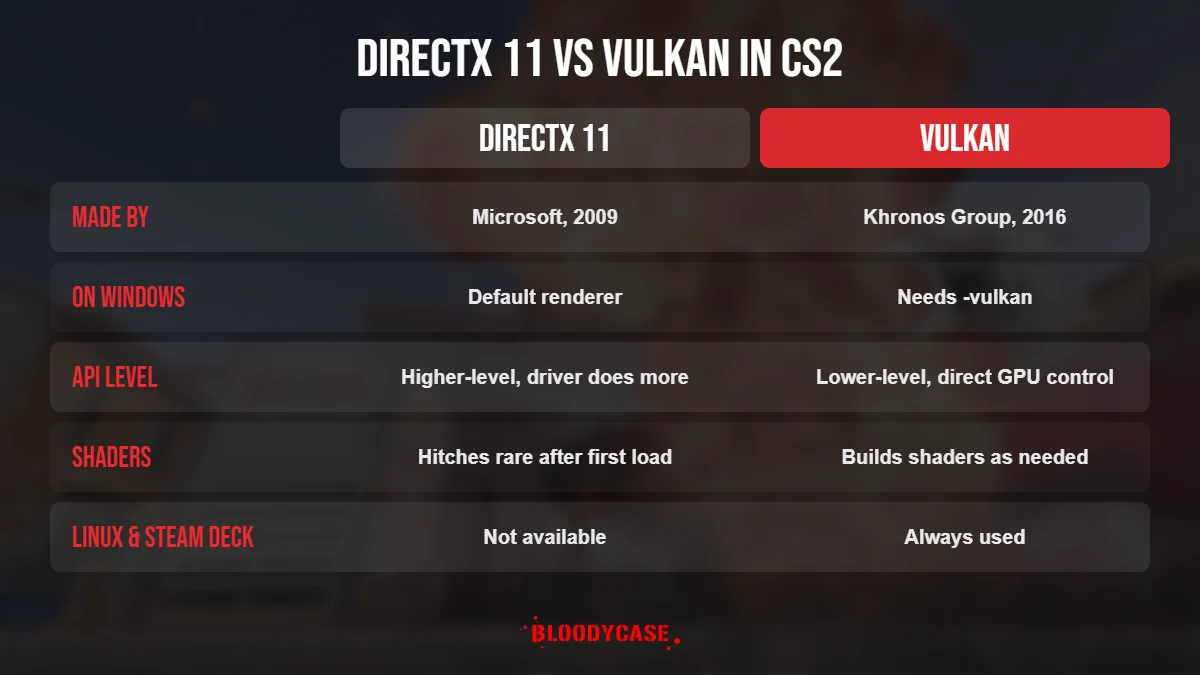
A graphics API is the language a game uses to talk to your graphics card. DirectX 11 is Microsoft’s API, released in 2009, and it is still the most widely supported option on Windows PCs. Vulkan is an open API from the Khronos Group, released in 2016. It is a lower-level API, which means the game has more direct control over the graphics card and the driver does less work in the background.
How CS2 Uses Each Renderer
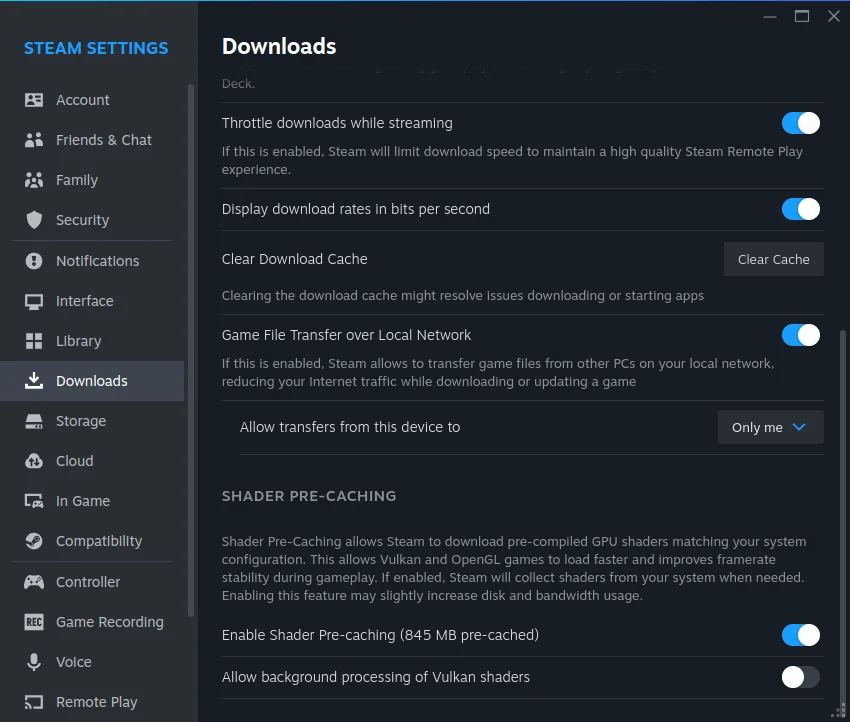
Source 2 supports both APIs. On Windows, CS2 starts with DirectX 11 by default. On Linux and the Steam Deck, the game always runs on Vulkan. Because Vulkan builds shaders as they are needed, the first minutes on a new map can show short hitches until the shader cache is ready. The Shader Pre-Caching option in Steam settings can reduce this.
Vulkan vs DirectX 11 in CS2: Which Gives More FPS?
Community tests show very different results from one system to another. Here is a general comparison:
| Factor | DirectX 11 | Vulkan |
|---|---|---|
| Default on Windows | Yes | No, needs -vulkan |
| Average FPS | Usually equal or higher on NVIDIA cards | Varies, some AMD and Intel Arc cards gain |
| Frame pacing | Stable on most PCs | Smoother on some systems, worse on others |
| Shader stutter | Rare after the first load | Possible on the first maps |
| Stability | Most tested by players | Crashes reported with some drivers |
| Linux and Steam Deck | Not available | Always used |
Results by Graphics Card Brand
Your graphics card brand is the biggest factor:
- NVIDIA: most players report similar or slightly lower average FPS with Vulkan. A few say aiming feels smoother, but measured gains are rare.
- AMD Radeon: results are mixed. Some players see better 1% lows, others see no change, so testing is worth it.
- Intel Arc: in late 2025, an Arc B580 owner measured Vulkan running about 20% faster than DirectX 11 in a Dust II benchmark. Intel’s own tests later showed a smaller gap of around 4 to 7%, and some users reported crashes with Vulkan.
How to Use the CS2 -vulkan Launch Option
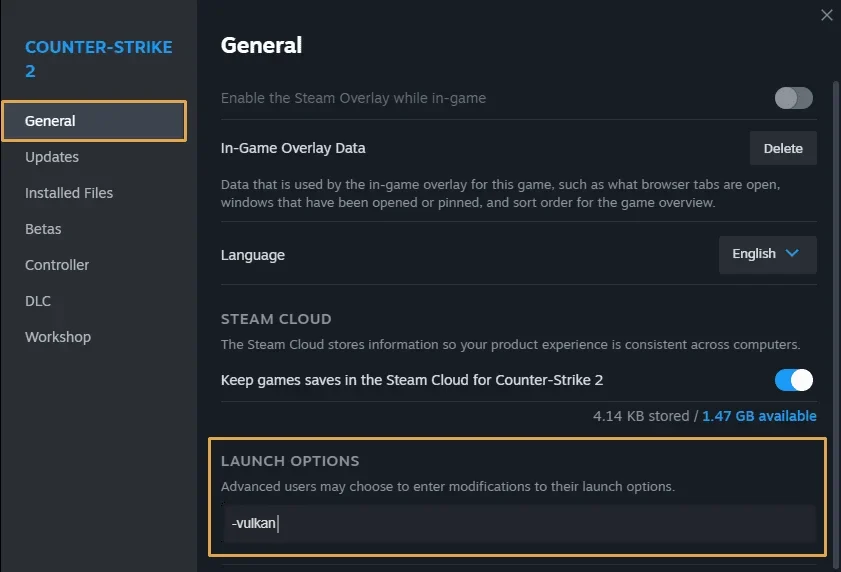
The CS2 Vulkan launch option is simply -vulkan, typed into the Launch Options field in Steam. Switching renderers takes less than a minute:
- Open your Steam Library.
- Right-click Counter-Strike 2 and choose Properties.
- On the General tab, click into the Launch Options field.
- Type -vulkan. If you already have other options, add a space before it.
- Close the window and start CS2.
The first launch may take longer while the game prepares shaders. This is normal and only happens once per map or driver update.
How to Go Back With the CS2 -dx11 Launch Option
To return to DirectX 11, simply delete -vulkan from your launch options. You can also add -dx11 to force the DirectX 11 renderer, which is handy if you share a PC or want to be sure which API is active. Never keep -vulkan and -dx11 in the same line, because the game can only use one of them.
How to Test Vulkan Properly
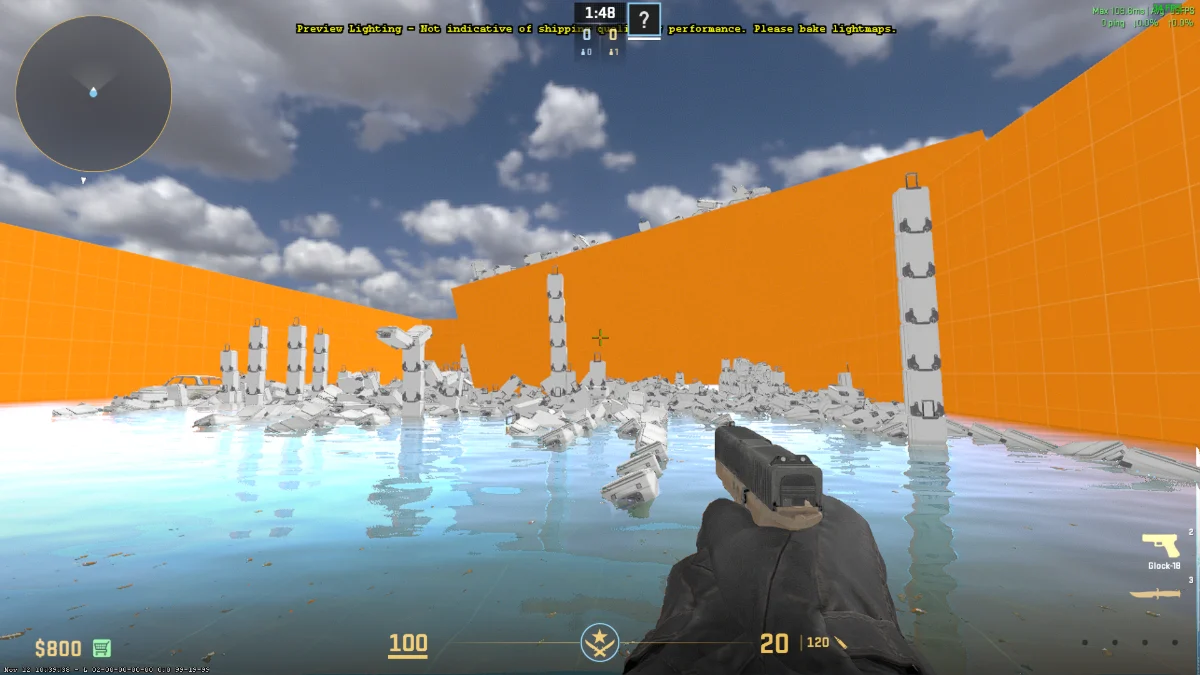
A fair comparison needs the same settings and the same test. Follow these steps:
- Keep all video settings and your resolution exactly the same for both tests.
- Run a Workshop benchmark map three times on DirectX 11 and note the average FPS and 1% lows.
- Switch to -vulkan and play one or two matches first, so the shader cache can build.
- Run the same benchmark three times on Vulkan.
- Play deathmatch on both renderers and pay attention to how aiming and movement feel.
What to Look For
Higher average FPS is nice, but 1% lows matter more, because they show the small drops you feel during fights. Also watch for hitches when smokes, molotovs or new players appear on screen. If Vulkan gives similar numbers but feels worse, go back to DirectX 11.
Fixing Problems After Switching to Vulkan
If something goes wrong, try these fixes in order:
- The game crashes or shows a black screen: remove -vulkan and start CS2 again.
- Heavy stutter that does not go away: update your graphics driver and play a few more matches.
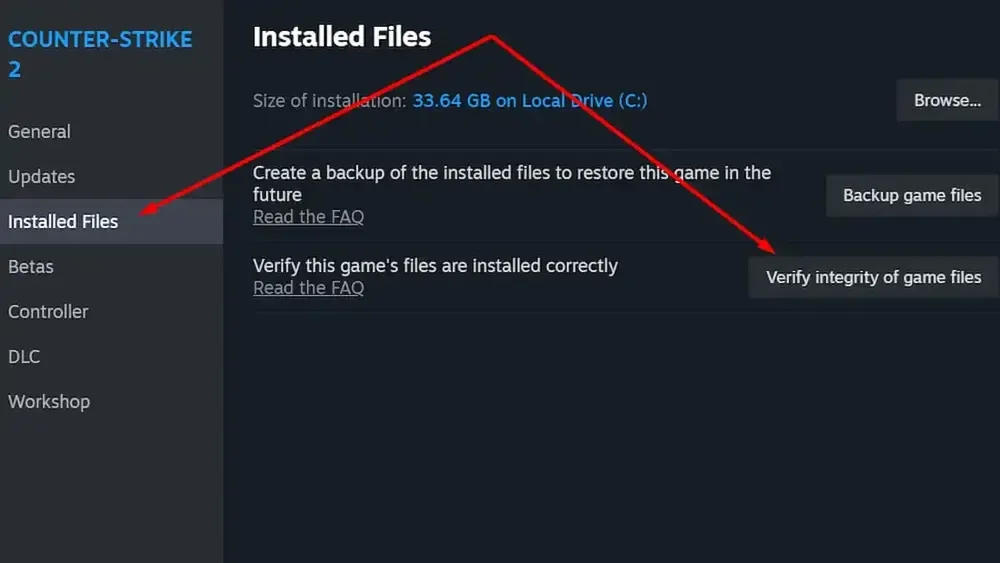
- Visual glitches or missing textures: verify the integrity of game files in Steam.
- Low FPS after a driver update: clear your graphics driver’s shader cache and restart the PC.
- Overlay problems: turn off third-party overlays and FPS counters while testing.
Other Settings That Matter More Than the Renderer
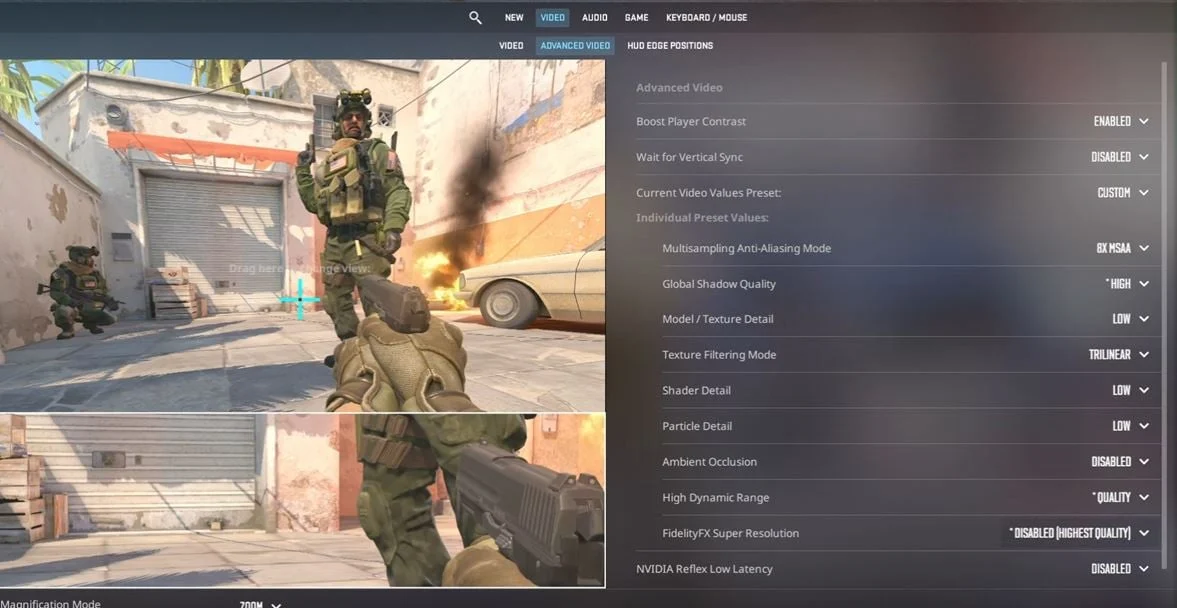
The renderer is only one part of performance. Before spending hours on API tests, check these basics:
- Play in fullscreen mode at your monitor’s native refresh rate.
- Lower heavy options like Shadow Quality and Ambient Occlusion.
- Keep your graphics driver up to date.
- Cap your frame rate with fps_max slightly above your refresh rate.
So, Vulkan or DirectX 11 for CS2?
For most Windows players, DirectX 11 remains the safe and stable choice, and it needs no launch option at all. Vulkan is worth testing if you use an AMD or Intel Arc graphics card, or if DirectX 11 gives you poor 1% lows. Measure both with the same benchmark, keep the one that feels better and remember that -dx11 is always there to bring you back. Repeat the test after big driver or CS2 updates, because the winner can change from one version to the next.
FAQ
Is -vulkan better for low-end PCs?
Sometimes. On older or weaker systems, Vulkan can help when the processor is the bottleneck, but it can also add stutter. Test both renderers before deciding.
Does Vulkan reduce input lag in CS2?
Some players say aiming feels more direct on Vulkan, but there is no clear proof that it reduces input lag for everyone. Your frame rate and frame pacing matter much more.
Can the -vulkan launch option get me banned?
No. It is a normal launch option that changes the graphics API. It does not modify game files and has nothing to do with VAC.
Why does CS2 stutter after switching to Vulkan?
The game is building new shaders. Play one or two matches on different maps, and the stutter should become much smaller.
How do I know which renderer CS2 is using?
The renderer follows your launch options. If -vulkan is in the Launch Options field, CS2 runs on Vulkan. Otherwise, it uses DirectX 11.

I’m John Stevens, guy who is completely passionate about playing CS2. For me, it’s not just a hobby, it’s a way of life. I spend most of my time developing strategies, practicing, and participating in amateur championships.
Through this blog, I aim to inspire, entertain, and unite other gamers.
So join me on this incredible journey through the cs2 world. Together, we will explore the ins and outs of CS2, discuss the latest gaming news, and dive into the exciting world of eSports. My blog is created to provide insights, reviews, and thought-provoking content that will keep you coming back for more.