

You click Play, the Counter-Strike 2 window opens, and then nothing. No menu, no logo, just a black screen, sometimes with game sounds playing in the background. It is one of the most common CS2 problems, and the good news is that it almost never means something is wrong with your PC. In this guide, the BloodyCase team explains why the CS2 black screen on launch happens and how to fix it, even if you have never touched game settings or launch options before.
![Funny [YELLOW] Case case cs go](https://rs.bloodycase.com/?url=cdn.bloodycase.com/cases/1475894062878822400.webp&w=370&h=336&output=webp&q=100)
![Funny [RED] Case case cs go](https://rs.bloodycase.com/?url=cdn.bloodycase.com/cases/1475893882817351680.webp&w=370&h=336&output=webp&q=100)
![Funny [PURPLE] Case case cs go](https://rs.bloodycase.com/?url=cdn.bloodycase.com/cases/1475893755763494912.webp&w=370&h=336&output=webp&q=100)
![Funny [BLUE] Case case cs go](https://rs.bloodycase.com/?url=cdn.bloodycase.com/cases/1475894282886844416.webp&w=370&h=336&output=webp&q=100)
![Funny [GREEN] Case case cs go](https://rs.bloodycase.com/?url=cdn.bloodycase.com/cases/1475894570033090560.webp&w=370&h=336&output=webp&q=100)
Every fix below is short and tells you exactly where to click. Most players solve the issue within the first few steps, so you will be back to Premier matches and case openings on BloodyCase in no time.
How to Fix the CS2 Black Screen
In most cases, the black screen appears because CS2 uses video settings your monitor does not accept, your graphics driver is outdated or an overlay blocks the image. Try these fixes in this exact order:
- Press Alt+Enter to switch CS2 to windowed mode.
- Add -sw to the CS2 launch options in Steam.
- Rename cs2_video.txt to reset your video settings.
- Update your graphics driver.
- Disable Discord, Steam and GPU overlays.
- Verify integrity of game files in Steam.
Below, each step is explained in detail.
Quick Fixes to Try First
Start with these simple checks. They take less than five minutes and solve a surprising number of black screen issues.
Wait for Shader Preparation
After a major update or a new graphics driver, CS2 may need extra time to prepare shaders on the first launch. On slower PCs the screen can stay black for a minute or two. Give it up to three minutes before you assume something is broken.
Switch Display Mode with Alt+Enter
Press Alt+Enter while the black screen is showing. This switches CS2 between fullscreen and windowed mode. If the menu suddenly appears, open Settings, go to Video and set Display Mode to Fullscreen Windowed or a resolution that your monitor supports.
Restart Steam and Your PC
Close CS2 with Alt+F4 or Task Manager, exit Steam completely and restart your computer. This clears stuck processes and finishes any pending driver or Windows installations that might block the game.
Fix the Black Screen with Launch Options
Launch options are short commands that tell CS2 how to start before the game even loads its menu. They are perfect for overriding broken video settings and can also help troubleshoot issues when cs2 won’t launch. To open them, go to your Steam Library, right-click Counter-Strike 2, choose Properties and find the Launch Options field on the General tab.
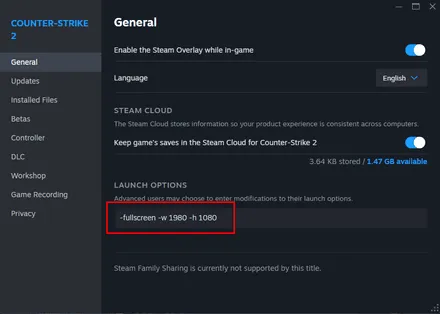
Useful Launch Options for a Black Screen
The table below lists the options that help most often. You can combine them by separating them with a space.
| Launch Option | What It Does | When to Use It |
|---|---|---|
-sw or -windowed |
Starts CS2 in a window | First option to try for any black screen |
-fullscreen |
Forces exclusive fullscreen | If windowed mode works but fullscreen does not |
-w 1920 -h 1080 |
Forces a specific resolution | Replace numbers with your monitor’s native resolution |
-refresh 60 |
Forces a refresh rate in Hz | If you use a 144 Hz or 240 Hz monitor and get no signal |
-vulkan |
Switches CS2 to the Vulkan renderer | If DirectX 11 keeps giving a black screen |
How to Add Them Correctly
Follow these steps to avoid typos:
- Open the Launch Options field in CS2 Properties.
- Type -sw -w 1920 -h 1080, using your own resolution.
- Close the window and launch the game.
- If the menu appears, fix your Video settings inside CS2.
- Return to Launch Options and delete the commands you no longer need.
Removing temporary options is important, because leaving -sw or -vulkan in place can cause performance drops later.
Reset Your CS2 Video Settings
If you changed resolution or display mode and the black screen appeared right after, your saved video config is probably the problem. This can happen when experimenting with CS2 stretched res or switching between display modes. Resetting your video settings forces CS2 to start with safe default settings.
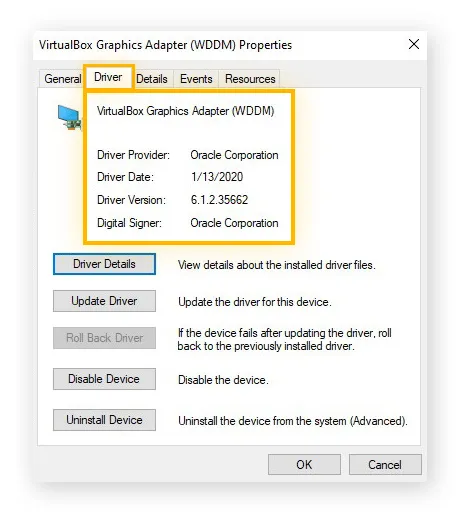
Where to Find the Video Config File
The file is called cs2_video.txt. Go to Steam\userdata\[your Steam ID number]\730\local\cfg. If you have several folders inside userdata, check the one with the most recent date. Rename the file to cs2_video_old.txt instead of deleting it, so you can restore it later if needed. Launch CS2, and the game will create a fresh file with default video settings.
Update or Reinstall Your Graphics Drivers
Graphics drivers are the most common source of black screen issues, especially after a large CS2 patch. Both NVIDIA and AMD regularly release drivers with fixes specifically for Counter-Strike 2.
Clean Driver Install Tips
A normal update is usually enough, but a clean installation helps when an update did not change anything:
- NVIDIA users can download the latest driver through the NVIDIA app or the official website.
- AMD users should use AMD Software: Adrenalin Edition to update.
- Laptop owners should make sure CS2 runs on the dedicated GPU, not the integrated one.
- For a full reset, use Display Driver Uninstaller (DDU) in Safe Mode, then install the latest driver.
Disable Overlays and Background Apps
Overlays draw extra layers on top of the game, and sometimes they block the image completely. Temporarily turn off the following before launching CS2:
- Steam overlay: Steam, Settings, In Game, disable the overlay.
- Discord overlay: User Settings, Game Overlay, turn it off.
- NVIDIA or AMD in-game overlays and instant replay features.
- MSI Afterburner, RivaTuner and FPS counters.
- Screen recording and streaming software running in the background.
If the black screen disappears, turn the overlays back on one by one to find the one causing trouble.
Verify Game Files in Steam
Damaged or missing files can stop CS2 from loading its menu. Steam can check and repair them automatically:
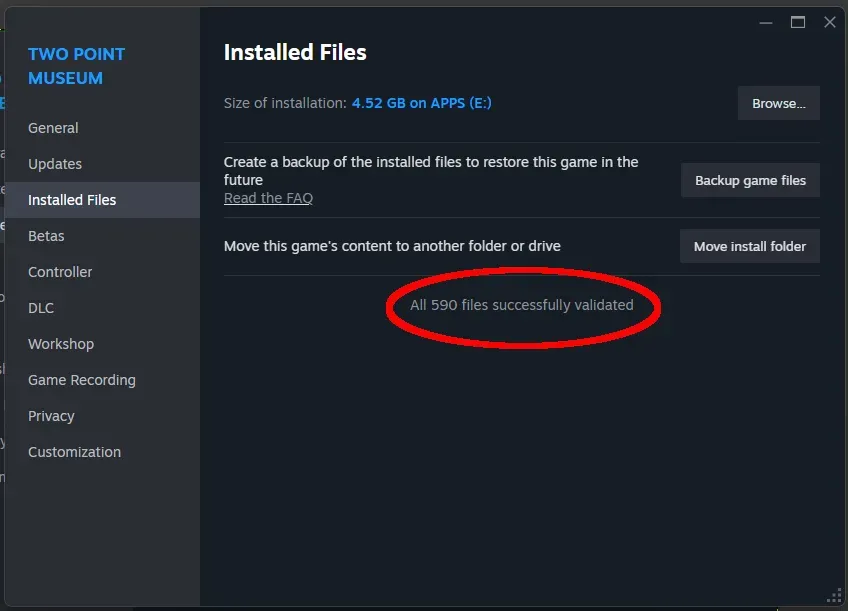
- Right-click Counter-Strike 2 in your Steam Library.
- Choose Properties, then open the Installed Files tab.
- Click Verify integrity of game files.
- Wait until Steam finishes and re-downloads any broken files.
The check can take several minutes. Do not launch the game until it is completely done.
Other Fixes for Stubborn Cases
If you have reached this point and still see black, the cause is likely related to your specific hardware setup. These fixes target less common situations.
Multi-Monitor and HDR Setups
Unplug or disable your second monitor and launch CS2 again. Also turn off HDR in Windows display settings. If the game works, set your main monitor as the primary display in Windows before reconnecting the second one.
Disable Fullscreen Optimizations
Go to Steam\steamapps\common\Counter-Strike Global Offensive\game\bin\win64, right-click cs2.exe and choose Properties. On the Compatibility tab, tick Disable fullscreen optimizations and click Apply. This stops Windows from changing how the game handles fullscreen mode.
So, What Is the Fastest Way to Fix a CS2 Black Screen?
A CS2 black screen on launch looks scary, but it is usually caused by a simple mismatch between your video settings and your monitor. Start with Alt+Enter and the -sw launch option, reset your video config, then update drivers and disable overlays. In most cases you will see the main menu again in just a few minutes. Once everything works, remove temporary launch options, and get back to your matches and your next case opening on BloodyCase.
FAQ
Why does CS2 show a black screen while I can still hear sounds?
The game is running, but your monitor cannot display the resolution or refresh rate CS2 is using. Press Alt+Enter or launch with -sw, then set correct video settings in the menu.
Will resetting cs2_video.txt delete my crosshair or binds?
No. This file stores only video settings like resolution and graphics quality. Your crosshair, binds and sensitivity are saved in other files and stay untouched.
What is the difference between a black screen and a crash?
With a black screen, the game window stays open but shows nothing. With a crash, CS2 closes completely and you return to the desktop. They need different fixes.
Why did the black screen appear right after a CS2 update?
Updates often change how the game renders graphics, and old drivers or saved settings can conflict with the new version. Update your driver and give the first launch a few minutes.
Do I need to reinstall CS2 to fix a black screen?
Usually not. Verifying game files repairs damaged files much faster. Reinstall only if every other fix in this guide has failed.

I’m John Stevens, guy who is completely passionate about playing CS2. For me, it’s not just a hobby, it’s a way of life. I spend most of my time developing strategies, practicing, and participating in amateur championships.
Through this blog, I aim to inspire, entertain, and unite other gamers.
So join me on this incredible journey through the cs2 world. Together, we will explore the ins and outs of CS2, discuss the latest gaming news, and dive into the exciting world of eSports. My blog is created to provide insights, reviews, and thought-provoking content that will keep you coming back for more.