

Watch almost any Counter-Strike 2 pro stream and you’ll notice something odd: enemies look strangely wide and the whole world seems slightly squished. That’s cs2 stretched res – running a 4:3 image forced onto a 16:9 monitor to make targets bigger. This BloodyCase guide cuts straight to what it does, how to set it up properly in Source 2, and whether it’s actually worth switching from native.
![Funny [YELLOW] Case case cs go](https://rs.bloodycase.com/?url=cdn.bloodycase.com/cases/1475894062878822400.webp&w=370&h=336&output=webp&q=100)
![Funny [RED] Case case cs go](https://rs.bloodycase.com/?url=cdn.bloodycase.com/cases/1475893882817351680.webp&w=370&h=336&output=webp&q=100)
![Funny [PURPLE] Case case cs go](https://rs.bloodycase.com/?url=cdn.bloodycase.com/cases/1475893755763494912.webp&w=370&h=336&output=webp&q=100)
![Funny [BLUE] Case case cs go](https://rs.bloodycase.com/?url=cdn.bloodycase.com/cases/1475894282886844416.webp&w=370&h=336&output=webp&q=100)
![Funny [GREEN] Case case cs go](https://rs.bloodycase.com/?url=cdn.bloodycase.com/cases/1475894570033090560.webp&w=370&h=336&output=webp&q=100)
No fluff – just the working settings, the honest trade-offs, and the launch/console tips that actually apply to CS2 (not the outdated CS:GO commands most guides still copy-paste). BloodyCase built this for players who want a real competitive edge without wasting an afternoon fighting black bars.
How to Get Stretched Res on CS2 (Step by Step)
Here’s how to get stretched res on cs2 in a couple of minutes. You need two changes: one in-game, one in your GPU driver.
- Open Settings > Video.
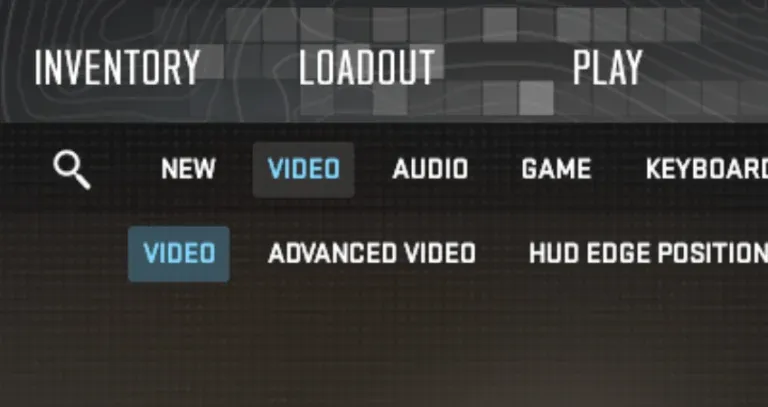
- Set Display Mode to Fullscreen (windowed will not stretch).
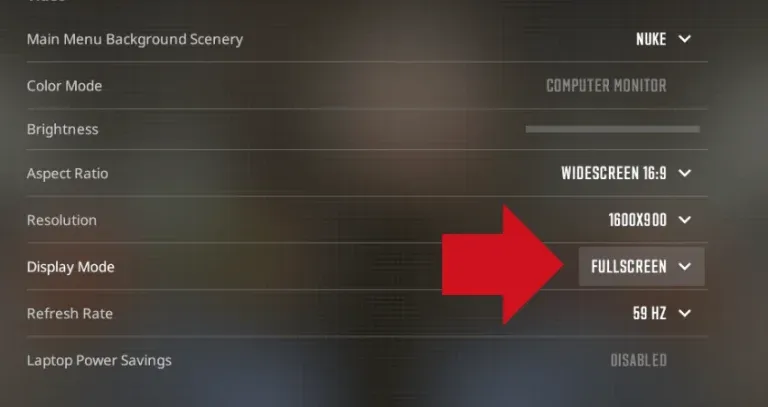
- Set Aspect Ratio to 4:3.
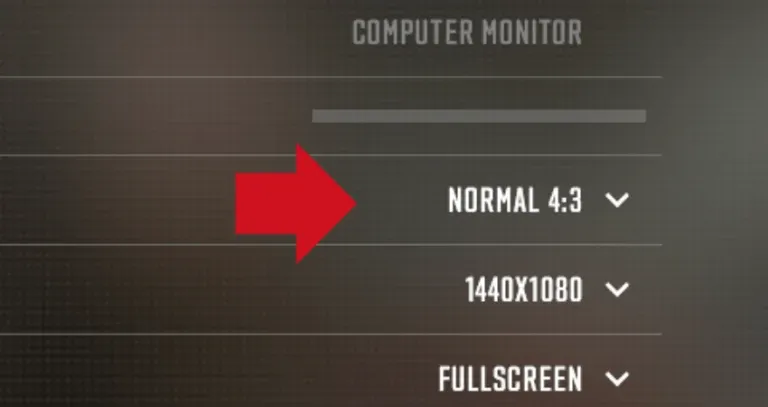
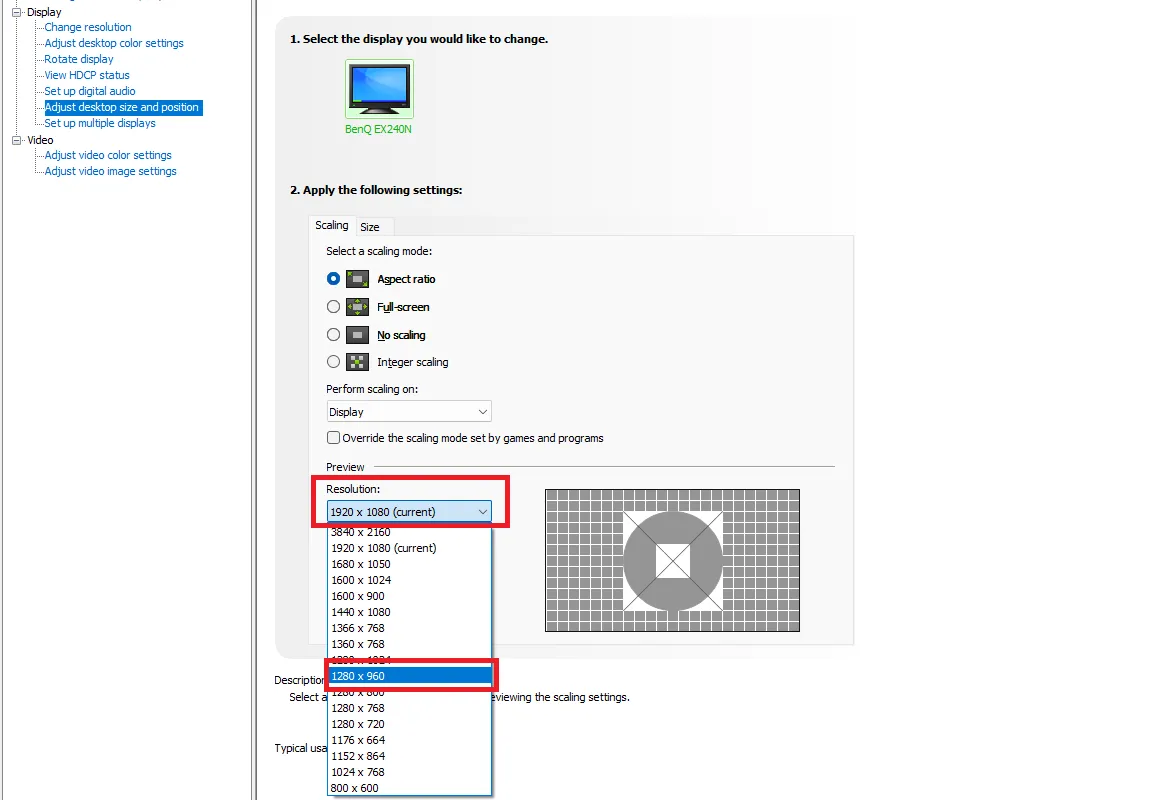
- Pick a resolution – 1280×960 is the standard choice.
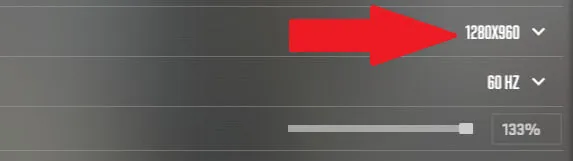
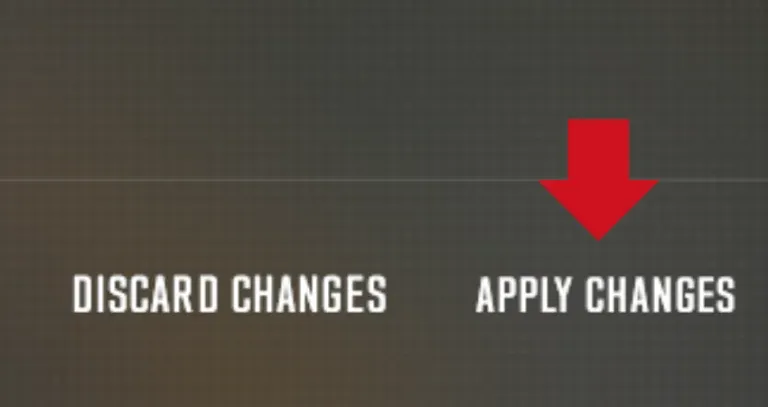
- Apply and restart if prompted.
What Stretched Res Actually Does
Stretched resolution means selecting a 4:3 aspect ratio (like 1280×960) and letting your graphics card stretch that narrower image across your wide screen. Player models become wider and a touch shorter, so they feel easier to hit, while your field of view (FOV) narrows, leaving less to track on the sides.
The one Source 2 detail every guide gets wrong: CS2 itself does not stretch the image – your GPU driver does. If your driver scaling isn’t configured, you’ll get black bars instead of a stretched picture, no matter what you pick in-game.
Fixing Black Bars: The GPU Side
If you still see black bars, your cs2 stretched res settings aren’t finished – the actual stretch happens at the driver level, so you have to force it there.
NVIDIA
- NVIDIA Control Panel > Display > Adjust desktop size and position.
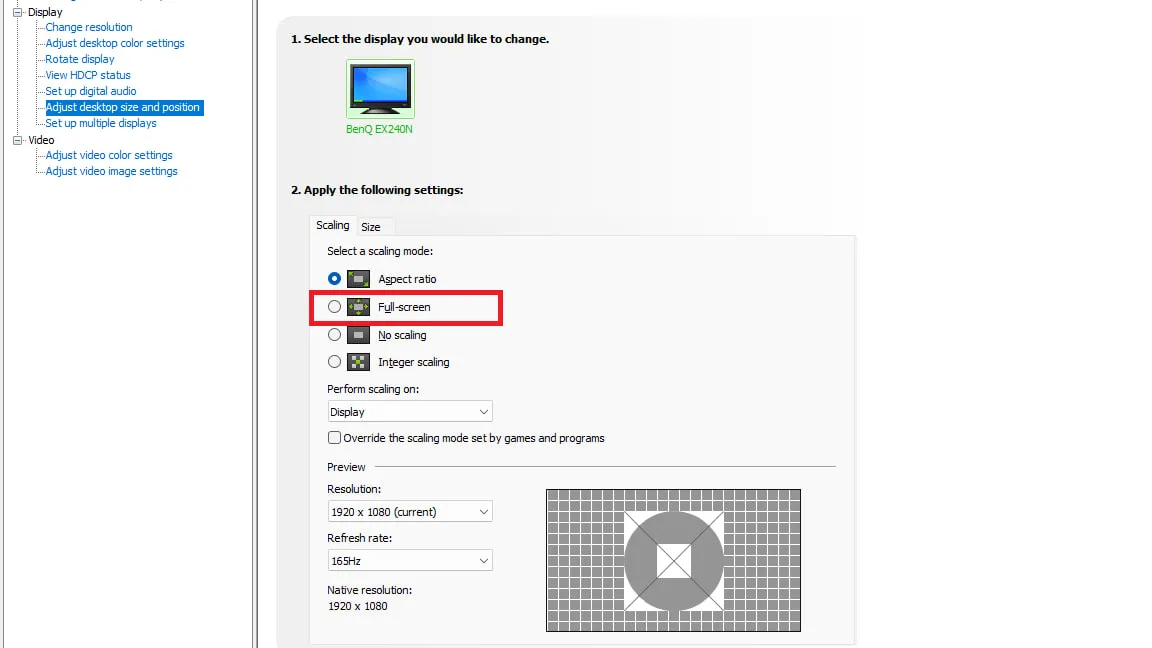
- Scaling mode: Full-screen.
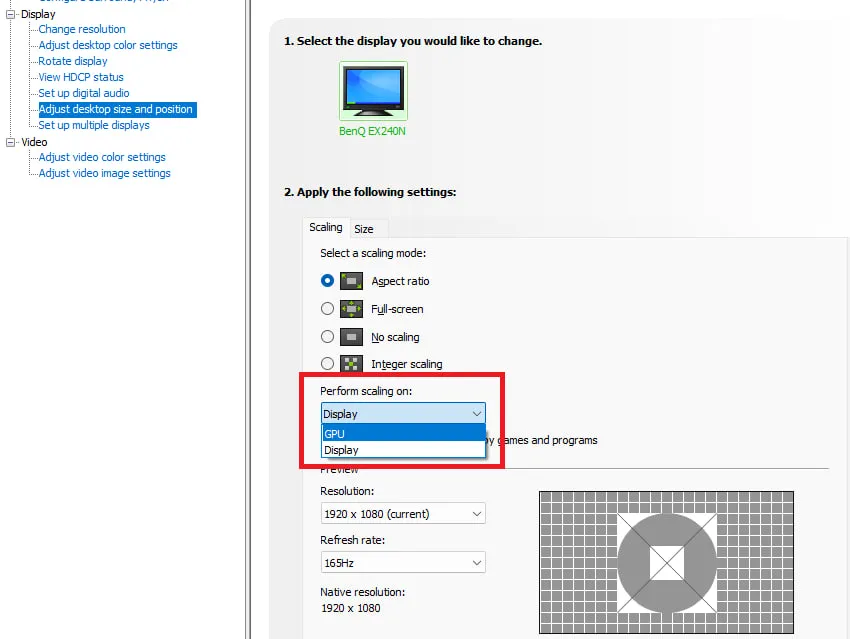
- Perform scaling on: GPU.
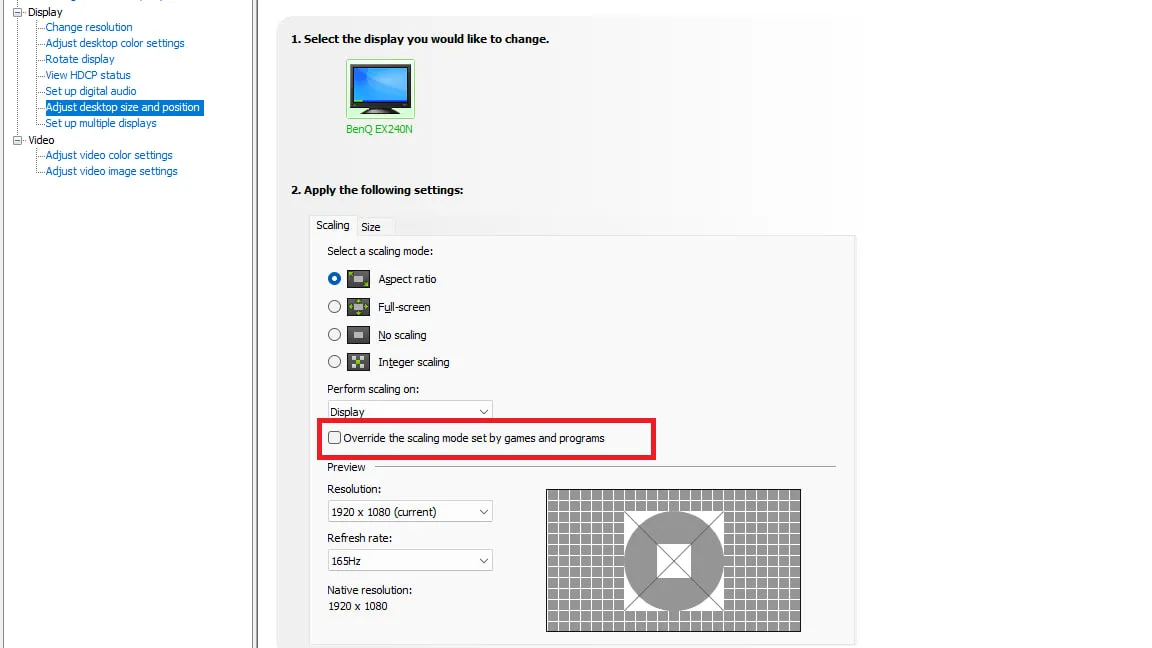
- Tick “Override the scaling mode set by games and programs”, then Apply.
AMD
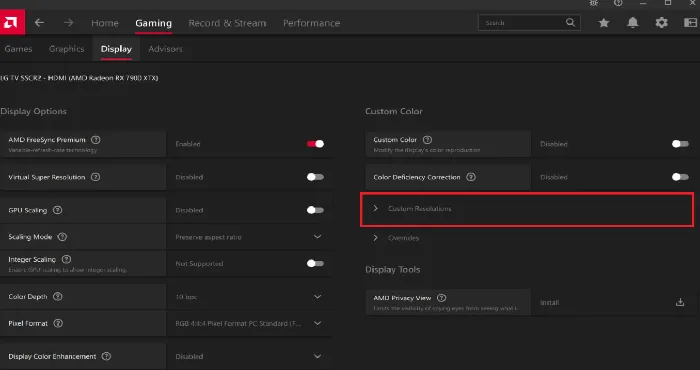
- AMD Software: Adrenalin Edition > Display.
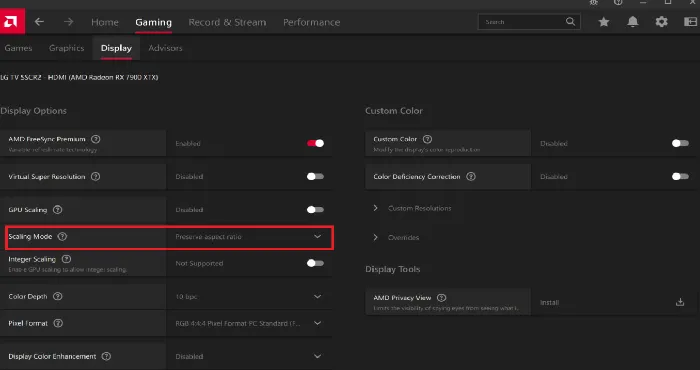
- GPU Scaling: On.
- Scaling Mode: Full Panel.
Extra tips that save you time
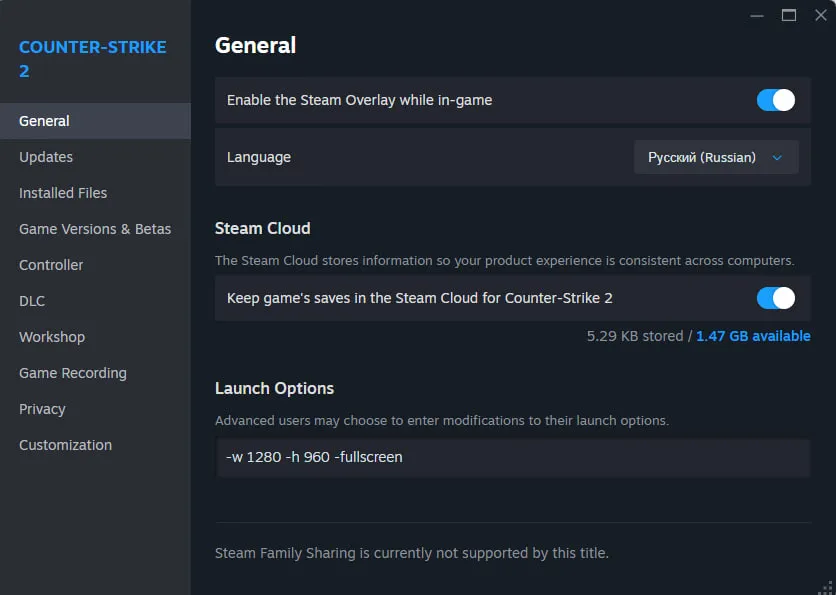
- Launch options -w 1280 -h 960 -fullscreen force the resolution at startup – but you still choose 4:3 in the in-game video menu.
- Ignore any guide telling you to type mat_setvideomode 1280 960 0 – that’s a legacy CS:GO console command and does nothing in Source 2.
- On Windows 11, disable “Optimizations for windowed games” and remove -windowed / -noborder so CS2 runs true exclusive fullscreen.
The Best Resolutions to Try
The best stretched res for cs2 depends on your monitor and your hardware. These three cover almost everyone:
- 1280×960 – the community standard and the balance most pros run.
- 1024×768 – maximum FPS and the widest model distortion, at the cost of the softest image.
- 1440×1080 – scales more cleanly on a 1440p screen; use this instead of 1280×960 if enemies look like a blurry smear.
Adapting Your Aim and Setup
Learning how to play stretched res cs2 is mostly about adaptation, not new mechanics. Give it a few sessions before you judge it:
- Sensitivity: your value doesn’t change, but horizontal flicks feel faster. Leave your sens alone for the first few hours, let your brain adjust, then micro-tweak.
- Crosshair: it stretches too. A small static crosshair or a simple dot stays precise.
- Practice: jump into an aim map or deathmatch and relearn spray control – wider models change how recoil patterns read.
- Responsiveness: enable NVIDIA Reflex (nearly every pro runs it) and Raw Input for the sharpest feel.
Benefits and Drawbacks
Advantages
- Wider enemy models – bigger targets to your eye, especially in close duels and sprays.
- More FPS – 1280×960 renders far fewer pixels than 1920×1080, a real boost FPS on weaker PCs.
- Tighter focus – the narrower FOV strips visual clutter from the edges of the screen.
Disadvantages
- Less peripheral vision – you spot wide flanks and rotations later than a 16:9 player.
- Blur – the image is upscaled, so it looks noticeably soft on 1440p and 4K panels.
- Different mouse feel – horizontal flicks feel faster until your muscle memory adapts.
Do the Pros Actually Use It?
For years the answer to “what’s the cs2 best stretched res” was simply 4:3 at 1280×960, and plenty of stars still run exactly that – s1mple, m0NESY, donk and NiKo among them. But the Source 2 scene has shifted to roughly a 50/50 split: slightly more players moved to 16:9 native in CS2 than in CS:GO, partly because Source 2’s crisper models hold up well at full resolution. The takeaway is there’s no forced meta – it’s genuinely down to preference.
Set it up with the steps above, commit for a few days, and judge it on your own results rather than the debate. That’s the BloodyCase take: lock in one setup and let muscle memory do the rest.
Frequently Asked Questions
1280×960 (4:3 stretched) is the community and pro standard. On a 1440p monitor, 1440×1080 looks noticeably sharper; for the absolute highest FPS, 1024×768 works but is the blurriest of the three.
Go to Settings > Video, set Display Mode to Fullscreen, Aspect Ratio to 4:3, and a 4:3 resolution such as 1280×960. Then enable Full-screen / GPU scaling in your NVIDIA or AMD driver so the image stretches instead of showing black bars.
Neither is objectively better – the pro scene is about 50/50. 4:3 stretched gives wider models and more FPS; 16:9 native gives full peripheral vision and a sharper picture. Pick the one that fits your role and stick with it.
No. It’s a standard video setting, not a cheat or exploit, and it’s used by countless professional players. There is zero ban risk in using it.

Ethan is the Chief Editor at BloodyCase. He has been playing Counter-Strike since the 1.6 era and started writing about the game almost by accident – at first, he posted analyses of updates and patches on forums, and he never stopped. He’s in charge of editorial content: he decides what to write about, checks the accuracy of articles before publication, and keeps track of how the game is changing to ensure that the information on BloodyCase is always up-to-date and interesting.
He’s still playing CS2 and annoying everyone with his AWP skills.