

Your crosshair is the one thing you look at every second of every round in Counter-Strike 2. A crosshair that is too big, too thin or the wrong color can make it harder to see enemies and hurt your aim. The good news is that CS2 lets you change everything about it, either with crosshair codes or with simple console commands. In this guide, the BloodyCase team explains both methods in plain language.


Even if you have never opened the console before, you will set up a clean crosshair in a few minutes. Fresh skins from BloodyCase look great, but a good crosshair is what actually wins rounds.
How to Import a Crosshair Code in CS2
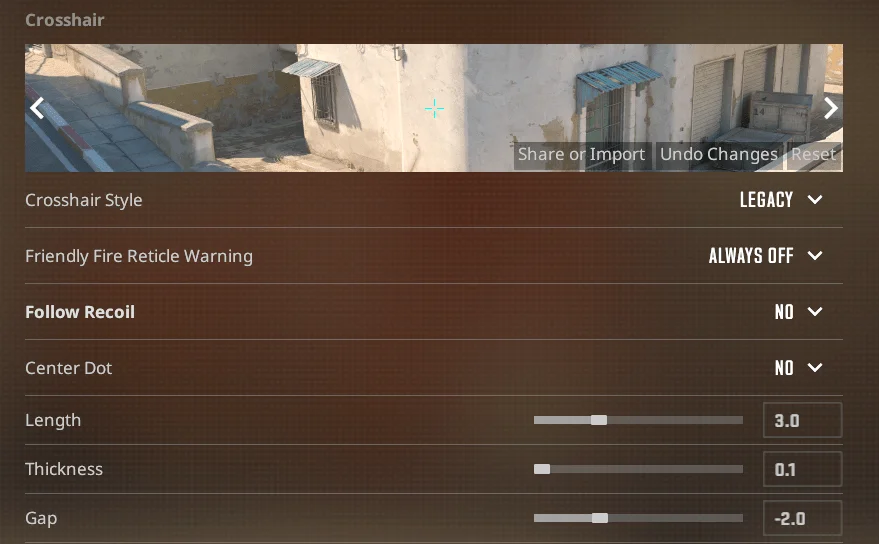
To import a code, open Settings, go to Game, then Crosshair, click Share or Import, paste the code and press Import. You can also open the console and type apply_crosshair_code followed by the code. To change your crosshair by hand, these five commands matter most:
- cl_crosshairstyle 4 for a static crosshair that never changes size.
- cl_crosshairsize to set the line length.
- cl_crosshairthickness to set the line thickness.
- cl_crosshairgap to set the space in the center.
- cl_crosshaircolor to pick a color from 0 to 5.
The rest of the guide explains every step and setting in detail.
How to Enable the Developer Console
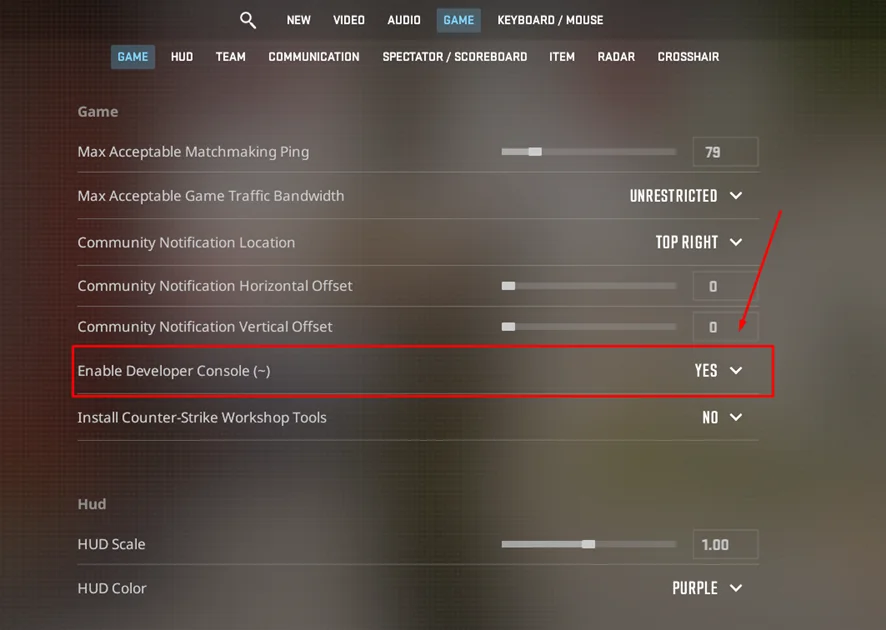
Many crosshair settings are faster to change through the console, so it is worth turning it on first. Follow these steps:
- Open CS2 and click the gear icon to open Settings.
- Go to the Game tab.
- Find Enable Developer Console and set it to Yes.
- Press the ~ key (tilde, under Esc) to open the console.
If the ~ key does not work on your keyboard layout, go to Settings, Keyboard / Mouse and assign a different key to Toggle Console.
How to Import a Crosshair Code
A crosshair code is a short line of text that starts with CSGO- and stores all your crosshair settings at once. Sharing codes is the easiest way to copy a friend’s or a pro player’s crosshair.
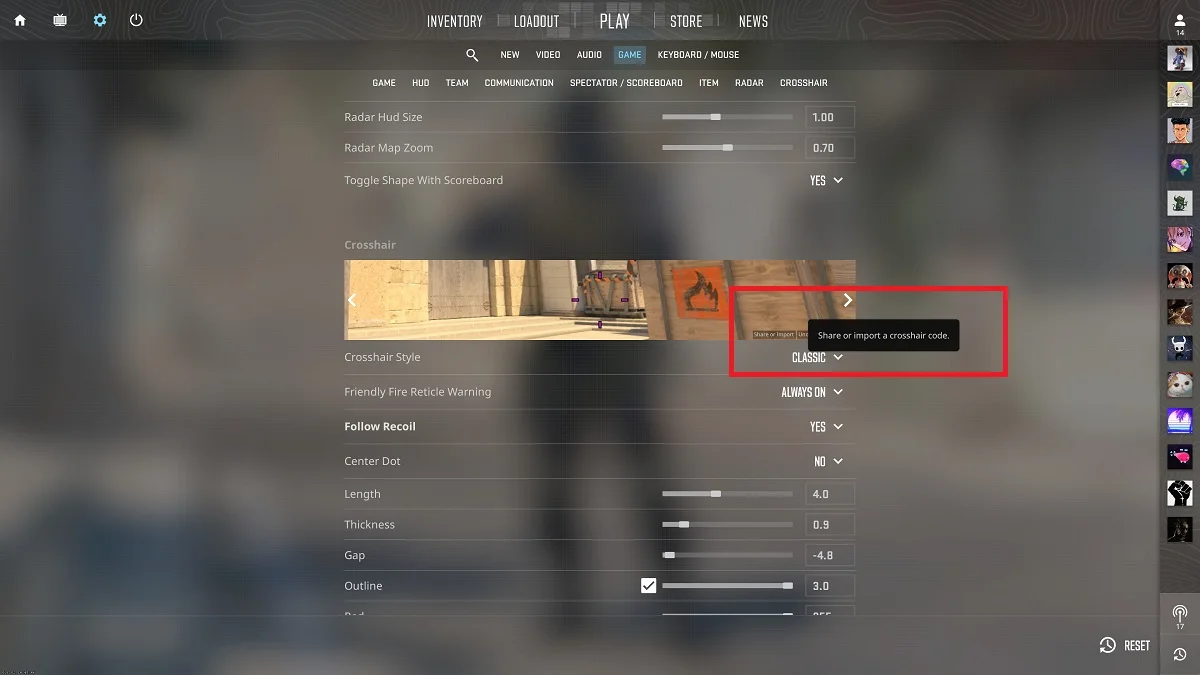
Method 1: Through the Settings Menu
This is the simplest option and does not require the console:
- Open Settings and go to the Game tab.
- Select the Crosshair section.
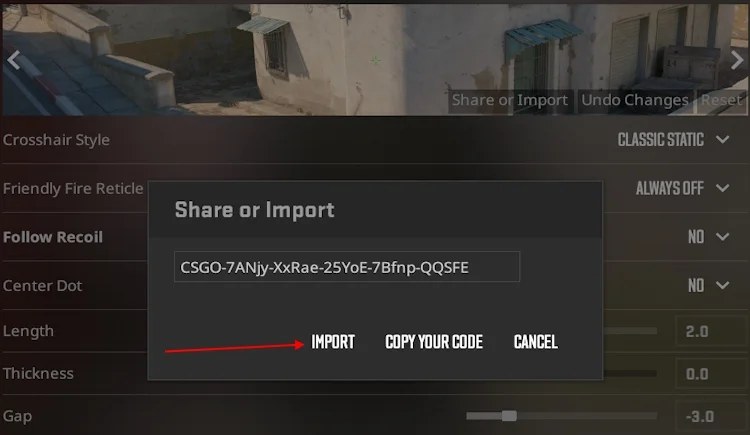
- Click the Share or Import button.
- Paste the code into the field and click Import.
Your crosshair updates instantly, and you can see a preview on the same screen.
Method 2: Using the Console
Open the console and type apply_crosshair_code followed by a space and the code, for example apply_crosshair_code CSGO-xxxxx-xxxxx-xxxxx-xxxxx-xxxxx. Press Enter, and the new crosshair is applied right away. This method is handy when you want to quickly test several codes in a row.
How to Copy Your Own Crosshair Code
To share your crosshair, open the same Share or Import window in the Crosshair settings and click the copy button next to your current code. Save it in a text file or Steam note so you can restore it after reinstalling the game or playing on another PC.
Essential CS2 Crosshair Commands
If you want full control, you can change every part of the crosshair with commands. Type them in the console and press Enter. The table shows the most important ones.
| Command | What It Changes | Example Value |
|---|---|---|
| cl_crosshairstyle | Crosshair type (static, dynamic) | 4 |
| cl_crosshairsize | Length of the lines | 2 |
| cl_crosshairthickness | Thickness of the lines | 0.5 |
| cl_crosshairgap | Space in the center | -2 |
| cl_crosshairdot | Center dot on or off | 0 |
| cl_crosshair_drawoutline | Black outline on or off | 1 |
| cl_crosshair_outlinethickness | Outline thickness | 1 |
| cl_crosshaircolor | Preset color | 1 |
| cl_crosshairalpha | Transparency (0 to 255) | 255 |
| cl_crosshair_t | T-shape without top line | 0 |
Crosshair Styles Explained
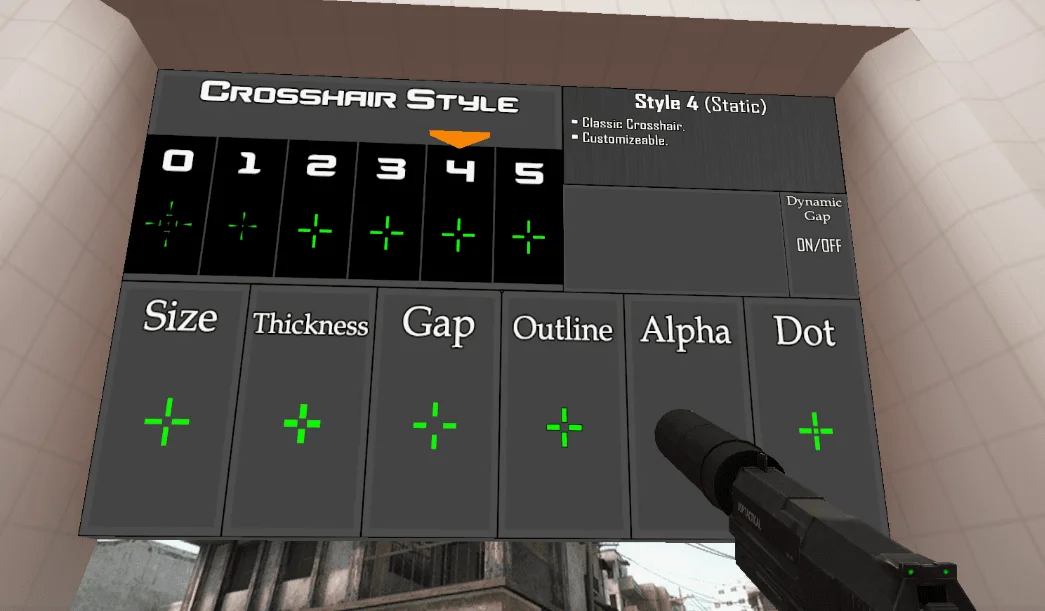
The cl_crosshairstyle command decides how your crosshair behaves. Style 4, called Classic Static, never changes size, so it is the most popular choice among competitive players. Style 2 and other dynamic options expand when you move or shoot, which shows inaccuracy but can distract beginners. We recommend starting with style 4.
Changing Crosshair Color
Use cl_crosshaircolor with a number from 0 to 5:
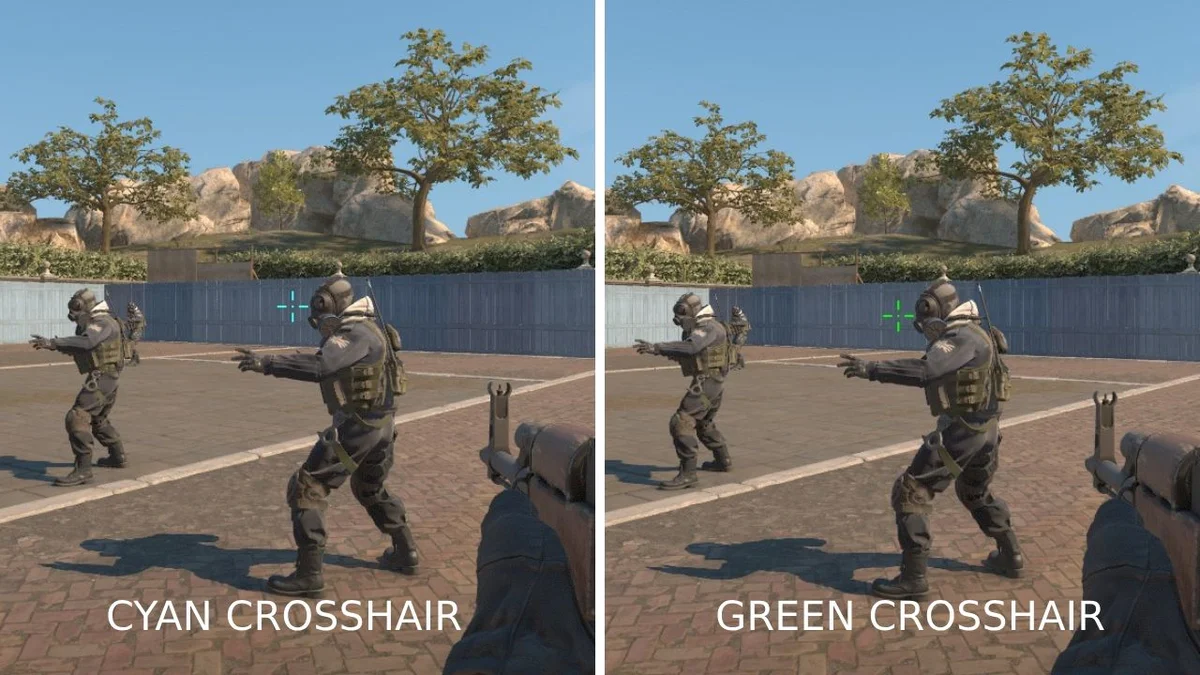
- 0 is red, 1 is green, 2 is yellow, 3 is blue and 4 is cyan.
- 5 is a custom color set by three extra commands.
- For custom colors, use cl_crosshaircolor_r, cl_crosshaircolor_g and cl_crosshaircolor_b with values from 0 to 255.
- Bright colors like green, cyan and yellow are the easiest to see on most maps.
To make the alpha setting work, also type cl_crosshairusealpha 1.
Extra Options: Recoil and Weapon Gap
Two more commands are worth knowing. cl_crosshair_recoil 1 makes the crosshair follow your weapon’s recoil while spraying, which can help beginners understand spray patterns, but most players keep it at 0. cl_crosshairgap_useweaponvalue 0 keeps the center gap the same for every weapon, so your crosshair looks identical on rifles, pistols and SMGs.
Ready-to-Use Crosshair Setups
If you do not want to experiment, paste one of these command lines into the console. Each line applies a full crosshair at once, because commands separated by semicolons run together.
Small Green Static Crosshair
A clean and popular option for rifles:
cl_crosshairstyle 4; cl_crosshairsize 2; cl_crosshairthickness 0.5; cl_crosshairgap -2; cl_crosshairdot 0; cl_crosshair_drawoutline 1; cl_crosshaircolor 1
Cyan Dot Crosshair
A minimal crosshair that some players like for AWP and precise headshots:
cl_crosshairstyle 4; cl_crosshairsize 0; cl_crosshairthickness 1; cl_crosshairgap -2; cl_crosshairdot 1; cl_crosshair_drawoutline 1; cl_crosshaircolor 4
Test both on a practice server and adjust the size by 0.5 at a time until it feels right.
How to Test Your New Crosshair
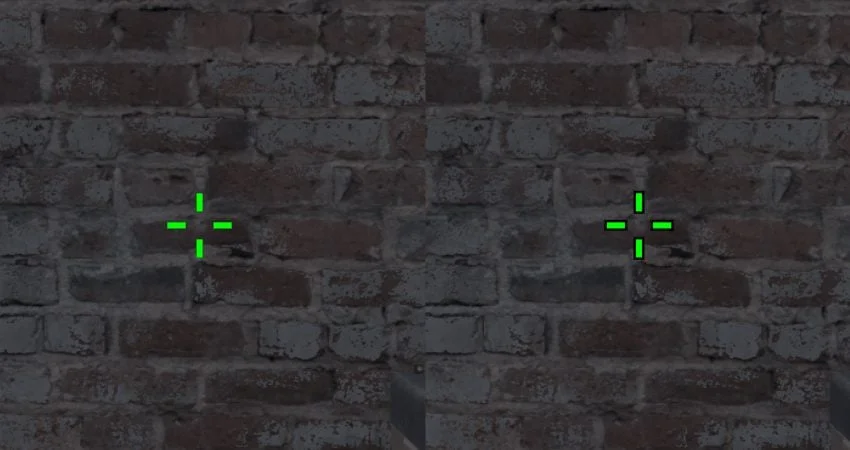
Never judge a crosshair only from the settings preview. Start a practice match on a few different maps and look at bright walls, dark corners and the sky. The crosshair should stay clearly visible everywhere without hiding the enemy model behind it. Shoot at a wall from medium and long distance to see whether the gap and size feel comfortable. Then play a few deathmatch games, because real movement and fights show problems faster than standing still.
Where to Find Pro Crosshair Codes
Most professional players share their crosshair codes publicly. You can find them on popular CS2 settings databases, team websites and the players’ own social media. Remember that a pro’s crosshair is built for their monitor, resolution and habits, so treat it as a starting point and adjust it to your own setup.
Saving Your Crosshair Permanently
CS2 normally saves your crosshair automatically through Steam Cloud. To be completely safe, you can also store it in a config file. Create a text file named autoexec.cfg in Steam\steamapps\common\Counter-Strike Global Offensive\game\csgo\cfg, paste your crosshair commands into it and save. Then add +exec autoexec to your CS2 launch options in Steam. Your crosshair will load every time the game starts.
So, How Do You Set Up the Perfect CS2 Crosshair?
Setting up your CS2 crosshair is quick once you know the basics. Use the Share or Import button or the apply_crosshair_code command to copy any code, and tweak size, gap, thickness and color with simple console commands. Start with a small static crosshair, stick with it for a while and adjust only small details. With a clean crosshair and steady aim, every round feels better, and your new BloodyCase skins will look even sharper in action.
FAQ
Do I need sv_cheats to change my crosshair?
No. Crosshair commands work everywhere, including official matchmaking. You only need the developer console enabled to type them.
Do old CS:GO crosshair codes work in CS2?
In most cases, yes. Codes in the CSGO- format can be imported in CS2, although some settings may look slightly different because of changes in the game.
What is the best crosshair for beginners?
A small static crosshair (style 4) in a bright color like green or cyan, with a thin black outline. It stays visible on all maps and does not distract you.
Why does my crosshair not change after typing a command?
Check the command for typos and missing spaces. If you changed transparency, make sure cl_crosshairusealpha 1 is also enabled.
Will my crosshair reset after a CS2 update?
Usually not, because CS2 saves it through Steam Cloud. Still, keep a copy of your code or an autoexec file so you can restore it in seconds.

I’m John Stevens, guy who is completely passionate about playing CS2. For me, it’s not just a hobby, it’s a way of life. I spend most of my time developing strategies, practicing, and participating in amateur championships.
Through this blog, I aim to inspire, entertain, and unite other gamers.
So join me on this incredible journey through the cs2 world. Together, we will explore the ins and outs of CS2, discuss the latest gaming news, and dive into the exciting world of eSports. My blog is created to provide insights, reviews, and thought-provoking content that will keep you coming back for more.