

You bought a 144 Hz or 240 Hz monitor, but Counter-Strike 2 still feels like it runs at 60 Hz. One of the first tips you will find online is to add -freq or -refresh to your launch options. Some guides say these options are essential, others say they are deprecated and ignored by CS2. The real answer sits somewhere in between.





Here the BloodyCase team explains what -freq and -refresh do in CS2, why the game sometimes ignores them and how to make sure you really play at your monitor’s full refresh rate. If you bought a high refresh rate monitor, a few quick checks confirm that the game actually uses it.
How to Set Your Refresh Rate in CS2
The in-game Video settings are the main way to choose your refresh rate. Use launch options only as a backup:
- Set your monitor’s highest refresh rate in Windows display settings.
- In CS2, open Settings, Video and choose Fullscreen as the display mode.
- Pick the highest value in the Refresh Rate list and apply.
- If CS2 still resets the value, add -freq 240 (with your own number) to your launch options.
- Use DisplayPort or a modern HDMI cable that supports your monitor’s full Hz.
Each step is explained in detail below.
What -freq and -refresh Do
Both options ask the game to start in fullscreen at a specific refresh rate, for example -freq 144 or -freq 240. The number should match a refresh rate that your monitor and Windows already support. The option does not overclock your screen and cannot add hertz that your monitor does not have.
The Difference Between -freq and -refresh
In older Source games like CS:GO, -freq and -refresh did the same job and worked as two names for one option. In CS2, Valve’s documentation for Source 2 only lists -freq. Because of that, -freq is the safer choice. If you still have -refresh in your launch options from CS:GO, replace it with -freq.
Is the CS2 -freq Launch Option Deprecated or Ignored?
The -freq option is not officially removed. It still appears in Valve’s list of Source 2 command line options as a CS2 option. However, many players notice that it seems to do nothing, and there are clear reasons for that:
- The Refresh Rate saved in your CS2 video settings can override the launch option.
- In windowed and fullscreen windowed modes, CS2 uses the Windows desktop refresh rate.
- If Windows is set to 60 Hz, the game cannot go higher on its own.
- Your cable or port may not support the refresh rate you typed.
- Some resolutions, such as stretched 4:3, may not offer your monitor’s highest rate.
So -freq is not dead, but in most setups it is simply not needed. The in-game setting does the same job and is easier to control.
| Method | Where to change it | Works in | Recommended |
|---|---|---|---|
| Refresh Rate setting | CS2 Settings, Video | Fullscreen | Yes, main method |
| Windows display settings | Settings, Display, Advanced display | All display modes | Yes, always check |
| -freq launch option | Steam Launch Options | Fullscreen | Only as a backup |
| -refresh launch option | Steam Launch Options | Not documented for CS2 | No, use -freq instead |
| GPU control panel | NVIDIA or AMD software | All modes | For custom resolutions |
How to Set Your Refresh Rate Step by Step
Follow these steps in order, because each one depends on the previous one.
Step 1: Check Windows Display Settings
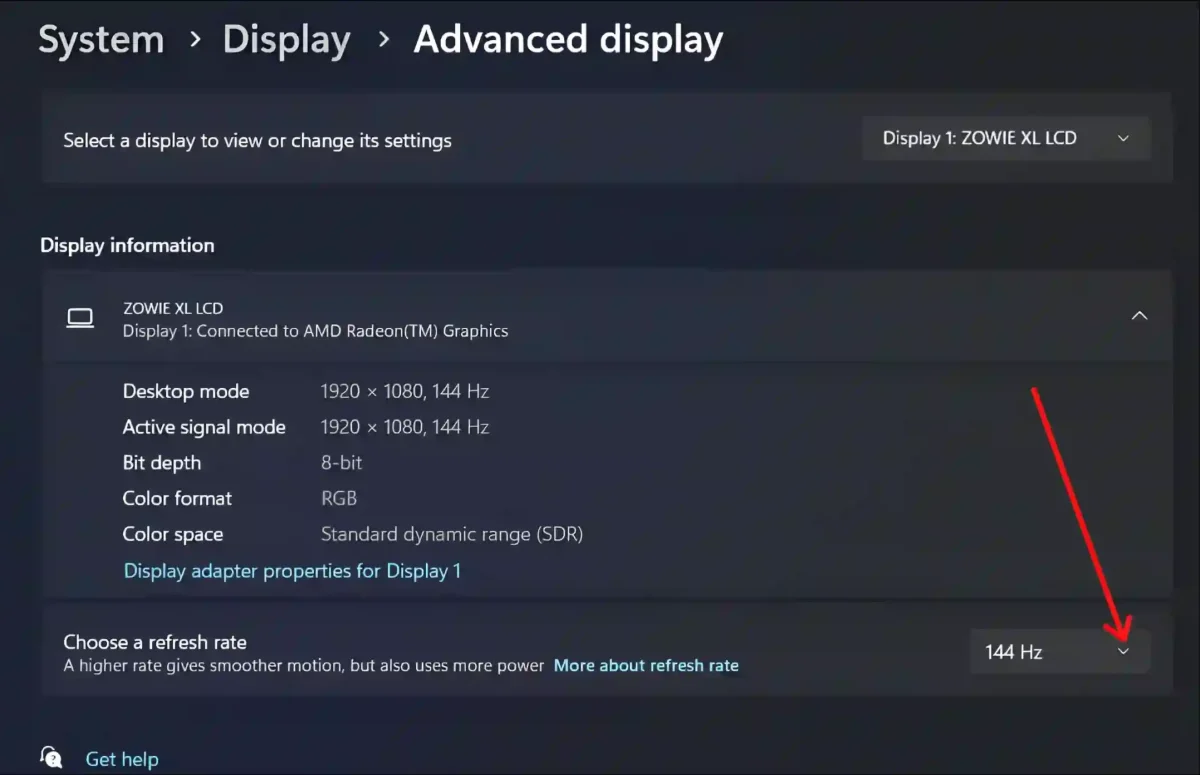
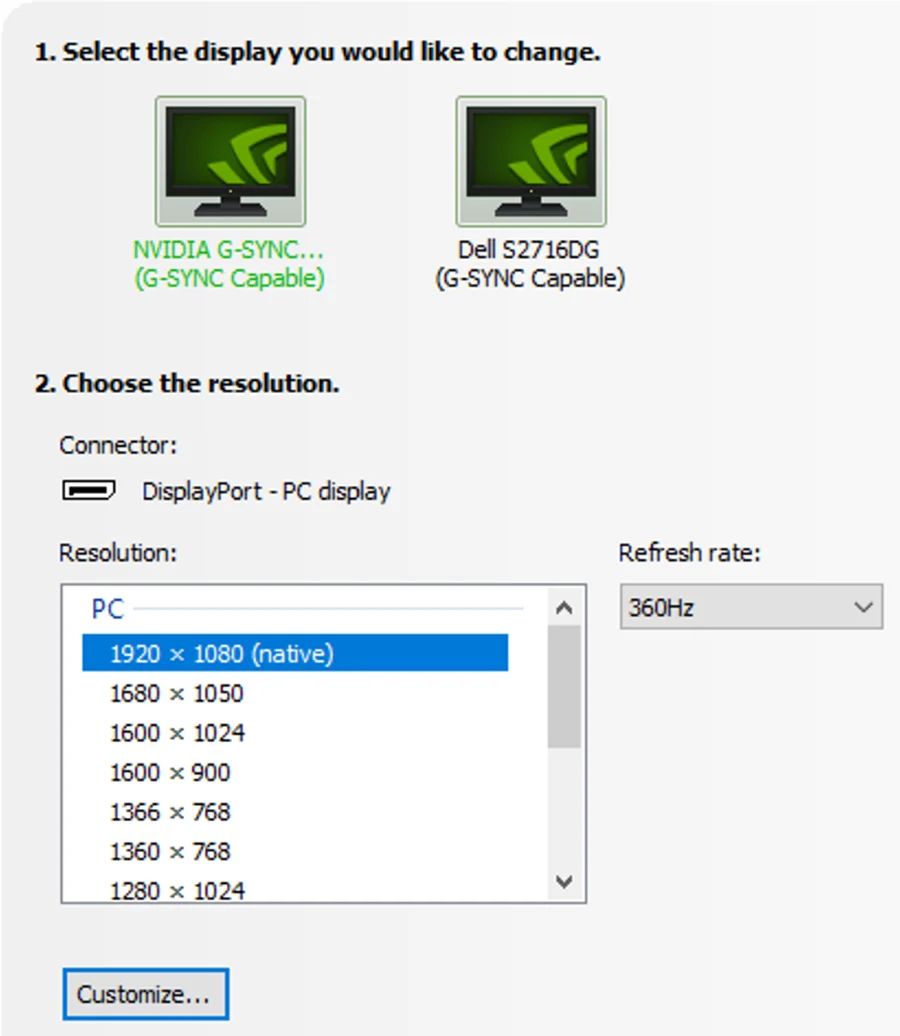
Open Windows Settings, go to System, Display, then Advanced display. Under Choose a refresh rate, select your monitor’s highest value. If you do not see it, update your graphics driver and check your cable.
Step 2: Set the Refresh Rate in CS2
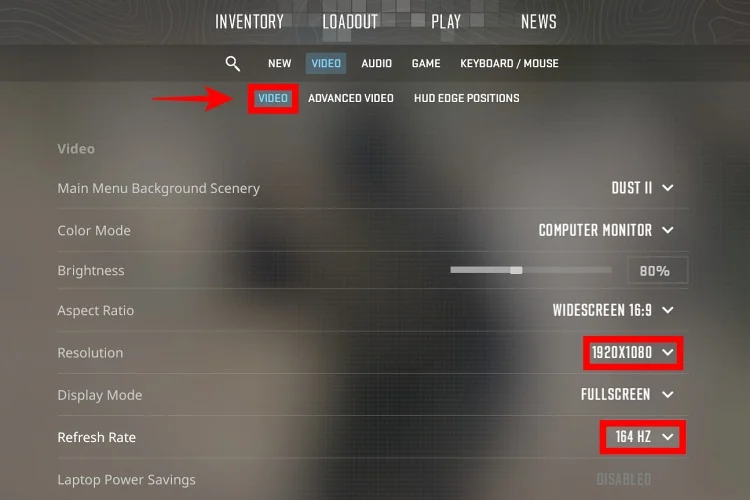
Launch CS2, open Settings and go to the Video tab. Set Display Mode to Fullscreen, choose your resolution and then pick the highest Refresh Rate in the list. Click Apply. The value is saved and loaded automatically the next time you start the game.
Step 3: Add -freq as a Backup
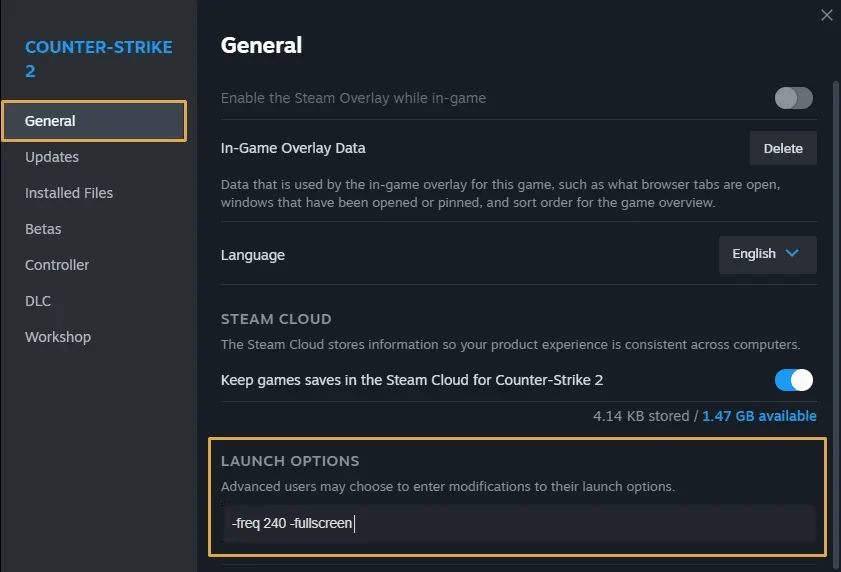
If the game keeps falling back to a lower rate, add the launch option:
- Open your Steam Library.
- Right-click Counter-Strike 2 and select Properties.
- In the Launch Options field, type -freq followed by your refresh rate, for example -freq 240.
- Add -fullscreen if you also want the game to start in fullscreen mode.
- Close the window and launch the game.
How to Fix CS2 Stuck at 60 Hz or 144 Hz
If your refresh rate is still wrong, one of these issues is usually the cause:
- The cable cannot carry high refresh rates. Use DisplayPort or a cable that supports HDMI 2.0 or newer.
- The monitor is plugged into the motherboard instead of the graphics card.
- Your graphics driver is outdated, or the refresh rate is limited in the NVIDIA or AMD control panel.
- You play a stretched resolution that your monitor only supports at a lower rate. Set the refresh rate on your native resolution first, then switch.
- V-Sync or a frame limit is set lower than your refresh rate.
How to Check Your Real Refresh Rate
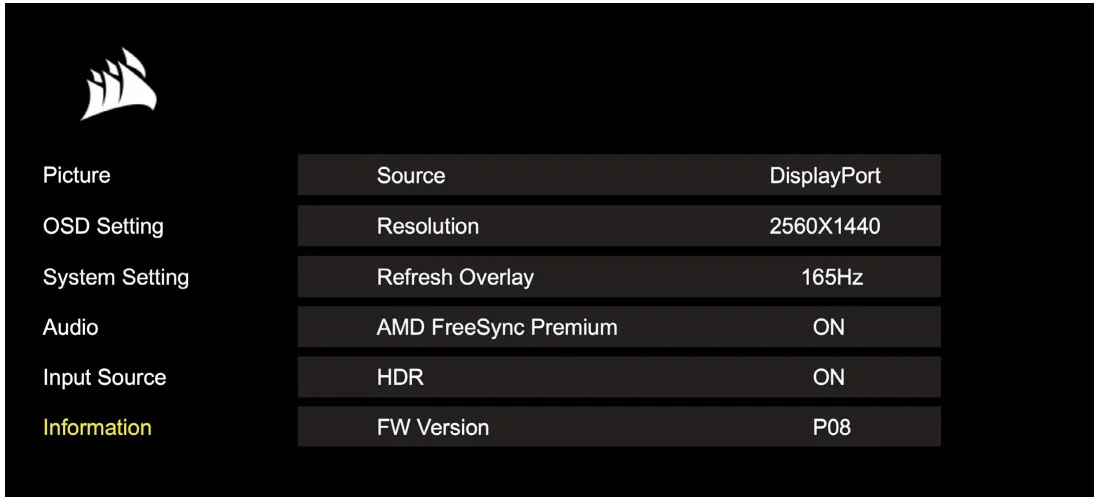
Do not trust the settings menu alone. Many monitors show the current refresh rate in their on-screen menu, so open it while the game is running. You can also check Windows Advanced display settings while CS2 is open in the background. If the number matches your monitor’s maximum, everything works as it should.
Refresh Rate and fps_max
Refresh rate and frame rate are not the same thing. The refresh rate is how many times per second your monitor shows a new image, and the frame rate is how many images your PC creates. For the smoothest result, your FPS should be higher than your refresh rate. Many players set fps_max a little above their refresh rate, for example fps_max 300 on a 240 Hz monitor, or leave it uncapped if their PC stays stable.
So, Do You Still Need -freq in CS2?
In most cases, no. Set the correct refresh rate in Windows, choose Fullscreen and the highest Refresh Rate in CS2’s Video settings, and the game will remember it. Keep -freq only as a backup if CS2 keeps resetting to a lower value, and replace any old -refresh option with -freq. After that, confirm the number once in your monitor’s on-screen menu, and you can stop worrying about refresh rate settings.
FAQ
Does -freq still work in CS2?
Yes, -freq is still listed by Valve as a CS2 launch option. It only matters in fullscreen mode, and the in-game Refresh Rate setting usually does the same job.
Should I use -freq or -refresh?
Use -freq. It is the option documented for CS2, while -refresh is a leftover from older Source games.
Why is the CS2 -freq launch option ignored?
Usually because you play in windowed or fullscreen windowed mode, Windows is set to a lower refresh rate or your cable cannot support the value you entered.
Can -freq damage my monitor?
No. A monitor simply refuses a refresh rate it does not support, so the game falls back to another rate or the screen stays black until you remove the option. It cannot push the screen beyond its limits.
Does -freq increase FPS?
No. It only sets the monitor’s refresh rate. To get more FPS, lower heavy video settings and keep your drivers up to date.

I’m John Stevens, guy who is completely passionate about playing CS2. For me, it’s not just a hobby, it’s a way of life. I spend most of my time developing strategies, practicing, and participating in amateur championships.
Through this blog, I aim to inspire, entertain, and unite other gamers.
So join me on this incredible journey through the cs2 world. Together, we will explore the ins and outs of CS2, discuss the latest gaming news, and dive into the exciting world of eSports. My blog is created to provide insights, reviews, and thought-provoking content that will keep you coming back for more.