

You hit Play, Steam flashes Running, and then… nothing. No window, no error, just the button snapping back to Play. If cs2 won’t launch for you right now, don’t reinstall anything yet – in most cases the fix takes two minutes and one calm, ordered checklist. This guide, written by the team at BloodyCase, walks you through every real cause in the exact order the pros troubleshoot it.
![Funny [YELLOW] Case case cs go](https://rs.bloodycase.com/?url=cdn.bloodycase.com/cases/1475894062878822400.webp&w=370&h=336&output=webp&q=100)
![Funny [RED] Case case cs go](https://rs.bloodycase.com/?url=cdn.bloodycase.com/cases/1475893882817351680.webp&w=370&h=336&output=webp&q=100)
![Funny [PURPLE] Case case cs go](https://rs.bloodycase.com/?url=cdn.bloodycase.com/cases/1475893755763494912.webp&w=370&h=336&output=webp&q=100)
![Funny [BLUE] Case case cs go](https://rs.bloodycase.com/?url=cdn.bloodycase.com/cases/1475894282886844416.webp&w=370&h=336&output=webp&q=100)
![Funny [GREEN] Case case cs go](https://rs.bloodycase.com/?url=cdn.bloodycase.com/cases/1475894570033090560.webp&w=370&h=336&output=webp&q=100)
We stripped out the guesswork. Below you’ll find only fixes that actually work on the current Source 2 build, plus the launch options and console commands that matter. When cs2 not launching turns into a black screen, a stuck download, or a mid-game close instead, we cover those branches too. The golden rule from BloodyCase: change one thing at a time and try to launch after every step.
The 30-second version:
- Verify the game files first, then empty your Launch Options if the problem started right after a patch.
- Update – or clean-install – your GPU driver if nothing else helps.
- Clear the Steam download cache when an install or update stalls.
- If Steam flips to Running and straight back to Play, the game started and instantly exited – verify files and check your antivirus.
Why CS2 Refuses to Start
Before touching anything, know your enemy. When cs2 wont launch, the culprit is almost always one of these:
- Damaged or mismatched game files after a patch – the #1 cause.
- Stale launch options copied from a CS:GO guide that no longer exist in CS2.
- An outdated, corrupted, or conflicting GPU driver.
- A background overlay or app (Discord, MSI Afterburner, antivirus) hooking the process.
- A broken Microsoft Visual C++ runtime or missing DirectX components.
- A Steam download or update that never finished, leaving cs2 update disabled.
Rule these out from the top. The earlier fixes are reversible and low-risk; the later ones are heavier Windows repairs.
CS2 Won’t Launch? 8 Steps to Fix It
Step 1: Restart Steam and Your PC the Right Way
Sounds trivial, but a ghost process is a shockingly common reason cs2 wont open. Steam can think the game is already running.
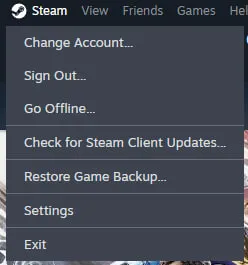
- Click Steam → Exit (don’t just close the window).
- Open Task Manager (Ctrl + Shift + Esc) and end any leftover cs2.exe or steam.exe processes.
- Restart Windows, open Steam, and try to launch once.
Step 2: Verify Game File Integrity
This is the single most effective fix, especially when cs2 not launching from steam started right after an update. Steam compares your install against the live build and re-downloads anything broken.
- Open your Steam Library and right-click Counter-Strike 2.
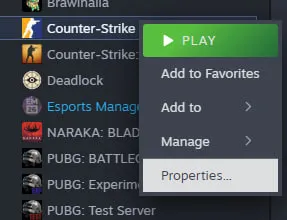
- Choose Properties → Installed Files.
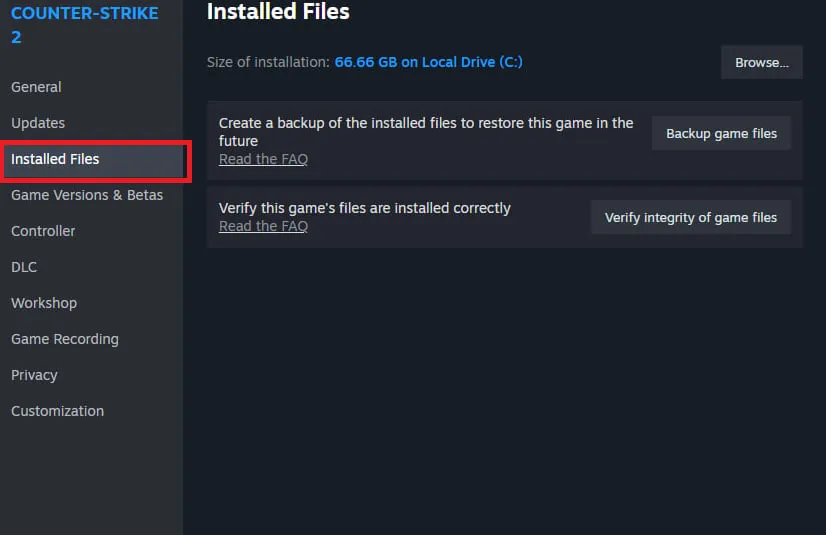
- Click Verify integrity of game files and wait – it can take several minutes.
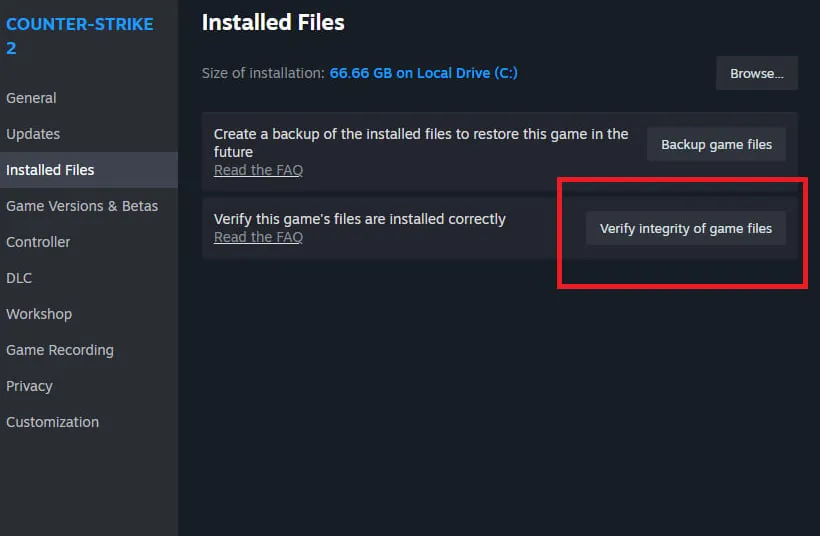
If Steam replaces even a few files, launch again before doing anything else. This alone resolves the majority of cases.
Step 3: Clear Old Launch Options
Copied a fancy CS:GO launch string years ago? It can quietly stop the game dead. If there’s anything in that box, empty it as a test.
- Steam Library → right-click Counter-Strike 2 → Properties → General.
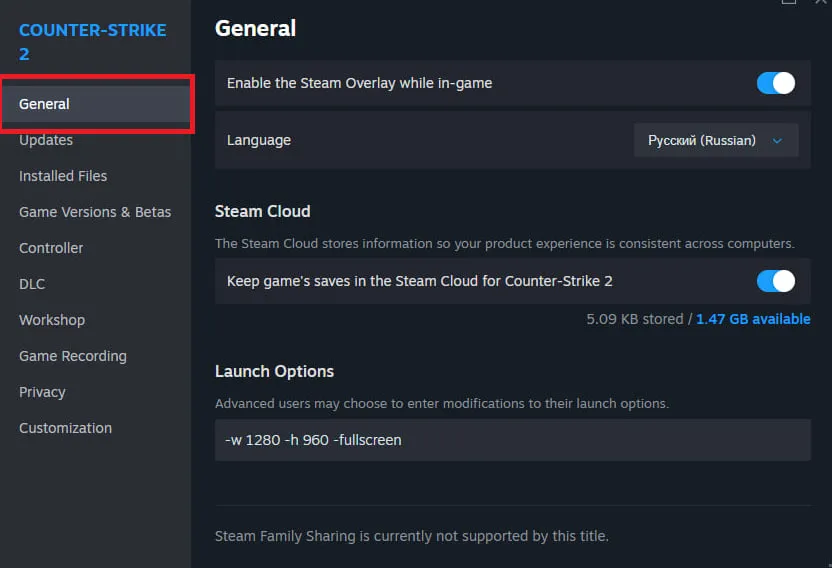
- Delete everything in the Launch Options field.
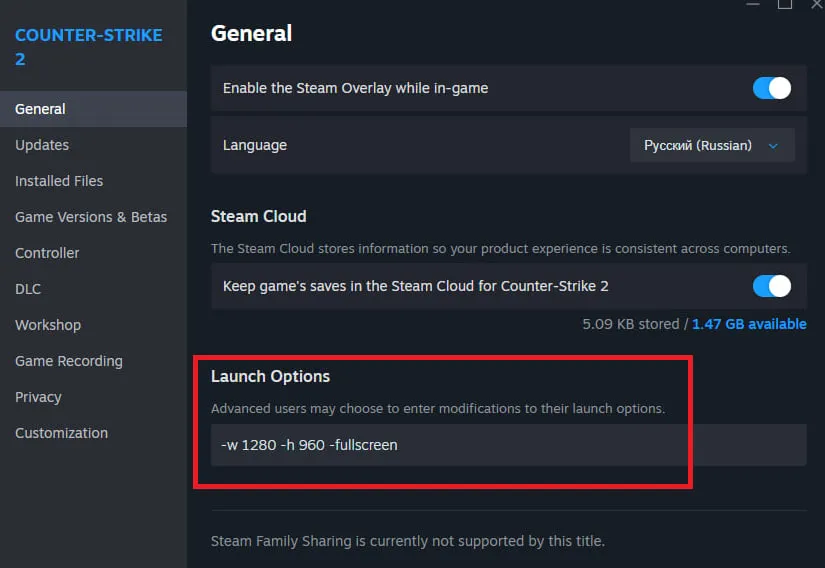
- Launch CS2. If it opens, add commands back one at a time.
Safe, still-supported flags worth re-adding: -novid (skip intro), -console (enable the developer console), and +fps_max 0 (uncap FPS). Avoid dumping ten commands at once. If you’re rebuilding the box from scratch, a focused cs2 launch options guide is the quickest way to see which flags still exist on Source 2 and which are CS:GO leftovers.
The “Launch Configuration Does Not Match” Error
Seeing “your game launch configuration does not match your account configuration”? Clear all launch options, verify files again, close Steam, then rename your userdata …\730\local\cfg folder to cfg_backup. Steam rebuilds a fresh config on next launch, and renaming (not deleting) keeps your binds recoverable. If you run a cs2 autoexec, drop it back into the fresh cfg folder once the game launches cleanly.
Step 4: Update or Clean-Install GPU Drivers
A stale or corrupted graphics driver is a classic reason cs2 not launching. Always use the official package – never a third-party “driver updater.”
- NVIDIA: use the NVIDIA App and grab the latest Game Ready driver. If a normal update fails, run the installer’s Custom → Clean Installation option.
- AMD: use AMD Software: Adrenalin Edition; for a broken driver stack use its Factory Reset install option.
- Intel: use Intel Graphics Software or your laptop OEM’s recommended package.
For a truly stubborn driver, boot into Safe Mode and wipe the old one with Display Driver Uninstaller (DDU) before installing fresh. Restart, then test.
Step 5: Kill Overlays and Background Apps
Overlays inject code into the game and can crash it before a window ever appears – a frequent cause on otherwise healthy PCs.
- Steam: Settings → In Game → turn off the Steam overlay.
- Discord: Settings → Game Overlay → disable in-game overlay.
- NVIDIA: turn off the in-game overlay in the NVIDIA App.
- Close MSI Afterburner / RivaTuner, Overwolf, Razer Synapse, and screen recorders, then try once.
Step 6: Check Antivirus and Firewall
Security software sometimes blocks the executable, and then the game refuses to open no matter what you do. Don’t disable protection globally – whitelist instead.
- Open Windows Security → Protection history and look for a block involving Steam or CS2.
- If Controlled Folder Access is on, allow cs2.exe through it.
- Add the CS2 folder to your antivirus exclusions. The executable lives at …\steamapps\common\Counter-Strike Global Offensive\game\bin\win64\cs2.exe.
Step 7: Repair Visual C++ and DirectX
A damaged Visual C++ runtime makes the game exit instantly, often with a DLL error – one more silent failure mode with zero visible warning.
- Go to Settings → Apps → Installed apps.
- Find the Microsoft Visual C++ 2015–2022 Redistributable entries → Modify → Repair.
- Install the latest DirectX End-User Runtime from Microsoft if the repair doesn’t help.
Never download loose vcruntime or msvcp DLLs from random sites – the official redistributable repairs the whole package safely.
Step 8: Diagnostic Launch Options and Console Commands
Launch options are also diagnostic tools. When nothing above works, test these one at a time (keep the box otherwise empty):
- -vulkan – forces the Vulkan renderer instead of DirectX 11. A great A/B test on older-but-Vulkan-capable GPUs.
- -autoconfig – resets video settings to detected hardware defaults, ignoring a broken saved config.
- -windowed – launches windowed, useful if a fullscreen resolution is the trigger. Once you’re back in and stable, dial in the best resolution for cs2 for your monitor and refresh rate.
- -dx11 – pins the default DirectX 11 path if you’d switched renderers.
Remove each diagnostic flag once you’ve identified the cause. Once you’re in-game, the developer console (bind it via Settings or -console) is where the common cs2 commands live – but the console can’t fix a game that never opens a window.
Other Common CS2 Issues and How to Fix Them
CS2 Update Stuck or Disabled
If Steam shows cs2 update disabled, the game can’t patch to the live build – and an outdated build won’t start. Force it back on:
- Right-click Counter-Strike 2 → Properties → Updates.
- Set Automatic Updates to Always keep this game updated.
- Clear Steam’s download cache: Steam → Settings → Downloads → Clear Download Cache.
- Make sure your library drive has free space and isn’t set to read-only.
- Confirm updates are enabled again, then launch.
An unpatched build almost never opens, so getting updates flowing again is often the whole fix.
CS2 Won’t Download or Install
Sometimes the real blocker is that cs2 not downloading at all – the install stalls at 0 B/s or errors out. Try these in order:
- Change your download region: Steam → Settings → Downloads → Download Region (pick a nearby city).
- Clear the download cache (as above) and restart Steam.
- Pause and resume the download, or move the Steam library folder to another drive.
- Run Steam as administrator to rule out a disk-write-permission block.
CS2 Crashing on Launch
If the game opens and then dies, you’re dealing with a cs2 crash rather than a no-window failure. Start with verify files, updated drivers, disabled overlays, and repaired Visual C++ – the same core fixes apply. Then add:
- RAM pressure: 8 GB is tight – close browsers and messengers, and let Windows manage the paging file. 16 GB is the comfortable target.
- Overheating: monitor with HWMonitor or MSI Afterburner; sustained 90 °C+ on CPU/GPU causes hard closes.
- Overclocks: revert any CPU/GPU/RAM overclock to stock and retest.
- Corrupted Windows files: run DISM.exe /Online /Cleanup-Image /RestoreHealth, then sfc /scannow in an admin terminal.
Safe Mode, SFC/DISM, and Clean Boot
Still fighting it? These heavier Windows steps isolate a system-level conflict when cs2 wont launch and everything else failed.
- Safe Mode with Networking: if CS2 behaves differently there, a normal-mode driver or service is the culprit.
- DISM + SFC: repair the Windows image and system files if other apps also fail to open.
- Clean Boot: run msconfig, hide all Microsoft services, disable the rest plus startup items, reboot, and test. Re-enable in groups to find the offender.
Reinstall CS2 or Steam
Only reinstall after everything above – the install itself is rarely the problem. Back up your configs, demos, and screenshots first, reinstall through Steam, and test the clean game before restoring anything. If every Steam game also fails to start, the Steam client – not CS2 – is the suspect.
Keep It Minimal
Here’s the insider habit from a decade of watching top players: pros keep their launch options almost empty – usually just -novid -console – and they verify files after every major patch. Bloated CS:GO-era flags are the number-one reason cs2 not launching from steam shows up the day a new update drops. Less is genuinely more.
That’s the full playbook. Ninety percent of the time, verifying files, clearing launch options, and updating your GPU driver is all it takes to get back in the server. Work the list in order, change one thing at a time, and you’ll almost always beat it without a reinstall. Once you’re back in-game, drop by BloodyCase to open cases and refresh your inventory with a clean new skin. – Team BloodyCase.
FAQ
Most often because of damaged game files, a stale launch-options string, or a GPU-driver conflict. Verify the game files in Steam, empty the Launch Options box, and update your driver – in that order. If cs2 won’t launch even after that, check overlays and your Visual C++ runtime.
A game that starts but never loads usually points to a corrupted config or a broken renderer path. Try -autoconfig or -vulkan as a diagnostic, verify files, and reset your local cfg folder. If instead cs2 not downloading, switch your Steam download region and clear the download cache.
A cs2 crash at startup is typically driver corruption, an overlay hook, a damaged Visual C++ runtime, or overheating/overclock instability. Update drivers cleanly, disable overlays, repair Visual C++, and confirm your temperatures and clock speeds are stable.
When Steam flips to Running and back with no window, cs2 wont open because the executable started and immediately exited – usually a bad local file, a blocking security rule, or a broken runtime. Verify files, whitelist cs2.exe in your antivirus, and repair Visual C++.

Ethan is the Chief Editor at BloodyCase. He has been playing Counter-Strike since the 1.6 era and started writing about the game almost by accident – at first, he posted analyses of updates and patches on forums, and he never stopped. He’s in charge of editorial content: he decides what to write about, checks the accuracy of articles before publication, and keeps track of how the game is changing to ensure that the information on BloodyCase is always up-to-date and interesting.
He’s still playing CS2 and annoying everyone with his AWP skills.