

Almost every list of Counter-Strike 2 launch options has the same line: add -threads and the game will finally use all of your CPU cores. It sounds like free FPS, so many players copy it without asking what it actually does. The truth is less simple. CS2 runs on the Source 2 engine, which handles CPU threads in its own way, and the wrong value can make the game feel worse instead of better.


Below, the BloodyCase team looks at what -threads really changes, what community tests have shown and how many threads players usually try. You will also learn a simple way to check the result on your own PC, so you do not have to rely on someone else’s numbers.
Should You Use the CS2 -threads Launch Option?
For most players, the honest answer is no. CS2 detects your processor and spreads the work across cores automatically. If you still want to experiment, follow these simple rules:
- Leave -threads out of your launch options by default.
- If you test it, start with the number of physical cores, or performance cores plus one on Intel hybrid CPUs.
- Never set a value higher than your number of logical processors.
- Measure average FPS and 1% lows before and after the change.
- Remove the option if you see crashes, new stutters or no clear gain.
Read on to understand why the effect is so different from one PC to another.
What the -threads Launch Option Does
The -threads option tells the game how many worker threads it should create for background jobs. These jobs include animation, physics, sound and preparing frames for your graphics card. The idea comes from older Source games, where the engine did not always use modern multi-core processors well and players tried to force it to work harder.
How CS2 Handles CPU Threads by Default
Source 2 uses a job system that sizes itself based on your hardware when the game starts. Valve does not list -threads among the documented CS2 command line options, and many up-to-date launch option guides now describe it as ignored or simply not needed. In other words, CS2 already tries to use your CPU properly without any help from you.
Cores and Threads Explained
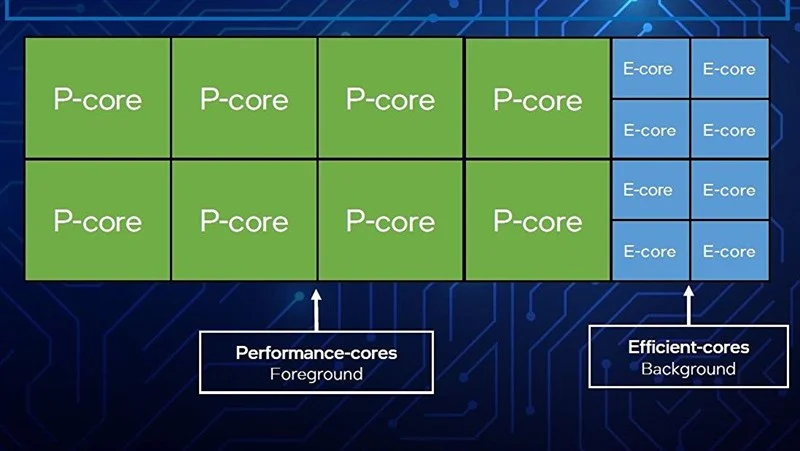
To pick a sensible number, you need to know your processor. A physical core is a real processing unit inside the chip. Many processors can run two threads per core, so Windows shows more logical processors than there are cores. For example, a Ryzen 7 7800X3D has 8 cores and 16 threads, while an Intel Core i5-13600K has 6 performance cores and 8 efficiency cores, which gives 14 cores and 20 threads.
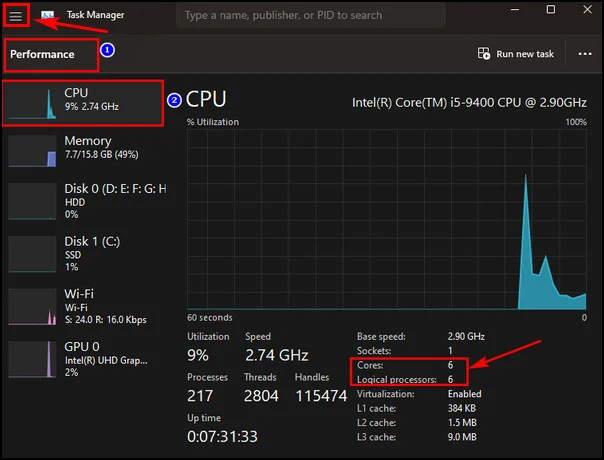
You can check your own numbers in Task Manager. Open the Performance tab, click CPU and look at the Cores and Logical processors lines in the bottom right corner.
CS2 -threads Launch Option Effect: What Tests Show
Shortly after CS2 came out, some owners of Intel 12th, 13th and 14th generation processors noticed that the game sometimes used efficiency cores for important work. A widely shared community test from late 2023 reported that setting -threads to the number of performance cores plus one raised 1% lows by around 20% in Dust II deathmatch. Other players repeated the test and saw no change at all, and some reported more stutter, especially on AMD systems.
Since then, Valve has released many performance updates. Today the effect is small or nonexistent on most PCs, and some guides even warn that the option can cause instability. Use the table below as a starting point for testing, not as a promise.
| CPU type | Example | What to try | Notes |
|---|---|---|---|
| Intel 12th to 14th gen hybrid | Core i5-13600K (6P + 8E) | No option first, then -threads 7 | Some players saw better 1% lows in 2023 |
| AMD Ryzen with SMT | Ryzen 7 7800X3D (8C/16T) | No option | Very few reports of any gain |
| Intel Core Ultra 200S | Core Ultra 7 265K (8P + 12E) | No option first, then -threads 9 | Little test data so far |
| Older quad-core | Core i5-7400 (4C/4T) | No option | Too few threads can cause stutter |
How to Add or Remove -threads in Steam
Launch options are set in your Steam Library, not inside the game. Here is how to add the option:
- Open Steam and go to your Library.
- Right-click Counter-Strike 2 and choose Properties.
- On the General tab, find the Launch Options field.
- Type -threads followed by a number, for example -threads 7. Separate it from other options with a space.
- Close the window and start the game.
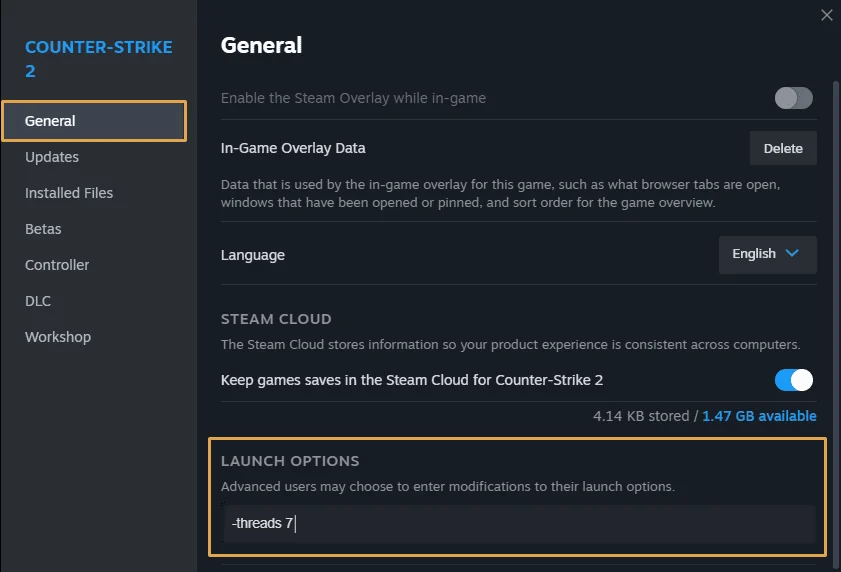
To remove the option, open the same field and delete -threads together with its number. The change applies the next time you launch CS2.
How to Pick a Number to Test
If you have an Intel hybrid processor, the most common test value is the number of performance cores plus one. For other processors, start with the number of physical cores. Do not go below 4 and never above the number of logical processors shown in Task Manager. Test one value at a time, so you always know exactly what changed.
How to Test Whether -threads Helps
Feelings are not a good benchmark, because the game can feel different from one match to another. Use a repeatable test instead:
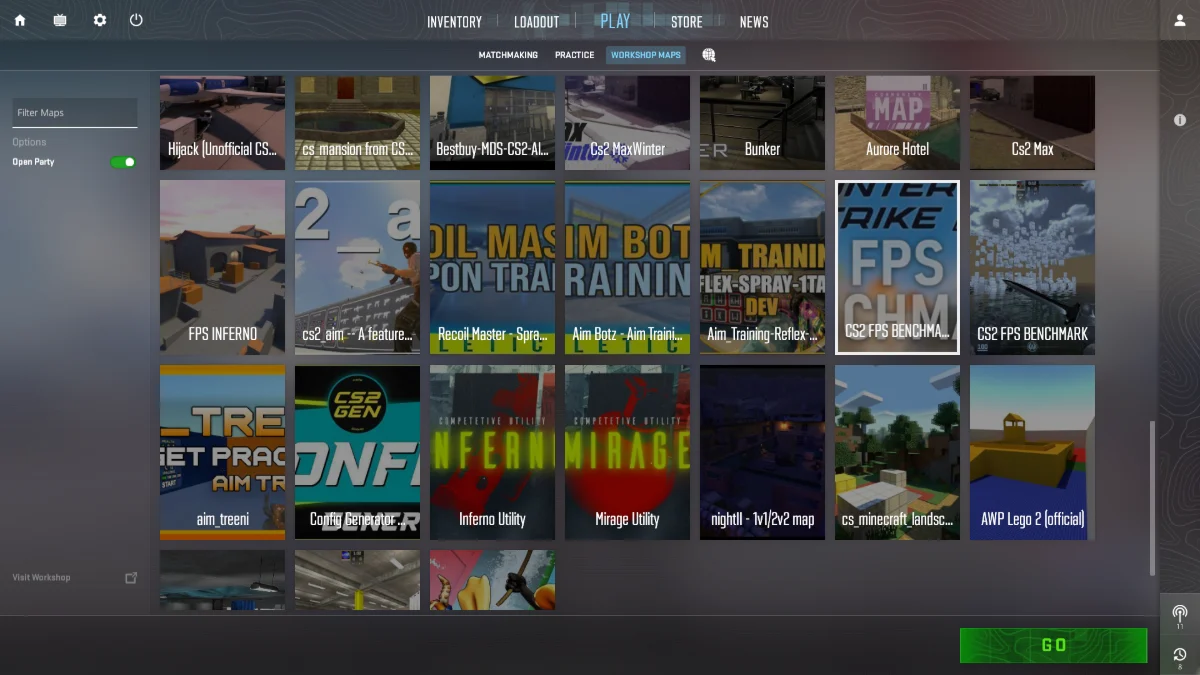
- Subscribe to a benchmark map in the Steam Workshop, for example by searching for CS2 FPS Benchmark.
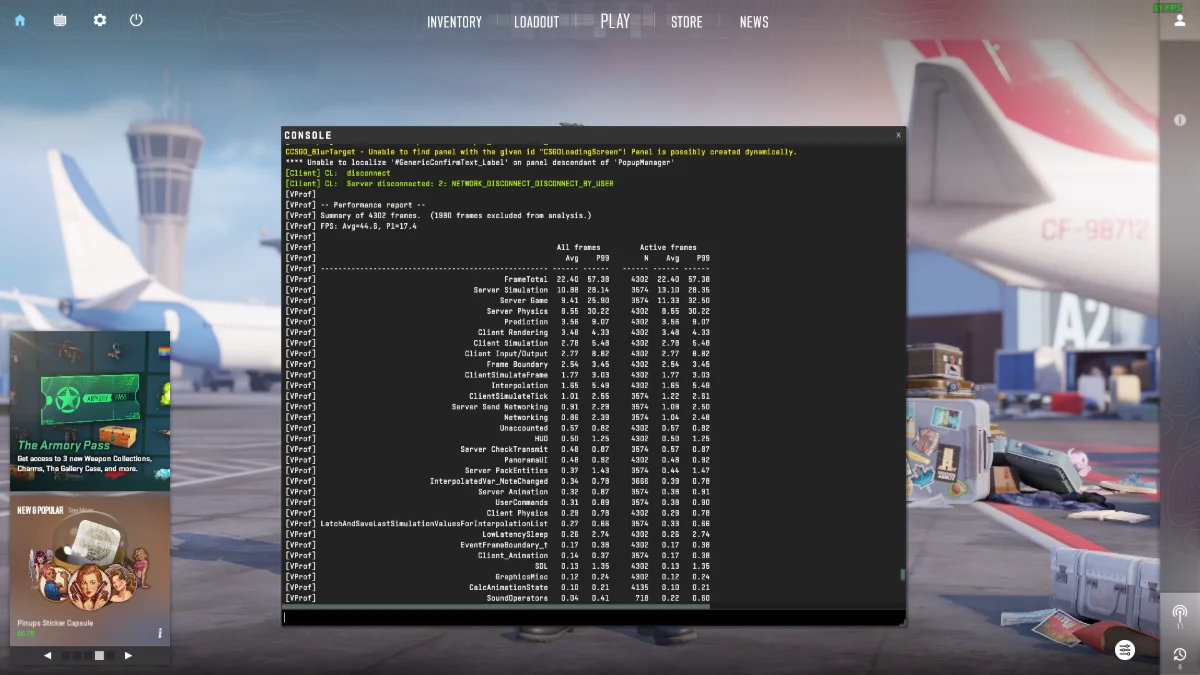
- Run the map three times without -threads and write down the average FPS and 1% lows. Many benchmark maps print them in the console when the run ends.
- Add -threads with your test value, restart the game and run the map three more times.
- Compare the averages, then play a few deathmatch games to check for new stutters.
What Counts as a Real Improvement
Small differences of 1 to 3% are normal noise between runs. Keep -threads only if your 1% lows are clearly and consistently higher, and the game feels at least as smooth in real matches. If the results are mixed, the safer choice is to remove it.
Common Myths About -threads
Because the option has been copied between guides for years, a lot of wrong ideas follow it:
- “It unlocks all CPU cores.” CS2 already uses multiple cores on its own.
- “More threads is always better.” Too many threads can add overhead and hurt frame times.
- “All pros use it.” Most published pro configs today use only a few launch options, and -threads is rarely one of them.
- “It fixes stutter.” Stutter in CS2 usually comes from drivers, background apps or shader loading, not from the thread count.
Better Ways to Improve CPU Performance in CS2
If you want higher and steadier FPS, these steps usually help more than -threads:
- Close browsers, launchers and other heavy apps before playing.
- Update your chipset and graphics drivers.
- Enable XMP or EXPO in BIOS so your RAM runs at its rated speed.
- Use the Balanced or High performance power plan in Windows.
- Cap your frame rate with fps_max slightly above your monitor’s refresh rate.
So, How Many Threads Should You Set in CS2?
For almost everyone, the best number is none. CS2 manages CPU threads by itself, and later updates have removed most of the problems that made -threads popular in 2023. If you have an Intel hybrid processor and want to experiment, test performance cores plus one with a benchmark map and keep the option only if the numbers clearly improve. Treat every other launch option the same way: add one at a time, measure it and keep only what helps. Our CS2 launch options guide on the BloodyCase blog covers the options that still work in the current version of the game.
FAQ
Does -threads increase FPS in CS2?
On most modern PCs, no. Some Intel 12th to 14th gen owners reported better 1% lows in 2023, but newer CS2 versions manage threads well without it.
How many threads should I set for CS2?
By default, none. If you want to test it, try the number of performance cores plus one on Intel hybrid CPUs, or the number of physical cores on other processors.
Can the -threads launch option get me banned?
No. Launch options are a normal Steam feature, and -threads only changes how the game uses your CPU. It has nothing to do with VAC.
Why did CS2 get worse after adding -threads?
The value you chose may be lower or higher than what the engine picks by itself. Remove the option, restart the game and test again with the default settings.
Should I combine -threads with other launch options?
You can, but add them one at a time. Options like -high or -fullscreen do different jobs, and testing them separately shows which one actually helps.

I’m John Stevens, guy who is completely passionate about playing CS2. For me, it’s not just a hobby, it’s a way of life. I spend most of my time developing strategies, practicing, and participating in amateur championships.
Through this blog, I aim to inspire, entertain, and unite other gamers.
So join me on this incredible journey through the cs2 world. Together, we will explore the ins and outs of CS2, discuss the latest gaming news, and dive into the exciting world of eSports. My blog is created to provide insights, reviews, and thought-provoking content that will keep you coming back for more.