

Few things are more frustrating than pressing Play and watching Counter-Strike 2 close before you even see the main menu. Sometimes there is an error window, sometimes the game simply disappears and Steam shows it as not running. The BloodyCase team has helped many players with this exact problem, so we collected every working fix in one place and explained each of them in plain language.
![Funny [YELLOW] Case case cs go](https://rs.bloodycase.com/?url=cdn.bloodycase.com/cases/1475894062878822400.webp&w=370&h=336&output=webp&q=100)
![Funny [RED] Case case cs go](https://rs.bloodycase.com/?url=cdn.bloodycase.com/cases/1475893882817351680.webp&w=370&h=336&output=webp&q=100)
![Funny [PURPLE] Case case cs go](https://rs.bloodycase.com/?url=cdn.bloodycase.com/cases/1475893755763494912.webp&w=370&h=336&output=webp&q=100)
![Funny [BLUE] Case case cs go](https://rs.bloodycase.com/?url=cdn.bloodycase.com/cases/1475894282886844416.webp&w=370&h=336&output=webp&q=100)
![Funny [GREEN] Case case cs go](https://rs.bloodycase.com/?url=cdn.bloodycase.com/cases/1475894570033090560.webp&w=370&h=336&output=webp&q=100)
We start with the quickest checks and move toward deeper fixes, so you can get back to Premier or check your latest BloodyCase drops as soon as possible.
How to Stop CS2 Crashing on Startup
Most startup crashes are caused by damaged game files, old launch options, overlays or outdated drivers. Try these fixes in order and launch the game after each one:
- Verify integrity of game files in Steam.
- Delete everything in the CS2 launch options.
- Turn off Discord, Steam and GPU overlays and tools like MSI Afterburner.
- Update your graphics driver and Microsoft Visual C++ Redistributables.
- Rename your CS2 cfg folder to reset settings.
- Add -vulkan to launch options as a test.
- Disable any CPU, GPU or RAM overclock.
The sections below explain every step in detail.
What Does “Crashing on Startup” Mean?
A startup crash happens when CS2 shuts down during launch, before or right after the loading screen. Unlike a black screen, where the game window stays open, a crash fully closes the game.
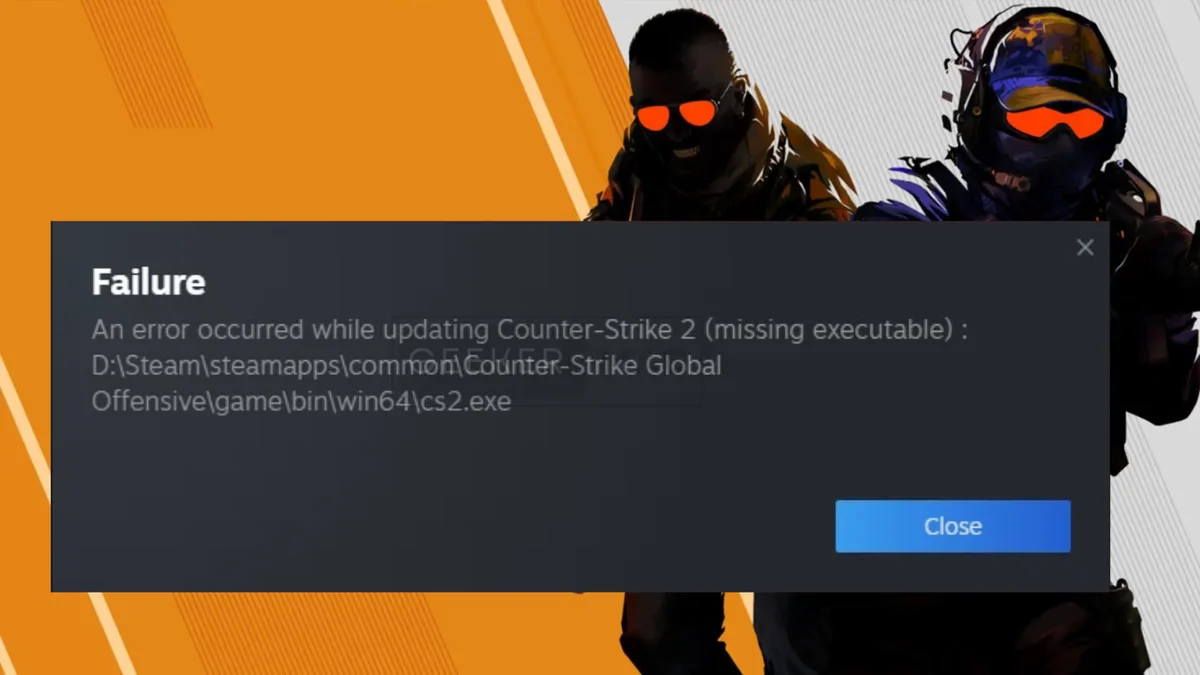
Common Signs of a Startup Crash
You are probably dealing with a startup crash if you notice any of these:
- The game window appears for a second and then closes.
- You see an error message mentioning a crash, DirectX or a missing file.
- Steam switches from “Running” back to “Play” without anything happening.
- CS2 closes right after the intro or while the main menu is loading.
Why It Happens
Most startup crashes come from four sources: outdated graphics drivers, damaged game files, conflicting background software and broken settings or launch options. Less often, the cause is hardware that does not meet the game’s requirements or an unstable overclock.
Check Your PC Against CS2 System Requirements
Before trying anything else, make sure your computer can run CS2 at all. Older graphics cards with little video memory are a common reason the game closes immediately.
| Component | Minimum Requirement |
|---|---|
| Operating System | Windows 10 or 11, 64-bit |
| Processor | 4 hardware CPU threads, Intel Core i5 750 or better |
| Memory | 8 GB RAM |
| Graphics | DirectX 11 card with at least 1 GB VRAM and Shader Model 5.0 |
| Storage | 85 GB of free space |
If your PC is close to the minimum, crashes are more likely when other programs are open at the same time. Valve can change these requirements, so it is worth checking the CS2 store page on Steam as well.
Basic Fixes (Start Here)
These fixes are fast and solve the majority of startup crashes. Try them in order before moving to the advanced section.
Restart and Update Everything
Restart your PC, then open Steam and make sure CS2 is fully updated. If an update was interrupted, Steam may show it in the Downloads section. Let it finish completely before launching the game.
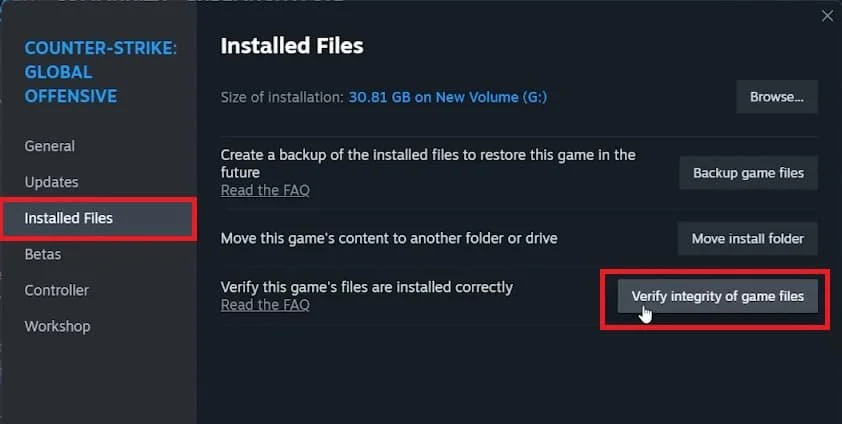
Verify Game Files
Corrupted files are a top cause of crashes. Right-click Counter-Strike 2 in your Steam Library, choose Properties, open Installed Files and click Verify integrity of game files. Steam will replace anything that is broken or missing.
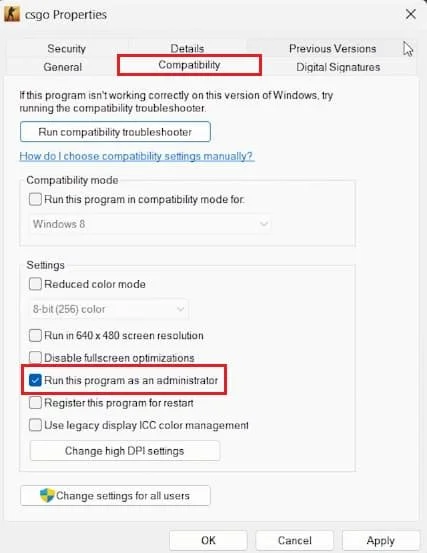
Run CS2 as Administrator
Sometimes CS2 lacks permission to write files it needs. Open Steam\steamapps\common\Counter-Strike Global Offensive\game\bin\win64, right-click cs2.exe, open Properties, go to Compatibility and tick Run this program as an administrator.
Remove Launch Options and Reset Configs
Old launch options and broken config files often survive updates and cause crashes later. Many players copy commands from old CS:GO guides that no longer work properly in CS2.
Clear Launch Options
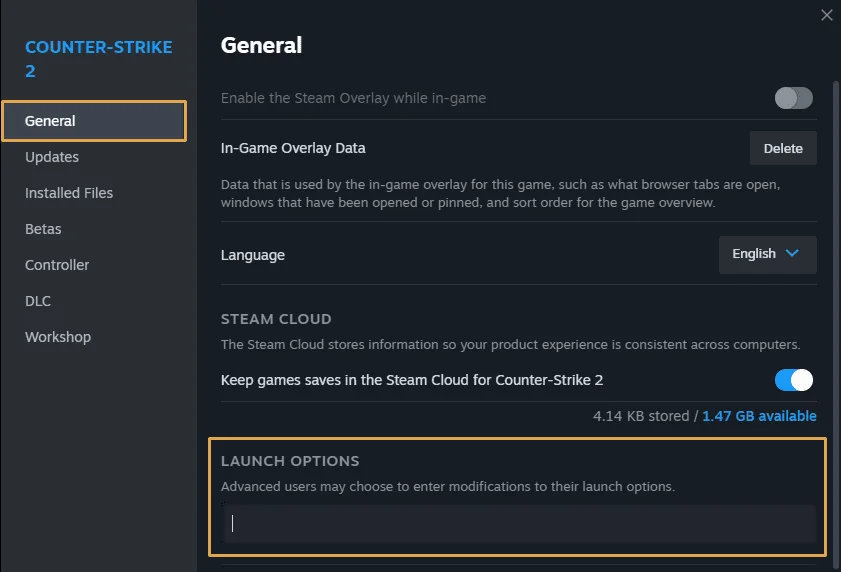
In your Steam Library, right-click CS2, open Properties and look at the Launch Options field on the General tab. Delete everything inside it and try launching the game. Options such as -threads, -high or old CS:GO commands like -tickrate are frequent troublemakers. You can add useful ones back later, one at a time.
Reset Your Config Files
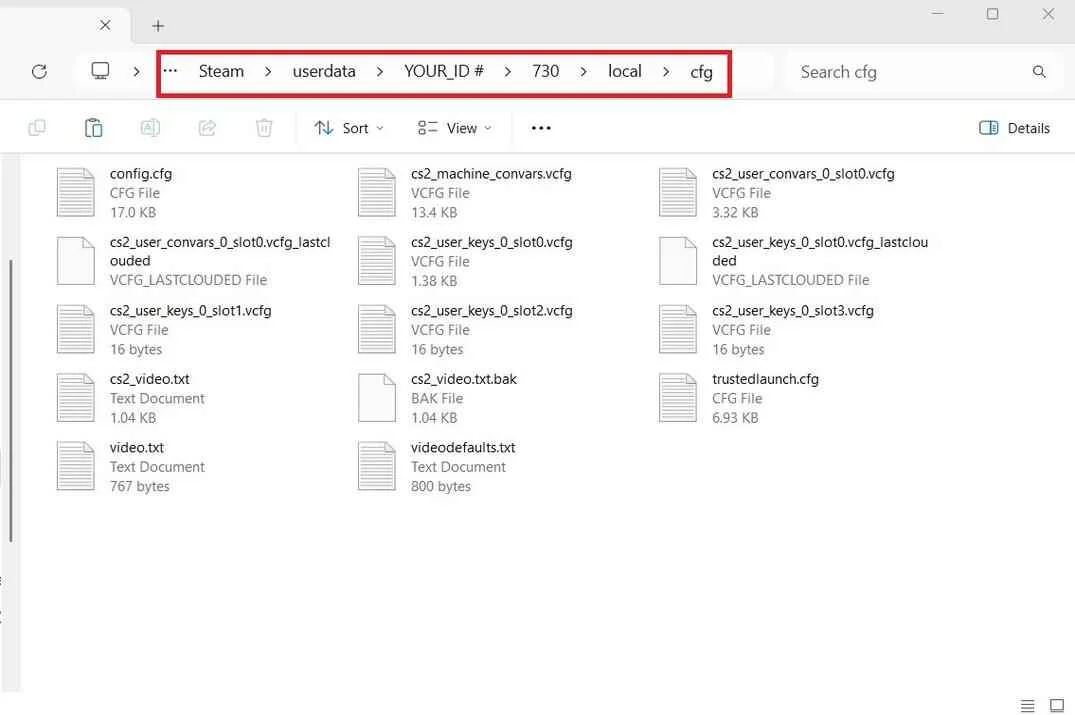
Your settings are stored in Steam\userdata\[your Steam ID number]\730\local\cfg. Rename this cfg folder to cfg_old. When you launch CS2, the game will create fresh default files. If the crash stops, you know a setting was the cause, and you can copy back individual files like your crosshair or binds later. Want a fresh setup instead? Browse CS2 pro settings and copy a config from a top player.
Fix Software Conflicts
Some programs inject code into games to show overlays, record video or change performance. CS2 does not always get along with them.
Overlays and Monitoring Tools
Turn off the following and test the game after each change:
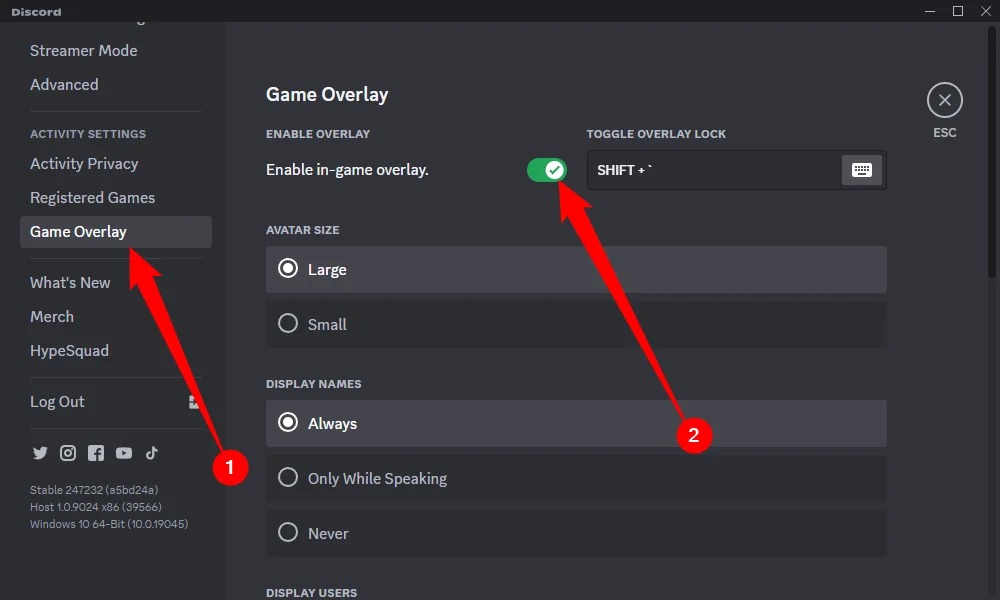
- Discord overlay and the Steam in-game overlay.
- NVIDIA app or AMD Adrenalin overlays and instant replay.
- MSI Afterburner, RivaTuner Statistics Server and FPS counters.
- RGB lighting software and mouse or keyboard macro tools.
- Third-party “game boosters” and FPS optimizers.
Antivirus and Windows Security
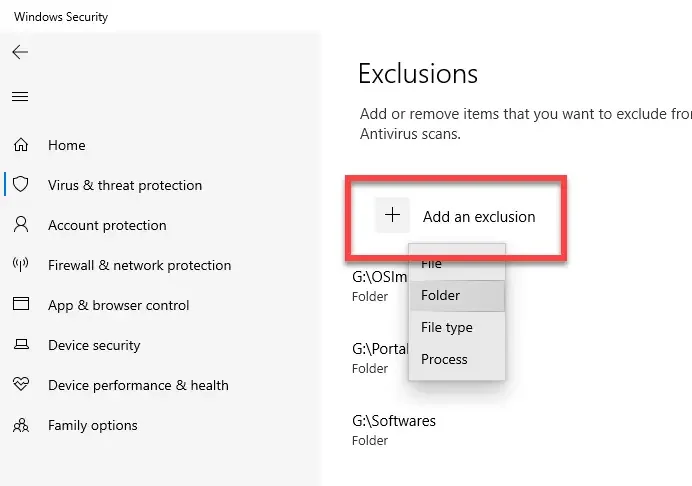
Antivirus programs sometimes block cs2.exe or quarantine game files without warning. Open your antivirus settings and add the whole Counter-Strike Global Offensive folder to the exclusions list. In Windows Security, check Protection history to see whether anything from CS2 was blocked.
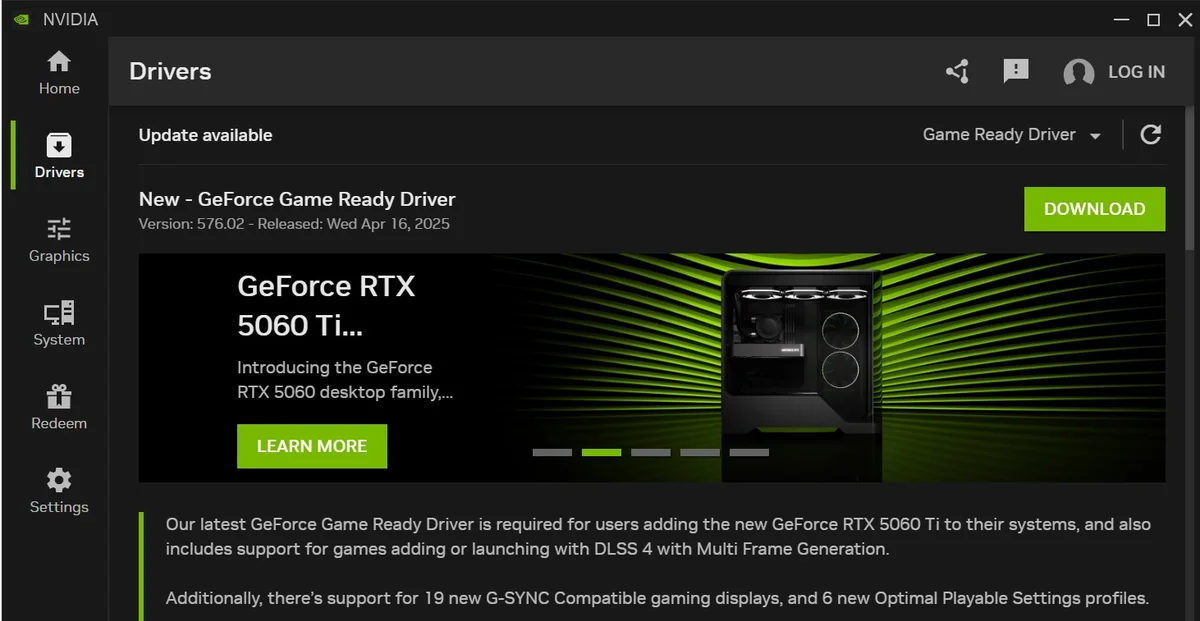
Update Drivers and System Components
Outdated system software can stop CS2 from starting at all. Make sure the following are up to date:
- Graphics driver: download the latest version from NVIDIA, AMD or Intel.
- Windows: open Settings, Windows Update and install all pending updates.
- Microsoft Visual C++ Redistributables: install the latest x64 and x86 packages from Microsoft.
- Chipset drivers: download them from your motherboard or laptop manufacturer.
Restart your PC after installing updates, even if Windows does not ask you to.
Advanced Fixes
If none of the steps above helped, it is time for deeper solutions. These take a bit longer but target the less obvious causes of crashes.
Try the Vulkan Launch Option
CS2 uses DirectX 11 on Windows by default. Some driver problems only affect DirectX, so adding -vulkan to your launch options can bypass the crash. If performance feels worse, remove the option after the next driver update.
Disable CPU and GPU Overclocks
An overclock that seems stable in other games can still crash CS2, which loads the CPU and GPU in its own way. Return your hardware to default clocks in BIOS or in tools like MSI Afterburner, and turn off XMP or EXPO memory profiles as a test.
Reinstall CS2 (Last Resort)
If nothing else works, uninstall CS2 through Steam, delete the remaining Counter-Strike Global Offensive folder and install the game again. If possible, install it on an SSD with plenty of free space. Your inventory and skins are tied to your Steam account, so you will not lose anything.
So, Why Does CS2 Crash on Startup and How Do You Stop It?
A CS2 crash on startup is annoying, but it can almost always be fixed without special skills. Begin with file verification and clearing launch options, then deal with overlays, drivers and configs. Most players find their fix before reaching the advanced section. Once the game launches smoothly again, you can get back to your matches, your loadout and your next unboxing on BloodyCase.
FAQ
Will reinstalling CS2 delete my skins?
No. Your inventory is linked to your Steam account, not to your PC. After reinstalling, all your skins, stickers and agents will still be there.
What does a DirectX or “device removed” error mean?
It usually points to a graphics driver problem or an unstable GPU overclock. Update your driver, remove overclocks and try the -vulkan launch option.
Do old CS:GO launch options work in CS2?
Many of them do nothing in CS2, and some can cause problems. Remove options like -tickrate or -threads and add back only what you really need.
Can my antivirus make CS2 crash?
Yes. Antivirus software can block cs2.exe or quarantine game files. Add the Counter-Strike Global Offensive folder to its exclusions list.
What should I do if CS2 crashes only after an update?
Verify game files and update your graphics driver first. If many players report the same crash, Valve usually releases a fix within a few days.

I’m John Stevens, guy who is completely passionate about playing CS2. For me, it’s not just a hobby, it’s a way of life. I spend most of my time developing strategies, practicing, and participating in amateur championships.
Through this blog, I aim to inspire, entertain, and unite other gamers.
So join me on this incredible journey through the cs2 world. Together, we will explore the ins and outs of CS2, discuss the latest gaming news, and dive into the exciting world of eSports. My blog is created to provide insights, reviews, and thought-provoking content that will keep you coming back for more.