

Many people find themselves in a situation where they launch Counter-Strike 2 training and suddenly encounter bots that simply won’t disappear. Especially frustrating is when you’re trying to practice at the right moment – say, when a grenade lands on Mirage or timings on Inferno, and the bot just dies. Or you’ve invited friends to a private match, and the game automatically buys AI grenades that occupy slots. In such moments, knowing how to spawn bots in CS2 becomes the right question to ask.
![Funny [YELLOW] Case case cs go](https://rs.bloodycase.com/?url=cdn.bloodycase.com/cases/1475894062878822400.webp&w=370&h=336&output=webp&q=100)
![Funny [RED] Case case cs go](https://rs.bloodycase.com/?url=cdn.bloodycase.com/cases/1475893882817351680.webp&w=370&h=336&output=webp&q=100)
![Funny [PURPLE] Case case cs go](https://rs.bloodycase.com/?url=cdn.bloodycase.com/cases/1475893755763494912.webp&w=370&h=336&output=webp&q=100)
![Funny [BLUE] Case case cs go](https://rs.bloodycase.com/?url=cdn.bloodycase.com/cases/1475894282886844416.webp&w=370&h=336&output=webp&q=100)
![Funny [GREEN] Case case cs go](https://rs.bloodycase.com/?url=cdn.bloodycase.com/cases/1475894570033090560.webp&w=370&h=336&output=webp&q=100)
By the way, if we’re already talking about CS2, it’s worth checking out BloodyCase. We offer 5 free cases just for registration and email confirmation. Head to Free Cases and grab your cases while they’re available. A normal way to expand your inventory without spending extra.
What Are Bots in CS2 and Why You’d Want to Add Them
Bots in competitive play are computer-controlled characters on the team that replace real players. Valve introduced them back in 2001. They operate on artificial intelligence, which, frankly, isn’t always impressive. The bot gets stuck in textures, doesn’t hide behind cover with thousands of years of experience in the game. Plus, they fill empty slots if someone leaves mid-match. In the eco-round, you’ll need to buy them weapons.
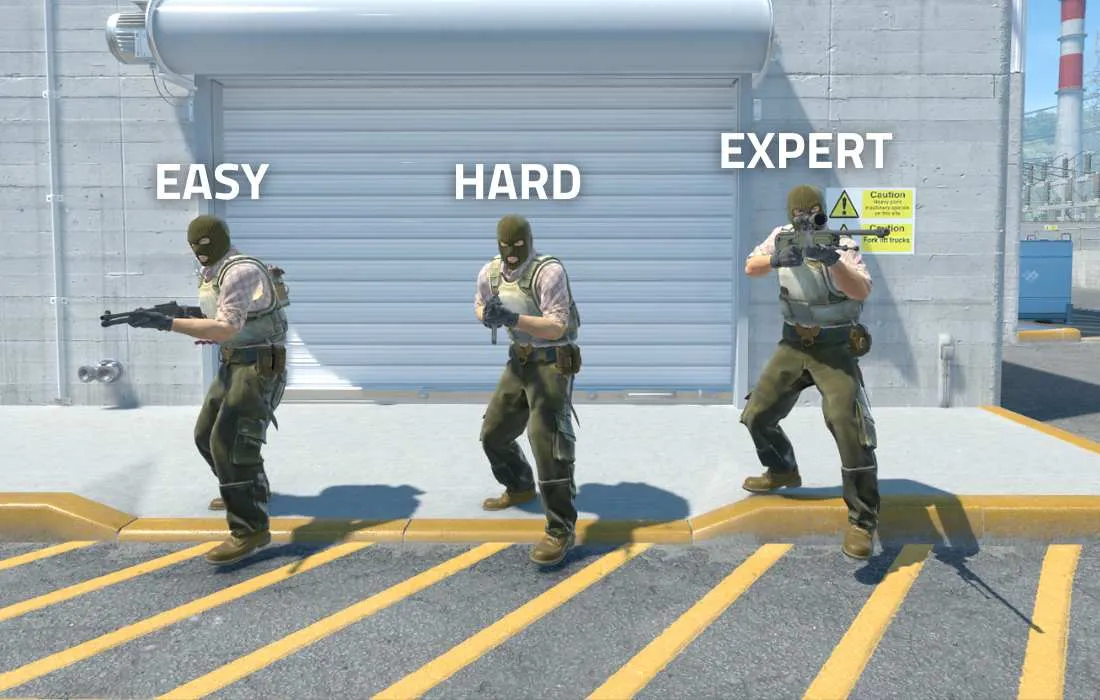
However, for newcomers, bots are a solid training tool. You can learn to shoot without fear of getting destroyed by thousands of hours of grinding. Plus, they follow empty slots and create situations where you can practice spawning bots in CS2 to nail down ideal conditions for yourself.
Step-by-Step Guide: How to Spawn Bots in CS2 Practice
Alright, let’s move to the practical part. The entire process of spawning bots revolves around the developer console – a special window for entering commands that allows you to change buy parameters. Sounds complicated, but it’s really just a text field where you type a command and press Enter. Nothing fancy.
Step 1: Open the Developer Console
First, what you need to do is enable the ability to open the console. In some games, it’s enabled by default, but in most – it’s not. The process is simple to impossible.
Launch CS2 and go to Settings – there you’ll find a section called “Game” (depending on your language interface). There you’ll find a store of all sorts of settings and tweaks. You need the option for the developer consolмe. Click on it and set it to “Enabled” or “Yes.”
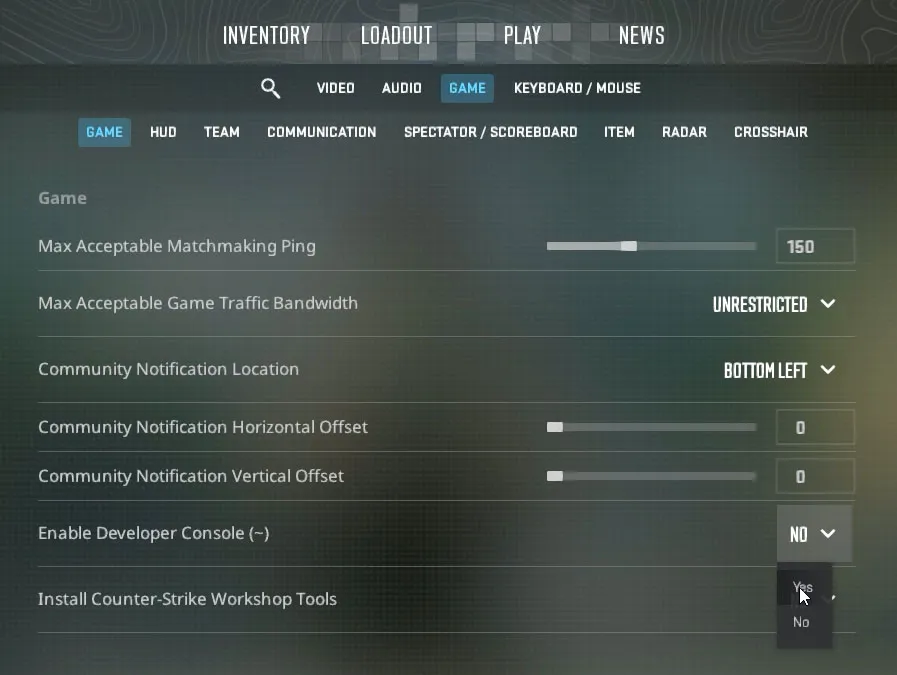
That’s it for this step. Now the console can be called up during the game. Press the tilde key (~), which sits to the left of the one on the keyboard. On some keyboards or in people with non-standard layouts, it might be different, but most often it’s just the tilde. If nothing happens – check the keybindings. You might also need to press the button on the keyboard itself. If you’re still stuck, try pressing it again. In extreme cases, restart the game – this helps in 99% of situations.
Step 2: Enter the Command to Spawn Bots in CS2
Now comes the fun part – actually spawning these items. Open the console (remember, tilde?) and type or paste the text – this is just a text field where you can enter text. Below the row, you can see the text – this is where you need to write.
The simplest and most popular command is bot_kick. Press it, hit Enter, and boom – all bots from both teams instantly disappear. This is the command to remove all bots in CS2, which worked right away and always (well, almost always, about the limitations of the spread).
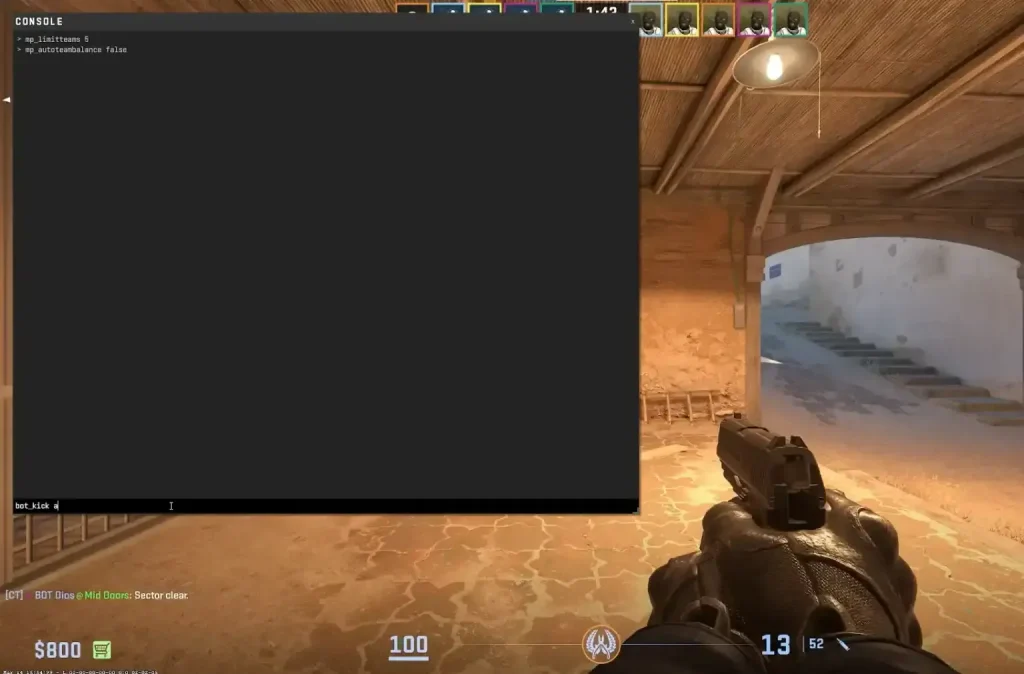
But sometimes you need something more precise. For example, you want to protect bots on your team while training against them, and remove your own items from the command – there are special options for this:
- bot_kick ct – this trick only removes counter-terrorist bots. Terrorists stay far away.
- bot_kick t – here attacks only hit terrorist bots, while CT-snipers continue their defense.
All these commands like bots CS2 work instantly. You don’t need to check the round end, you don’t need to restart the match – just bring the command, and bots disappear right away. Even if it’s unclear how often you use this command, you can bind it to a button. For example, the command to kick all bots CS2 on button K looks like this: bind “k” “bot_kick”. Now just press K during the game, and all bots disappear without opening the console. Much more economical during active training.
Advanced Bot Control Commands in CS2
Additional commands for working with bots Once you’ve figured out the basics and know how to kick bots in CS:GO (yes, this skill moved to CS2 unchanged), you can go deeper. Valve left a whole bunch of commands in the game for fine-tuning the AI. This opens up a lot of possibilities for different training modes and scenarios.
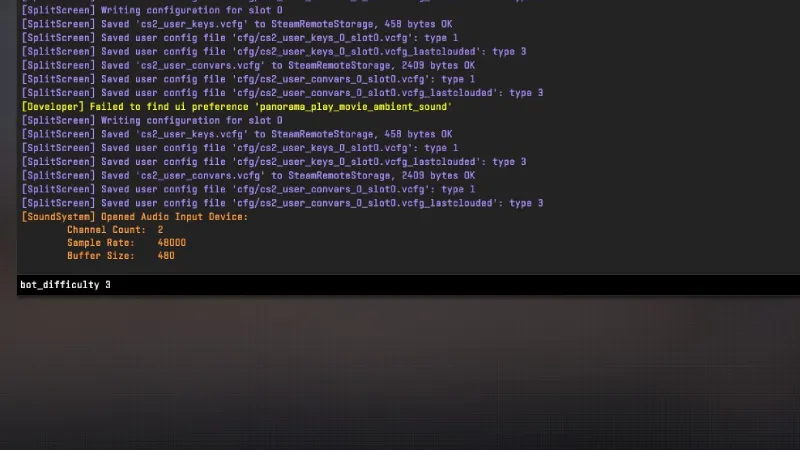
For example, you can make bots stand still like dummies for aim training. Or, on the contrary, add them for practice against moving targets. In general, there are tons of options, you just need to know the right commands.
Adding bots for training
Sometimes you don’t need to remove bots from CS2 practice, but add them. Let’s say you want to practice prefire on popular spots – for that it’s convenient to place a few enemy bots in the positions you need. Or you’re training headshots and you need moving targets.
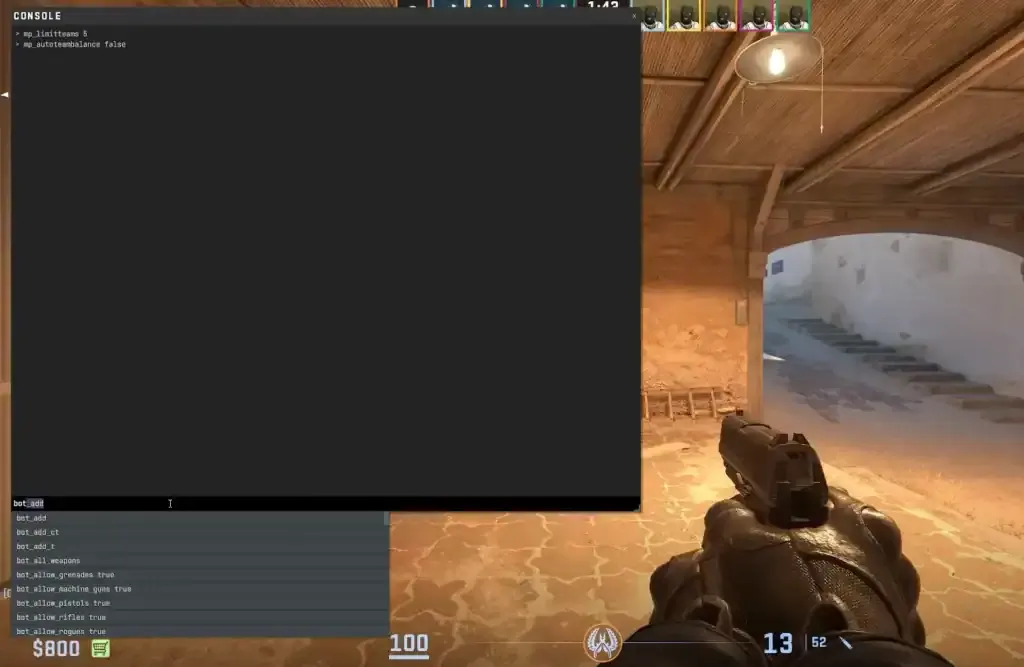
The basic command here is simple – bot_add. You type it in the console, press Enter, and one bot gets added to a random team. It can end up either on your side or on the enemy side. If you need more control, there are better options:
- bot_add_ct – this adds a Counter-Terrorist bot. Useful when you’re practicing site executes and need defenders.
- bot_add_t – this adds a Terrorist bot. Good for training holds and defending different positions.
Want to add a lot of bots at once? Just type bot_add several times in a row. Or you can use the bot_quota [number] command – it sets the total number of bots in the game. For example, bot_quota 8 – means the system will constantly keep eight bots in the match. If you kick bots from a team, they’ll automatically rejoin until the limit is reached.
Another cool feature – you can set the bot difficulty with the bot_difficulty command. There are values from 0 to 3, where 0 is total noobs who can barely press buttons, and 3 is bots at GN level (well, almost). For beginners it’s better to start with 0 or 1 so you don’t lose the desire to play. And when you feel more confident, you can raise it to 2 or 3.
Customize Bot Behavior
Apart from simply adding and removing them, you can dig deep into bot behavior and tweak their settings however you want. This opens up incredible possibilities for creating your own training modes.
- bot_stop 1 – after this command all bots freeze in place like statues. They don’t move, don’t shoot, don’t do anything at all. Super useful for accuracy training – you can calmly walk around and aim at heads without worrying about getting shot. And when you’re done, just type bot_stop 0, and they come back to life.
- bot_dont_shoot 1 – bots keep running, taking positions, throwing flashes, but they can’t shoot. Very useful for practicing tracking moving targets or when you want to work on positioning without dying every five seconds.
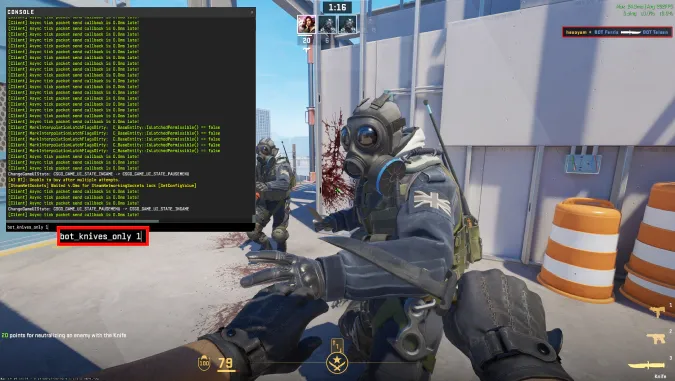
- bot_knives_only 1 – here bots become pacifists and use only knives. You can set up some fun knife battle royale-style runs or just troll your friends in a private lobby. Plus, it’s great for movement training – when a bot with a knife is chasing you from behind, you start moving much more carefully.
- mp_autoteambalance 0 – disables auto team balance. That’s when CS2 constantly tries to even out the number of players on both teams and keeps switching someone back and forth. With this command you can make uneven teams – for example, put yourself alone against five bots for hardcore training.
- mp_limitteams 0 – removes the limit on the team size difference. Normally the game doesn’t let you do something like 1 vs 10, but with this command you can. You can create any team configurations you want.
Tips for Efficient Bot Management
Once you’ve figured out the basics and advanced commands, it’s time to talk about how to make the whole process as smooth as possible. One thing – know the commands, and everything else – use them effectively without wasting time.
Config Files – Your Best Friend.
Imagine: every time you go into practice and enter fifteen commands in a row to set everything up. Annoying, right? That’s why .cfg files exist – these are collections of commands that can be executed with one keystroke.
Go to the folder with the game, find csgo/cfg there, and create a text file with the .cfg extension (for example, training.cfg). Open it with a text editor and write all your favorite commands for training. Here’s what it might look like:
- bot_kick
- mp_warmup_end
- sv_cheats 1
- mp_roundtime 60
- mp_buy_anywhere 1
- mp_buytime 60000
Save the file, go into the game, open the console, and type exec training.cfg – and boom, all commands execute automatically. The economy of time is especially noticeable if you train every day.
Bind Commands to Keys.
One more life hack – bind the most frequently used commands to keys. For example:
bind “k” “bot_kick” – the command to kick all bots CS2 is assigned to K bind “n” “noclip” – enables free movement mode for quick map traversal bind “m” “mp_restartgame 1” – restarts the round
Now you don’t need to open the console and type commands – just press the right button. Much more economical during active training.
Remember About Limitations.
Important moment: all these files work only in practice mode or on your own servers. On official Valve servers or in match-making, console commands are blocked by the system – otherwise, it would be full of cheating. So don’t try to use the command to kick bots in CS2 during a rating match and expect nothing to happen.
Experiment Without Fear.
The best thing about console commands is that nothing is scary. If you mess up, just restart the game, and everything goes back to normal. So don’t be afraid to try different combinations, mix commands, and find your ideal set for training.
Save Your Configs.
If you’ve created the perfect config for training, copy it somewhere safe or on a flash drive. It’ll be a pain to reinstall the game and lose all your settings. One click – and you’re back to where you left off.
FAQ
Can I remove bots without the console?
Not really. In CS2, there’s no convenient button in the menu that would let you spawn bots with a simple click. Valve simply didn’t create such a graphical interface, maybe they thought the console is a classic that doesn’t need to be changed. From one bot, it’s inconvenient for newcomers, but from the other – the console gives much more possibilities for fine-tuning everything and everyone.
So the only option is to open the console and type commands. But if you figure it out once, then everything goes on autopilot. Literally two heavy users – and you’re done. Plus, you can bind commands to buttons, as I wrote above, and then you won’t even need to open the console.
How do I add only one bot?
It’s super simple – open the console and type bot_add. One bot appears in the spawn command. If you need specifically CT or T, type bot_add_ct or bot_add_t accordingly. The command works instantly, the bot appears right in the process of the game.
This is especially useful when you want to practice one-on-one or create a specific balance of forces. For example, put yourself against three bots of the opponent – this is an uneven training of command game in a smaller space. Or attacks, practice one on one and practice the situation of a clutch.
Are these commands allowed in online matches?
No, and it’s logical if you think about it. There were 6, and in the rating match, you wanted to enter console commands and change the rules of the game. Complete chaos would begin. So the command to kick all bots in CS2 and all other similar tricks work only in practice mode, on local servers, or on private servers, if you are an administrator.
In official match-making, on servers without admin rights, and in some other modes, all these commands are blocked by the system – otherwise, it would be full of cheating. You can try to introduce them – nothing will happen or you’ll get a message that the command is inaccessible. So all this magic with bots – only for personal training and private matches with friends.

I’m John Stevens, guy who is completely passionate about playing CS2. For me, it’s not just a hobby, it’s a way of life. I spend most of my time developing strategies, practicing, and participating in amateur championships.
Through this blog, I aim to inspire, entertain, and unite other gamers.
So join me on this incredible journey through the cs2 world. Together, we will explore the ins and outs of CS2, discuss the latest gaming news, and dive into the exciting world of eSports. My blog is created to provide insights, reviews, and thought-provoking content that will keep you coming back for more.