


FPS in Counter-Strike 2 is one of the most important factors. It directly affects:
![Funny [YELLOW] Case case cs go](https://rs.bloodycase.com/?url=cdn.bloodycase.com/cases/1475894062878822400.webp&w=370&h=336&output=webp&q=100)
![Funny [RED] Case case cs go](https://rs.bloodycase.com/?url=cdn.bloodycase.com/cases/1475893882817351680.webp&w=370&h=336&output=webp&q=100)
![Funny [PURPLE] Case case cs go](https://rs.bloodycase.com/?url=cdn.bloodycase.com/cases/1475893755763494912.webp&w=370&h=336&output=webp&q=100)
![Funny [BLUE] Case case cs go](https://rs.bloodycase.com/?url=cdn.bloodycase.com/cases/1475894282886844416.webp&w=370&h=336&output=webp&q=100)
![Funny [GREEN] Case case cs go](https://rs.bloodycase.com/?url=cdn.bloodycase.com/cases/1475894570033090560.webp&w=370&h=336&output=webp&q=100)
- Gameplay smoothness – the higher the FPS, the fewer delays and stutters in character movement.
- Shooting accuracy – stable FPS allows better control of the crosshair and reaction to opponents’ actions.
- Gaming perception – high FPS reduces visual artifacts that may distract or interfere.
The simplest way to get maximum FPS is to invest in hardware. However, even a top configuration does not always equal better results. How to boost FPS in CS2? We analyze this in the following sections of the material.
Why Is Your FPS Low in CS2?
Before thinking about boost FPS in CS2, you need to figure out the reasons for low current performance, as well as the consequences of playing with insufficient frames per second and low frametime.
Consequences:
| FPS / Frametime | What happens in-game | Effect on the player |
| FPS < 60 | Stutters, delays, “slideshow” | Difficult aiming, loss of control |
| FPS unstable | Sudden frame drops | Loss of rhythm, hard to adapt |
| Frametime > 16.6 ms | Noticeable microstutters even with high FPS | Discomfort, slower reaction |
| Frametime unstable | Uneven smoothness, “stuttering” | Visual artifacts, loss of focus |
| FPS < 30 | Game almost unplayable | Impossible to react in time |
There are clear explanations for this in the form of reasons for frame drops.
Common Reasons for Low FPS
| Category | Possible Causes |
|---|---|
| Weak or outdated hardware | GPU cannot handle the graphical load. CPU has a low frequency or few cores. Insufficient RAM (less than 8–16 GB). |
| Incorrect game settings | Too high graphics parameters (shadows, textures, resolution). Enabled resource-intensive effects: Motion Blur, Ambient Occlusion, Anti-Aliasing. |
| Background processes and system load | Running browsers, Discord, OBS, antivirus. Automatic Windows or driver updates. |
| Disk or memory problems | Game installed on HDD instead of SSD. Full disk or fragmented partition.- High RAM or VRAM usage. |
| Thermal throttling (overheating) | Fans cannot cope; CPU/GPU temperature exceeds normal limits. System reduces frequencies to cool down. |
| Outdated or unstable drivers | GPU drivers are not updated or conflict with the game. Current driver version lacks CS2 optimizations. |
| Network issues (for online FPS) | High ping or packet loss can create a “lag” effect. Unstable connection via Wi-Fi or VPN. |
| Poor game optimization or conflicts | CS2 may have bugs or run poorly on certain configurations. Conflicts with overlay programs (Steam, GeForce Experience). |
How Hardware and Software Affect Performance
How to boost your FPS in CS2? Buy a top PC. At least because FPS directly depends on hardware:
| System Type | Expected FPS in CS2 | Result |
| 💻 Budget laptop (iGPU) | 30–60 FPS | Minimally playable, possible stutters |
| 🖥️ Mid-range PC (GTX 1660 / RX 580) | 100–150 FPS | Comfortable play on medium settings |
| 🖥️ Powerful PC (RTX 3060 / RX 6700 XT) | 200–300 FPS | Perfect for competitive level |
| 🖥️ Elite system (RTX 4080 / RX 7900 XTX) | 400+ FPS | Maximum smoothness, reserve for 240–360 Hz monitors |
Although the game requirements are quite low, so theoretically even a “potato PC” can handle it.
Is Your System Meeting CS2 Requirements?
To play at 30–60 FPS, the minimum requirements are:
- OS: Windows® 10
- CPU: 4-thread processor – Intel® Core™ i5 750 or better
- RAM: 8 GB
- GPU: 1 GB memory or more, DirectX 11 compatible with Pixel Shader 5.0 support
- DirectX: version 11
- Disk space: 85 GB available
So, if your PC meets the requirements – you can enjoy gameplay. But note, FPS can still be increased even on prehistoric hardware. So why not try?
Top 10 Proven Ways to Increase FPS in CS2
How to boost FPS in CS2 low end pc? Here are ten key optimization points that will help you get extra frames per second:

- Update Your Graphics Drivers
- Optimize CS2 Video Settings
- Tweak Launch Options in Steam
- Enable High Performance Mode in Windows
- Close Resource-Hungry Background Apps
- Set CS2 to High Priority in Task Manager
- Use NVIDIA or AMD Control Panel Tweaks
- Disable V-Sync and Motion Blur
- Use Low-Latency Mode and FSR (If Available)
- Restart Your System Before Playing
Let’s go through each point in more detail.
Update Your Graphics Drivers
If your drivers are outdated, they may not work correctly with your graphics card and gaming technologies. Therefore:
- Identify your graphics card model (NVIDIA, AMD, or Intel).
- Go to the official website: NVIDIA or AMD
- Download the latest driver recommended for your model.
- Install the driver and restart your PC.
As a result, you will get better GPU performance and higher FPS. Install using the “Clean” option instead of Express to avoid conflicts with old driver components.
Optimize CS2 Video Settings
Internal optimization is also important:
- Open CS2 → Settings → Video.
- Set:
- Resolution: 1080p or lower.
- Shadows, textures, effects: Low or Medium.
- V-Sync: Off.
- Multicore Rendering: Enabled.
- Save settings and restart the game.
This is one of the answers to the question: “How to improve FPS in CS2?».
Tweak Launch Options in Steam
You can additionally improve FPS in CS2 by optimizing launch commands:
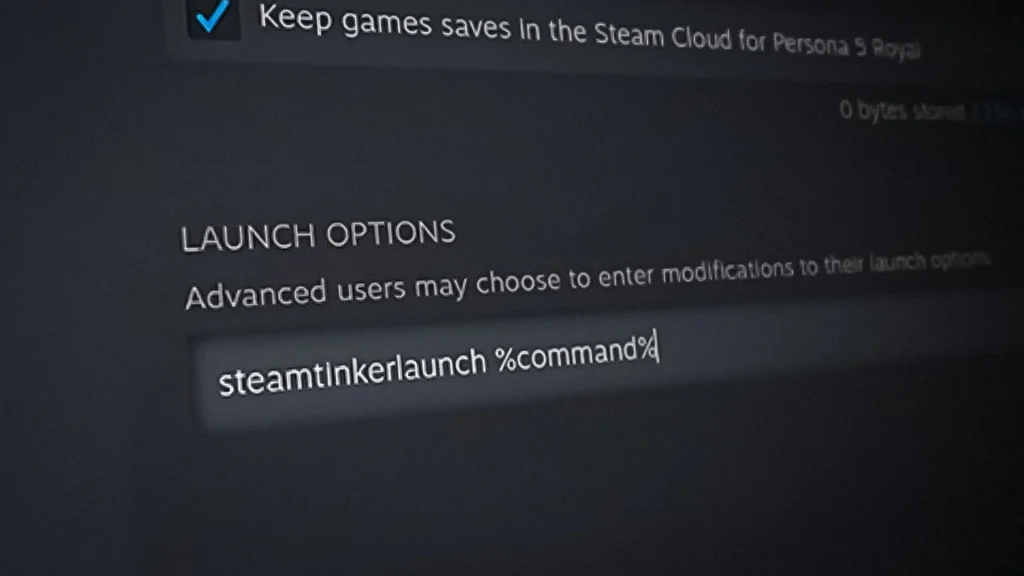
- Open Steam → Library → Right-click CS2 → Properties
- In the Launch Options field, enter: -novid -high -threads 4 +fps_max 300 -tickrate 128 -nojoy
- Close the window and launch the game.
| Command | What it does |
| -novid | Skips the intro video for faster startup. |
| -high | Sets CS2 process to high priority in Windows. |
| -threads 4 | Allocates 4 CPU threads to the game. Adjust to your core count. |
| +fps_max 300 | Limits maximum FPS. Set according to your monitor refresh rate. |
| -tickrate 128 | Sets 128 tickrate for local servers (training maps). |
| -nojoy | Disables joystick support, slightly reducing memory usage. |
These settings set maximum priority for CS2 and allocate PC power correctly to it.
Read a detailed guide on FPS commands for CS2
Enable High Performance Mode in Windows
It won’t hurt to also “give your OS a kick.” For this:
- Control Panel → Power → Choose a power plan
- Select High Performance or Maximum Performance
- Restart your PC to apply
Now your PC will operate in performance mode, working at 100% capacity.
Close Resource-Hungry Background Apps
How to maximize FPS in CS2? Make sure the game is the heaviest running process on your system:
- Open Task Manager (Ctrl+Shift+Esc).
- Close:
- Discord, Chrome, OBS, antivirus programs.
- Programs using >5% CPU or GPU.
- Check startup → Disable unnecessary programs.
This way, you will get rid of “heavy” processes and free up some system resources for the game.
Set CS2 to High Priority in Task Manager
If you are asking “Why is my CS2 FPS so low?”, you probably forgot to assign priority to the game:
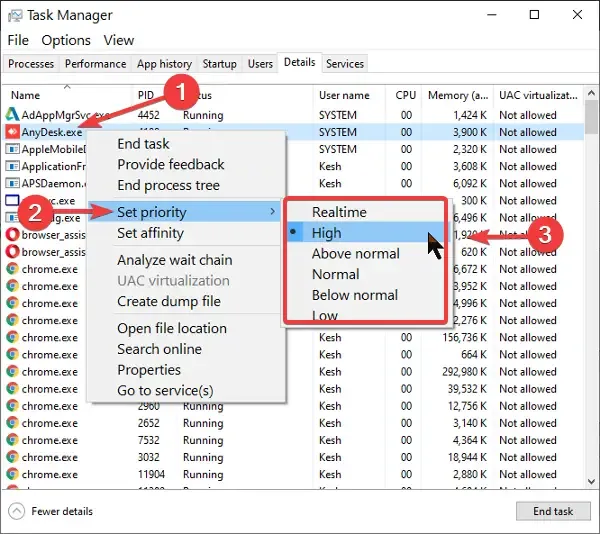
- Launch CS2.
- Open Task Manager → Details tab.
- Find cs2.exe → Right-click → Set Priority → High.
That’s it, now no other processes will prevent you from destroying enemies.
Use NVIDIA or AMD Control Panel Tweaks
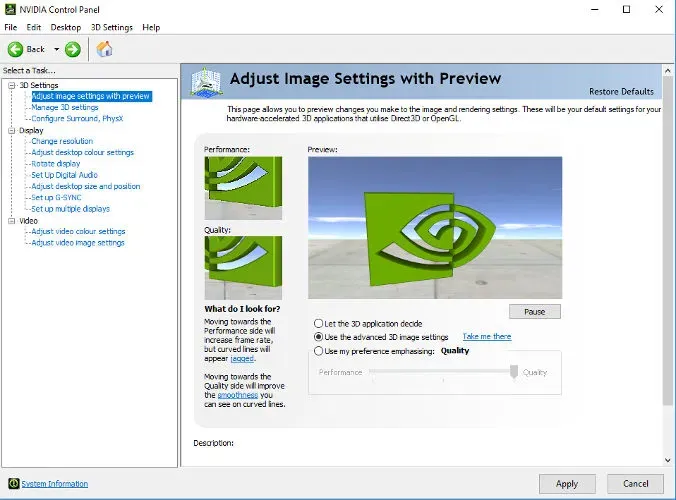
You can also optimize your graphics card software settings:
NVIDIA:
-
- Open NVIDIA Control Panel.
- Manage 3D Settings → Power Management → Prefer Maximum Performance.
- Low Latency Mode → On or Ultra.
AMD:

-
- Open AMD Software: Adrenalin.
- Gaming → CS2 → Graphics → Radeon Chill → Off.
- Texture Filtering → Performance.
Yes, it won’t add aesthetics, but it will increase FPS in CS2.
Disable V-Sync and Motion Blur
Smooth and stable visuals are nice, but CS2 is not about that. So:
- Open CS2 → Settings → Video.
- Disable:
- V-Sync (Vertical Sync).
- Motion Blur.
- Save and restart the game.
You may lose some smoothness and effects, but in return, you will clearly see the battlefield with fast image updates.
Use Low-Latency Mode and FSR (If Available)
How to increase FPS in CS2? Reduce the delay from the GPU to the monitor:
- NVIDIA Reflex: In-game or driver → Low Latency Mode → Enabled/Ultra.
- AMD Anti-Lag: In Adrenalin → Gaming → Anti-Lag → On.
- FSR (FidelityFX Super Resolution): CS2 → Video → FSR → Performance or Balanced.
Also, use displays with a response time <1ms to minimize rendering latency as much as possible.
Restart Your System Before Playing
Finally, one of the main recommendations – play on a clean and fresh system:
- Close all programs.
- Restart the PC.
- Launch CS2 immediately after system startup.
No cache, background tails, or unnecessary processes. Pure power focused on the game client.
And these are just the basic optimizations. Let’s also go through additional ways to overcome the low FPS problem in CS2.
Best In-Game Settings for Maximum FPS
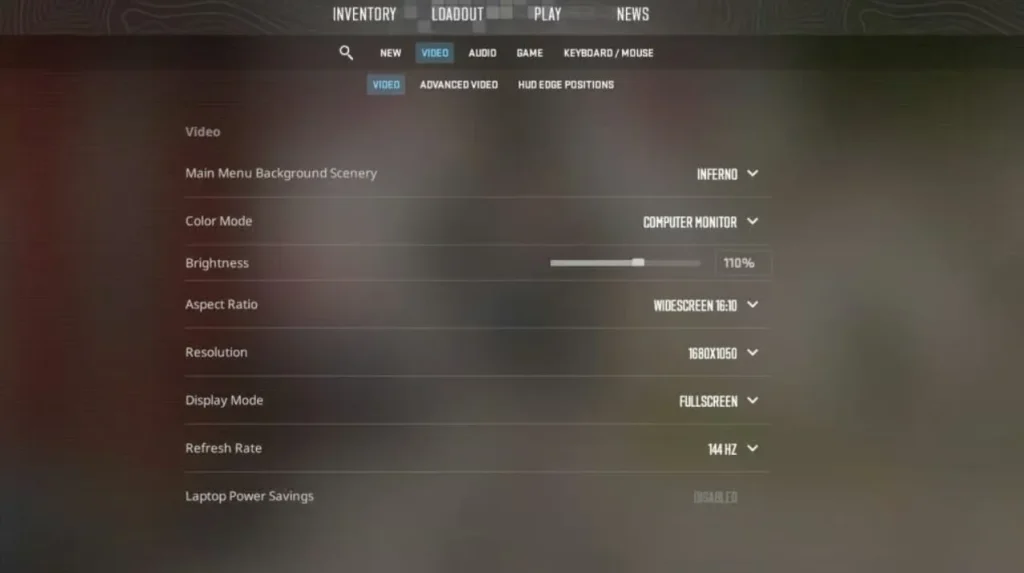
In shooters like CS2, the visual component takes a backseat. Much more important is achieving the maximum frames per second. Here are optimal settings for different PC builds:
| Settings | Performance (Low-end PC) | Balanced (Mid-range PC) | Quality (High-end PC) |
| Resolution | 1280×960 or 1024×768 | 1600×900 or 1920×1080 | 1920×1080 or 2560×1440 |
| Shadows | Off | Low | Medium |
| Ambient Occlusion | Off | Off | Medium |
| Anti-Aliasing | Off | FXAA | TAA / MSAA |
| Shaders | Low | Medium | High |
| Multicore Rendering | On | On | On |
| V-Sync | Off | Off | Off |
| Motion Blur | Off | Off | Off |
| FidelityFX / FSR | Performance | Balanced | Off or Quality |
Next, let’s go through additional settings and tips in more detail.
Recommended Video Settings
Here is a balanced preset for maximum FPS on average hardware:
| Category | Recommended Value | Comment |
| Resolution | 1280×960 or 1600×900 | Good balance between clarity and FPS |
| Refresh Rate | 144 Hz or higher | Important for smooth aiming |
| Display Mode | Fullscreen | Minimum input delay |
| Multicore Rendering | Enabled | Uses all CPU cores |
| Boost Player Contrast | Enabled | Makes enemies more visible |
| V-Sync | Disabled | Reduces input delay |
| Motion Blur | Disabled | Removes blur when moving |
But that’s not all; we also need to consider additional settings that you should disable.
Advanced Graphic Settings to Disable
Effects are nice – they improve the visuals. But at the same time, they harm performance and some game mechanics. So, we disable:
| Settings | Reason to Disable |
| V-Sync | Adds input delay, limits FPS |
| Motion Blur | Reduces clarity, loads the GPU |
| Anti-Aliasing (MSAA) | High load, minimal benefit |
| Ambient Occlusion | Visual effect that strongly reduces FPS |
| High Shader Detail | Affects lighting, but expensive for the GPU |
| Depth of Field | Aesthetic, not needed in competitive play |
| Bloom | Extra glow, harms performance |
Of course, for casual “vibe” gameplay you can max out all settings – but only if you have an ultra-powerful PC and have perfected your combat skills.
Best Resolution and Aspect Ratio
Even the aspect ratio and render size affect frames per second:
| Parameter | 4:3 (Stretched) | 16:9 (Native) |
| FPS | Higher | Lower |
| Model Visibility | Bigger, stretched | Natural, smaller |
| Field of View (FOV) | Narrower | Wider |
| Target Accuracy | Higher (due to stretching) | Lower |
| Visual Clarity | Worse | Better |
| Recommended For | Competitive game | Casual play / streaming |
And this is still not the end. Next, let’s move on to the game platform settings and CS2 launch options.
Best Launch Options to Boost FPS in CS2
Still wondering “Why do I have low FPS in CS2?” One reason may be that you haven’t optimized the game’s launch parameters. So next, we’ll focus specifically on this aspect of boosting FPS.
Most Effective CS2 Launch Commands

Here are some of the most common commands that can be used to optimize game performance:
| Command | Purpose |
| -novid | Skips the intro video. Faster startup. |
| -high | Sets the CS2 process to high priority in Windows. |
| -threads 4 | Allocates 4 CPU threads to the game. Adjust according to your CPU core count. |
| +fps_max 300 | Limits maximum FPS. Set according to your monitor’s refresh rate. |
| -tickrate 128 | Sets 128 tickrate for local servers (training, bots). |
| -nojoy | Disables joystick support. Slightly reduces memory usage. |
| +cl_forcepreload 1 | Loads all game resources in advance. Reduces stutters during gameplay. |
How to Apply Them in Steam
Here’s how you can integrate the commands for an optimized game launch:
- Open Steam and go to your Library.
- Find Counter-Strike 2, right-click → Properties.
- In the General tab, find the Launch Options field.
- Paste your command string there, for example: -novid -high -threads 4 +fps_max 300 -tickrate 128 -nojoy
- Close the window. The commands will be applied automatically the next time you launch the game.
And you know what? You can also adjust some settings directly in the game.
Console Commands to Improve FPS in CS2
The game allows you to work with console commands. Here’s the basic workflow:

| Action | How to Do It |
| Enable Console | Settings → Interface → Enable Developer Console |
| Open Console | Press ~ (tilde) key in-game |
| Enter Commands | Type commands manually or use autoexec.cfg |
Next, let’s focus specifically on useful commands.
Useful Performance Console Commands
There are many console commands in CS2. Here are the ones you will need for optimization:
| Command | Purpose |
| cl_showfps 1 | Displays FPS counter in the top corner |
| fps_max 300 | Limits maximum FPS |
| cl_forcepreload 1 | Preloads resources, reduces stutters |
| mat_queue_mode 2 | Enables multi-threaded rendering |
| r_dynamic 0 | Disables dynamic lighting |
There are also commands to improve the network component of the game:
| Command | Purpose |
| cl_interp 0 | Minimizes interpolation (depends on server) |
| cl_interp_ratio 1 | Sets the interpolation ratio |
| rate 786432 | Maximum data transfer rate |
| cl_updaterate 128 | Server update rate |
| cl_cmdrate 128 | Command rate to server |
Moreover, you can monitor your game performance in real-time without third-party overlays, just like becoming a pro player.
Net Graph and FPS Monitoring
To set up an FPS meter, use the following commands:
| Action | How to Do It |
| Enable net_graph | Enter net_graph 1 in the console |
| Disable | Enter net_graph 0 |
After enabling this tool, you will see:
| Metric | What it Means |
| FPS | Frames per second |
| ping | Server latency |
| loss | Packet loss |
| choke | Network overload |
| tick | Server tickrate |
But entering all of this manually can be tedious. So let’s automate it.
Autoexec.cfg Tweaks
The game can automatically execute console commands at startup. For this:
| Step | Action |
| Create file | autoexec.cfg in the folder …/CS2/csgo/cfg/ |
| Add commands | Paste the required commands (see below) |
| Force execution | Add the line +exec autoexec.cfg to Steam launch options |
As a result, you can instantly load the desired configurations right when the game starts.
Example autoexec.cfg for FPS:
cfg
cl_showfps 1
fps_max 300
cl_forcepreload 1
mat_queue_mode 2
r_dynamic 0
rate 786432
cl_interp 0
cl_interp_ratio 1
cl_updaterate 128
cl_cmdrate 128
Of course, you should adapt these settings to your own PC. And don’t forget to optimize your operating system as well – this is important for FPS. Here you can find guide how to create Autoexec file.
Extra Tips to Optimize Windows for Gaming
How to get more FPS in CS2 low end pc? Through comprehensive optimization, including the Windows OS. Here are some tips:
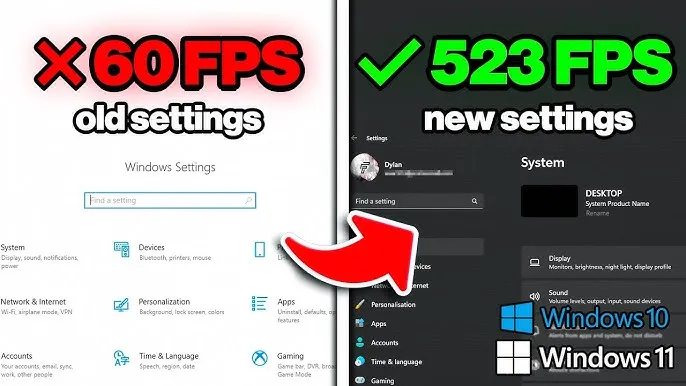
Enable Game Mode and GPU Scheduling
| Action | Steps |
| Enable Game Mode | Settings → Games → Game Mode → On |
| Enable GPU Scheduling | Settings → System → Display → Graphics → Settings → On |
| Effect | Reduced input lag, more stable FPS |
Disable Fullscreen Optimization
| Action | Steps |
| Disable for CS2 | Steam → Library → Right-click CS2 → Manage → Browse local files |
| Find cs2.exe | Right-click → Properties → Compatibility |
| Uncheck | “Fullscreen Optimization” |
| Effect | Reduced input lag, more stable frametime |
Turn Off Xbox Game Bar and Background Recording
| Action | Steps |
| Disable Xbox Game Bar | Settings → Gaming → Xbox Game Bar → Off |
| Disable Background Recording | Settings → Gaming → Captures → Background Recording → Off |
| Effect | Frees CPU/GPU resources, reduces stutters |
How Low FPS Impacts Competitive Gameplay
This CS2 FPS boost guide is important because low frames per second can cause losses, regardless of your skills or reaction time. Poor optimization has serious consequences.
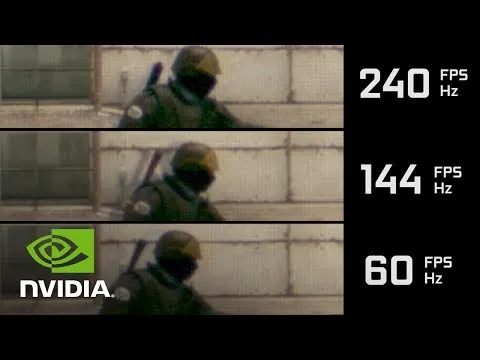
Input Lag and Reaction Time
| Cause | What Happens | Effect on Player |
| Low FPS | Delay between action and display | Slower reaction, lost firefights |
| V-Sync enabled | Additional frame buffering | Noticeable aiming delay |
| High frametime | Frames render slowly | Loss of accuracy, stressful gameplay |
Frame Stutters and Missed Shots
| Symptom | Cause | In-Game Consequence |
| Screen stutters | Unstable FPS or background processes | Missed shots, hard to track enemies |
| Microstutters | CPU/GPU overload or slow disk | Loss of control, inefficient shooting |
| Frame delays | High frametime or driver issues | Unable to react in time |
Lower Consistency in Crosshair Control
| Cause | How It Manifests | Effect on Aiming |
| Unstable FPS | Varying crosshair movement speed | Hard to maintain micro-control |
| Frame drops | Stutters during movement or shooting | Crosshair “jumps,” loss of accuracy |
| Input lag | Delay between mouse and crosshair movement | Cannot track enemies smoothly |
Should You Upgrade Your PC to Improve FPS?
If even the CS2 FPS boost settings don’t help, it’s time to consider upgrading your hardware:
| Problem Sign | Possible Upgrade | Comment |
| FPS < 60 even on low settings | GPU or CPU | The system cannot handle basic rendering |
| Frequent stutters or micro-lags | SSD, RAM, CPU | Possible overload or slow disk |
| High CPU usage (>90%) | CPU | Bottleneck in processing game physics/logic |
| High GPU usage (>95%) | GPU | Bottleneck in graphics rendering |
| Long game startup (>30 sec) | SSD | HDD significantly slows down loading |
CPU vs GPU Bottlenecks
| Sign | Bottleneck | Solution |
| FPS does not change when adjusting graphics | CPU | Upgrade processor or reduce background tasks |
| FPS increases when lowering graphics | GPU | Upgrade graphics card or reduce settings |
| High frametime | CPU or RAM | Check multithreading and memory size |
| Unstable FPS while streaming | CPU | Prefer 6+ cores or a separate PC for streaming |
Recommended System Specs for 144+ FPS
| Component | Minimum for 144+ FPS | Ideal for stable 240+ FPS |
| CPU | Ryzen 5 5600 / i5-12400 | Ryzen 7 5800X / i7-13700K |
| GPU | RTX 3060 / RX 6600 XT | RTX 4070 / RX 7800 XT |
| RAM | 16 GB DDR4/DDR5 | 32 GB DDR4/DDR5 |
| SSD | NVMe 500+ MB/s | NVMe Gen4 3000+ MB/s |
| Monitor | 144 Hz Full HD | 240-360 Hz Full HD or 1440p |
SSD vs HDD for CS2
| Parameter | HDD | SSD (SATA/NVMe) |
| Game startup time | 30–60 sec | 5–15 sec |
| Map loading | Long, possible stutters | Fast, smooth |
| Background processes | Can cause lags | Minimal impact |
| Overall stability | Low with multitasking | High, especially with NVMe |
| Recommended for CS2 | ❌ Not recommended | ✅ Required for comfortable gameplay |
Summary: Fast Checklist to Boost FPS
So, how to fix low FPS CS2? Here’s the algorithm:
System Settings:
- ✅ Enable Game Mode (Settings → Gaming)
- ✅ Enable GPU Scheduling (Settings → Display → Graphics)
- ✅ Disable Fullscreen Optimization (Right-click cs2.exe → Properties → Compatibility)
- ✅ Disable Xbox Game Bar and Background Recording (Settings → Gaming → Captures)
Steam Launch Options: Steam → CS2 → Properties → Launch Options. Set: -novid -high -threads 4 +fps_max 300 -tickrate 128 -nojoy +cl_forcepreload 1
In-Game Video Settings:
| Settings | Value |
| Resolution | 1280×960 or 1600×900 |
| V-Sync | Off |
| Motion Blur | Off |
| Multicore Rendering | Enabled |
| Boost Player Contrast | Enabled |
| FidelityFX / FSR | Performance or Balanced |
Console Commands:
cfg
cl_showfps 1
fps_max 300
cl_forcepreload 1
mat_queue_mode 2
r_dynamic 0
rate 786432
cl_interp 0
cl_interp_ratio 1
cl_updaterate 128
cl_cmdrate 128
Create autoexec.cfg in …/csgo/cfg/ and add these lines
That’s it. Enjoy higher FPS on any PC. Need additional settings, configurations, or tips? Check other BloodyCase guides!
FAQ
What’s the best FPS for CS2?
For competitive play, stable 144+ FPS is recommended, ideally 240+ on a high refresh rate monitor.
Will lowering resolution improve FPS?
Yes, lowering resolution significantly reduces GPU load and increases FPS, but it may reduce image clarity.
Is it safe to use third-party tools to boost FPS?
Using third-party FPS optimizers is risky – better stick to official Steam, Windows, and driver settings.
Do more FPS mean better aim?
Higher FPS reduces input lag and improves aim smoothness, but it does not guarantee accuracy by itself.

I’m John Stevens, guy who is completely passionate about playing CS2. For me, it’s not just a hobby, it’s a way of life. I spend most of my time developing strategies, practicing, and participating in amateur championships.
Through this blog, I aim to inspire, entertain, and unite other gamers.
So join me on this incredible journey through the cs2 world. Together, we will explore the ins and outs of CS2, discuss the latest gaming news, and dive into the exciting world of eSports. My blog is created to provide insights, reviews, and thought-provoking content that will keep you coming back for more.