


Look, if you’re serious about CS2, you already know FPS matters. A lot. But knowing it matters and actually doing something about it? Two different things. This BloodyCase guide cuts through the BS and shows you exactly how to monitor and boost your frames using the best cs2 console commands for fps.
Why FPS Actually Matters
Frame rate is basically how many images your PC throws at your screen every second. More frames = smoother gameplay. Simple enough, right?
But here’s the thing – in CS2, it’s not just about looking pretty. Your FPS directly affects how fast you can react. That guy who keeps one-tapping you? Yeah, he’s probably running 240 FPS while you’re stuck at 80.
How to Actually See Your FPS
Can’t improve what you can’t measure. Here’s two ways to check your FPS.
1. Steam Overlay
- Open Steam → Settings
- Hit “In-Game” on the left
- Find “In-game FPS counter” and pick where you want it
- Turn on “High contrast color” so you can actually see it

Works in every Steam game, not just CS2.
2. Developer Console
Want more info than just a number? Cs2 console commands for fps give you the full picture-ping, packet loss, the works.
First, enable your console (if you haven’t):
- CS2 Settings → Game tab
- “Enable Developer Console” → Yes

- Press ~ to open it (that squiggly key under Esc)

Now the good stuff. These commands for fps cs2 are your new best friends:
| FPS Command | Explanation |
|---|---|
| cq_netgraph 1 | Your all-in-one performance display. Shows FPS, ping, loss, choke-everything. It’s basically the old CS:GO net_graph but actually works in CS2. |
| cq_netgraph_problem_show_auto 1 | Only shows network stats when something’s wrong. Perfect if you don’t want clutter but need to know when you’re lagging. |
| cl_showfps 1 | Simple FPS counter in the top-left. Use cl_showfps 2 if you want a different format. Use cl_showfps 0 to turn it off. |
| cq_netgraph 0 | Disables the whole thing when you don’t need it anymore. |
Best CS2 Console Commands for FPS Boost
Alright, time to actually make your game run better. These cs2 fps commands can seriously improve performance, especially if your PC isn’t exactly bleeding-edge.
The Must-Haves FPS Commands
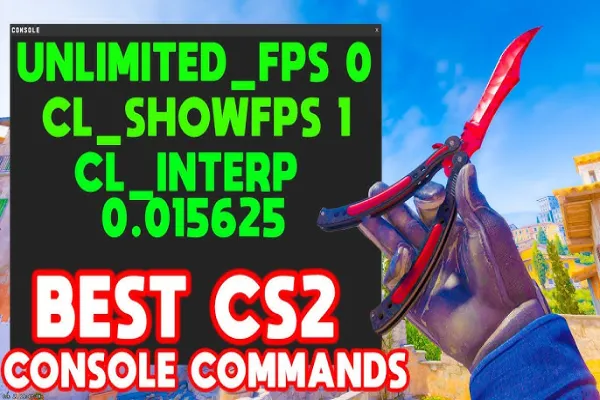
- fps_max 0: Uncaps your frame rate completely. Let your PC go wild. If you’ve got a 240Hz monitor, you want this.
- mat_queue_mode 2: Makes CS2 use all your CPU cores instead of just one. Huge gains if you’ve got a decent CPU. Like, actually huge.
- cl_interp 0 and cl_interp_ratio 1: Standard competitive settings. Makes hit reg feel way better. Not technically an FPS booster but trust me, you want these.
- cl_updaterate 128 and cl_cmdrate 128: Sets you up for 128-tick servers. Won’t boost FPS directly but makes high frame rates actually feel good.
The Performance CS2 FPS Commands
- cl_disable_ragdolls 1: No more physics on dead bodies. Your CPU will thank you, especially during clutch situations with bodies everywhere.
- r_drawparticles 0: Nukes all particle effects. Smoke, fire, everything. Warning: This changes how the game looks drastically. Some community servers might not allow it either.
- r_drawtracers_firstperson 0: Removes bullet tracers from your view. Tiny performance gain but every bit helps.
- cl_disablehtmlmotd 1: Kills those annoying server message pages. Faster joins, less memory usage.
- mat_disable_mipmap 1: turns off texture mipmapping so distant textures stay sharper, but expect aliasing/shimmer, higher texture bandwidth/VRAM use, and possible FPS hit on weaker GPUs – only use if your GPU can handle it and you prefer crispness over stability.
- vprof_off: Turns off VProf, the engine profiler. If you’re CPU-bound it can shave away small hitches by stopping background profiling. Worth trying if you see stutter.
- iv_off: Disables the interpolation-variable profiler. Same idea as vprof_off: frees a bit of CPU overhead on weaker rigs.
- cl_autohelp: Nixes the automatic on-screen tips (bomb prompts, tutorial hints). Reduces visual clutter and a tiny bit of CPU work.
- cl_hide_avatar_images 1: Stops Steam avatars from loading in the HUD/scoreboard. Saves small amounts of CPU/GPU/VRAM and removes avatar download stutters.
- cl_crosshair_friendly_warning 0: Removes the teammate-warning on your crosshair when aiming at allies. Very minor rendering savings; only use if you don’t need the visual cue.
- demo_flush 0: Prevents constant demo/network-write flushes to disk. Probably negligible for most, but can cut background I/O on older disks.
Read a detailed post on how to boost FPS in CS2
What FPS Should You Actually Aim For?
Frame rate in CS2 directly affects input delay, aim feel, and whether tiny stutters turn into lost rounds. Small, inconsistent dips can feel far worse than a lower but steady number, and different FPS bands change how tracking, spray control, and peek timing behave. Below is a practical, no-nonsense breakdown of how each FPS range actually feels in-game and what to expect when you tweak settings or hardware.
| FPS Range | Gameplay Experience |
|---|---|
| Under 60 | Literally unplayable if you care about winning. Everything stutters, your aim feels off, tracking is impossible. Fix this immediately. |
| 60-100 | Playable for casual stuff, maybe some DM. But ranked? You’re gonna struggle in gunfights. Those micro-stutters will get you killed. |
| 100-144 | Smooth enough for competitive if you’ve got a 144Hz monitor. This is the minimum for taking the game seriously. |
| 144-240 | Sweet spot for tryhard mode. If you’ve got th e monitor to match, this is where CS2 starts feeling buttery smooth. |
| 240+ | Pro territory. This is overkill for most people, but if you’re grinding FaceIT or ESEA, you want this. |
Warning! Stable FPS beats high FPS. I’d rather have locked 120 than bouncing between 80 and 180. Consistency > big numbers.
Why Your FPS Sucks (And How to Fix It)
Game Updates Keep Demanding More
CS2 is way heavier than CS:GO was. Every update adds better textures, fancier lighting, map improvements. Your old rig that crushed CS:GO might be struggling now.
Fix: Lower your settings after patches. Shadows and shader quality usually eat the most frames. Drop those first.
Your Drivers Are Ancient
Old GPU drivers = poor performance. Period. Companies release driver updates specifically for games like CS2.
Fix: Download latest drivers from NVIDIA or AMD. Do a clean install if things are really bad. Takes 10 minutes, and can boost FPS by 20-30%.
Background Apps Are Eating Your Resources
Discord, Chrome with 47 tabs, Spotify, your RGB software, Windows Update deciding to scan for viruses-all fighting for resources while you’re trying to clutch.
Fix: Close everything before launching CS2. Check Task Manager (Ctrl+Shift+Esc), kill anything suspicious. Your game > that YouTube video in the background.
Thermal Throttling Is Killing You
When your CPU or GPU gets too hot, it slows itself down to avoid damage. You’ll notice FPS drops mid-game, especially during longer sessions.
Fix: Clean your PC. Seriously, open it up and blast out the dust. Check if fans are actually spinning. If your PC is old, new thermal paste can work wonders.
Windows Power Settings
If you’re on a “Balanced” or “Power Saver” mode, Windows is literally limiting your performance to save electricity.
Fix: Set to “High Performance” in Power Options. Laptop users-plug in and max out your power plan. NVIDIA users should also set “Power Management Mode” to “Prefer Maximum Performance” in the Control Panel.
Extra Tricks Beyond CS2 Commands for FPS
Some bonus stuff that actually helps:
- Verify game files in Steam (right-click CS2 → Properties → Installed Files)
- Disable Xbox Game Bar and Game DVR in Windows settings
- Set CS2 to High Priority in Task Manager while playing
- 16GB RAM is the minimum these days, 8GB ain’t cutting it
- SSD over HDD-loading stutters are real
- Keep Windows updated (yeah, I know, annoying, but it helps)
Getting good FPS in CS2 isn’t rocket science, but it does require some effort. Start with the best cs2 console commands for fps listed here, monitor your results, and fix whatever’s bottlenecking your system.
At the end of the day, you can have the best aim in the world, but if you’re running 60 FPS against someone with 240, you’re already at a disadvantage. These cs2 console commands for fps boost level the playing field. Use them.
FAQ
How to increase FPS in CS2?
Close overlays and background apps, update GPU drivers, use a high-performance power plan and make sure the game runs on your dedicated GPU. Drop heavy settings (shadows, reflections, particles), use a lower resolution or resolution scale, disable profilers like vprof_off and iv_off, hide avatars (cl_hide_avatar_images 1), and run the game from an SSD – those changes usually stop the micro-stutters. Clear shader cache in Nvidia/AMD control panel. Disable unnecessary background apps and Discord overlays that eat frames.
How to cap FPS in CS2?
Open the console and use fps_max [number] (for example fps_max 144), or set the max-FPS in video settings. If you have G‑Sync/FreeSync cap a few FPS under your refresh to avoid weird latency.
Why is my FPS so low in CS2?
Usually a bottleneck: CPU or GPU getting hammered, throttling from heat, old drivers, background apps/overlays, or running ultra settings on weak hardware. Also check for disk stalls (game on HDD), enabled profilers, or VRAM starvation — any of those will tank your frames.
What is good FPS for CS2?
Depends on your monitor refresh rate, but here’s the real talk:
- Below 60: Literally unplayable if you’re trying to rank up
- 60-100: Casual MM maybe, but you’ll struggle
- 100-144: Decent if you have a 144Hz monitor
- 144-240: Sweet spot for most serious players
- 240+: Faceit level 10 territory
Why CS2 FPS drops when using mic?
Classic Source 2 issue. Voice chat processing hits your CPU, especially on older rigs. Try lowering voice_mixer_volume in console and check if “Steam overlay while in-game” is enabled – disable that garbage. If you’re using third-party comms like Discord, that’s double-dipping on voice processing resources.
Why CS2 FPS drops when shooting?
Those particle effects and dynamic lighting are frame killers, especially with shader settings above Low. Each bullet generates particles, muzzle flash, and sound processing. Try r_dynamic 0 and cl_particle_fallback_multiplier 5. If it’s really bad during sprays, lower your sound quality settings – the audio processing during gunfights can actually impact performance on CPU limited systems.

I’m John Stevens, guy who is completely passionate about playing CS2. For me, it’s not just a hobby, it’s a way of life. I spend most of my time developing strategies, practicing, and participating in amateur championships.
Through this blog, I aim to inspire, entertain, and unite other gamers.
So join me on this incredible journey through the cs2 world. Together, we will explore the ins and outs of CS2, discuss the latest gaming news, and dive into the exciting world of eSports. My blog is created to provide insights, reviews, and thought-provoking content that will keep you coming back for more.