

Communication wins rounds in Counter-Strike 2. A quick callout about an enemy on B site or a low-HP player can decide the whole match. At the same time, a loud or toxic teammate can ruin your focus. That is why it is important to know how to turn voice chat on, set the right volume and mute people when needed. In this guide, the BloodyCase team explains everything in simple terms.


We cover both the in-game settings and console commands, so you can pick the easier method. Whether you play Premier with friends or chat about your latest BloodyCase drops, these tips will help.
The Main CS2 Voice Chat Commands
Voice chat in CS2 is controlled from Settings, Audio, or with a few console commands. These are the ones you need most:
- voice_enable 1 turns voice chat on, and voice_enable 0 turns it off.
- snd_voipvolume 0.7 sets teammate voice volume (from 0 to 1).
- cl_mute_enemy_team 1 mutes all enemy players.
- voice_loopback 1 lets you hear your own microphone for a test.
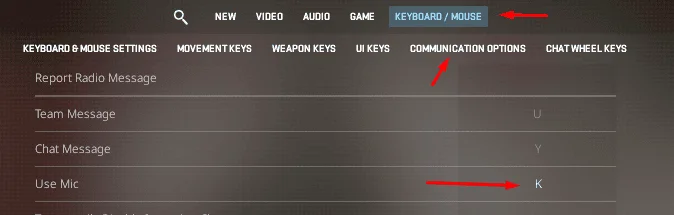
- The default push-to-talk key is K.
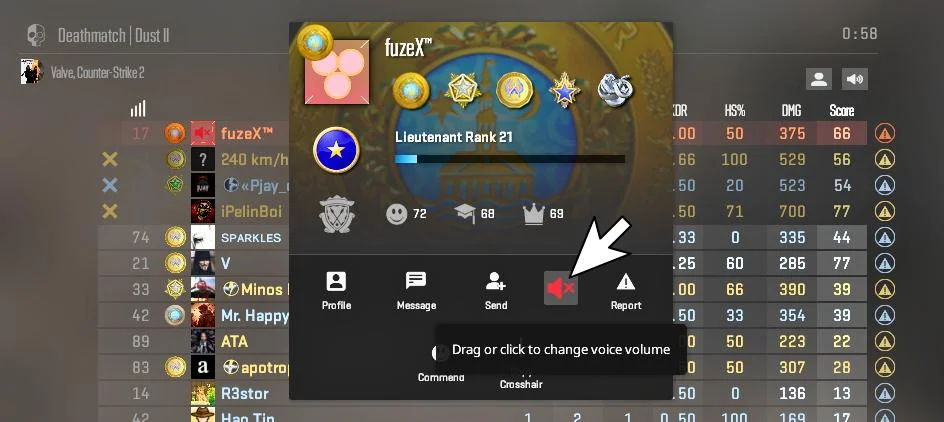
- To mute one player, hold Tab, right-click, click their name and choose mute.
Each method is explained step by step below.
How Voice Chat Works in CS2
CS2 uses push-to-talk by default. This means your microphone only sends sound while you hold a key, so teammates do not hear your keyboard, music or background noise. Voice chat is team-only during matches, so enemies cannot hear your callouts.
Push-to-Talk Basics
The default push-to-talk key is K. Many players move it to a more comfortable key, like a mouse side button or Alt. To change it, open Settings, go to Keyboard / Mouse, find the Communication section and assign a new key to Voice Chat (Push to Talk). You can also bind it through the console with bind mouse4 +voicerecord.
How to Enable Voice Chat
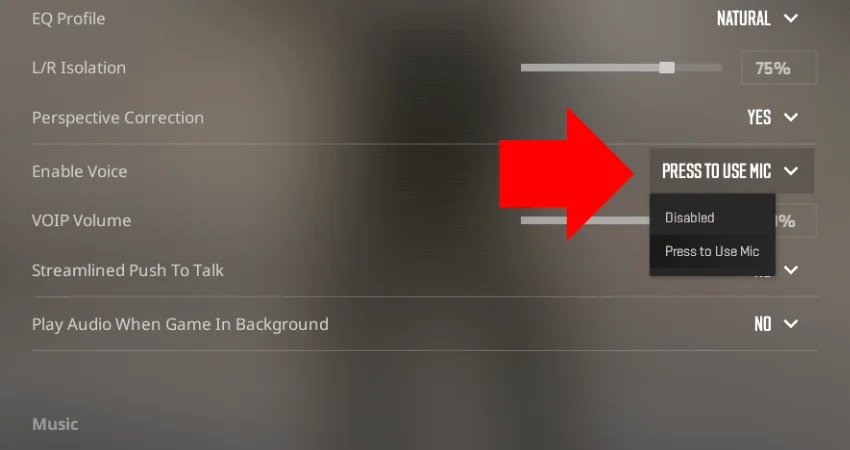
If you cannot hear teammates or they cannot hear you, voice chat may be disabled. You can turn it on in two ways.
Through the Settings Menu
This is the easiest method:
- Click the gear icon to open Settings.
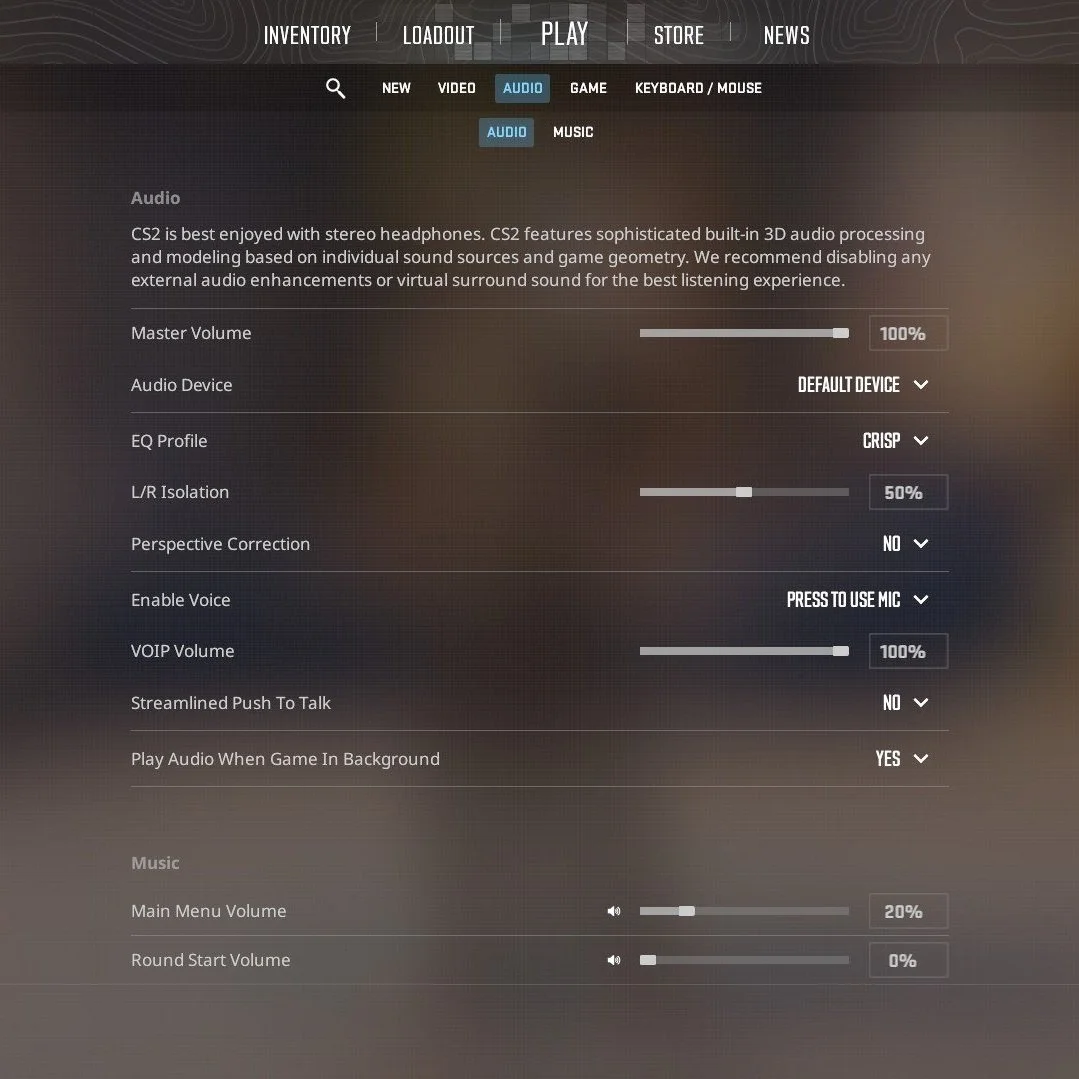
- Go to the Audio tab.
- Find the voice options and set Enable Voice to Yes.
- Make sure the correct microphone is selected as your input device.
- Check that the voice volume slider is not set to zero.
With Console Commands
If you prefer the console, open it with the ~ key and type voice_enable 1. To turn voice chat off completely, use voice_enable 0. You will no longer hear any players, which is useful if you want total silence while playing.
How to Adjust Voice Volume
Teammates often sound too loud or too quiet compared to gunshots and footsteps. CS2 lets you change their volume separately from the rest of the game.
Change Teammate Volume
The command snd_voipvolume controls how loud other players’ voices are. Values usually go from 0 to 1, where 1 is the default level. For example, snd_voipvolume 0.5 makes voices half as loud, which is helpful when you need to hear footsteps more clearly in clutch situations.
Voice Volume vs. Game Volume
Keep in mind the difference between the two main volume commands:
- volume changes the master volume of the whole game.
- snd_voipvolume changes only player voices.
- Lowering voice volume does not affect footsteps or gunshots.
- Your own microphone loudness is set in Windows sound settings, not in CS2.
How to Mute Players
Muting is the fastest way to deal with a loud, rude or spamming player without leaving the match. Muted players stay muted only for you.
Mute a Single Player via the Scoreboard
Follow these steps during a match:
- Hold Tab to open the scoreboard.
- Right-click to unlock your mouse cursor.
- Click the player’s name.
- Choose the mute option to block their voice chat.
You can unmute them in the same way at any time. The scoreboard also lets you block text chat from that player if needed.
Voice Chat Console Commands
Here are the most useful voice commands in one place:
| Command | What It Does | Example |
|---|---|---|
| voice_enable | Turns all incoming voice chat on or off | voice_enable 1 |
| snd_voipvolume | Sets the volume of other players’ voices | snd_voipvolume 0.7 |
| voice_loopback | Lets you hear your own microphone for testing | voice_loopback 1 |
| cl_mute_enemy_team | Mutes all enemy players | cl_mute_enemy_team 1 |
| cl_mute_all_but_friends_and_party | Mutes everyone except friends and party | cl_mute_all_but_friends_and_party 1 |
| +voicerecord | Push-to-talk action for key binds | bind k +voicerecord |
Unmuting Players and Party Settings
If you accidentally muted someone, open the scoreboard again, click their name and unmute them. When playing with friends, remember that cl_mute_all_but_friends_and_party 1 also mutes random teammates, so you may miss important information from them. Set it back to 0 if you queue solo.
Fixing Common Microphone Problems
If teammates still cannot hear you after enabling voice chat, the problem is often outside the game. Check the following:
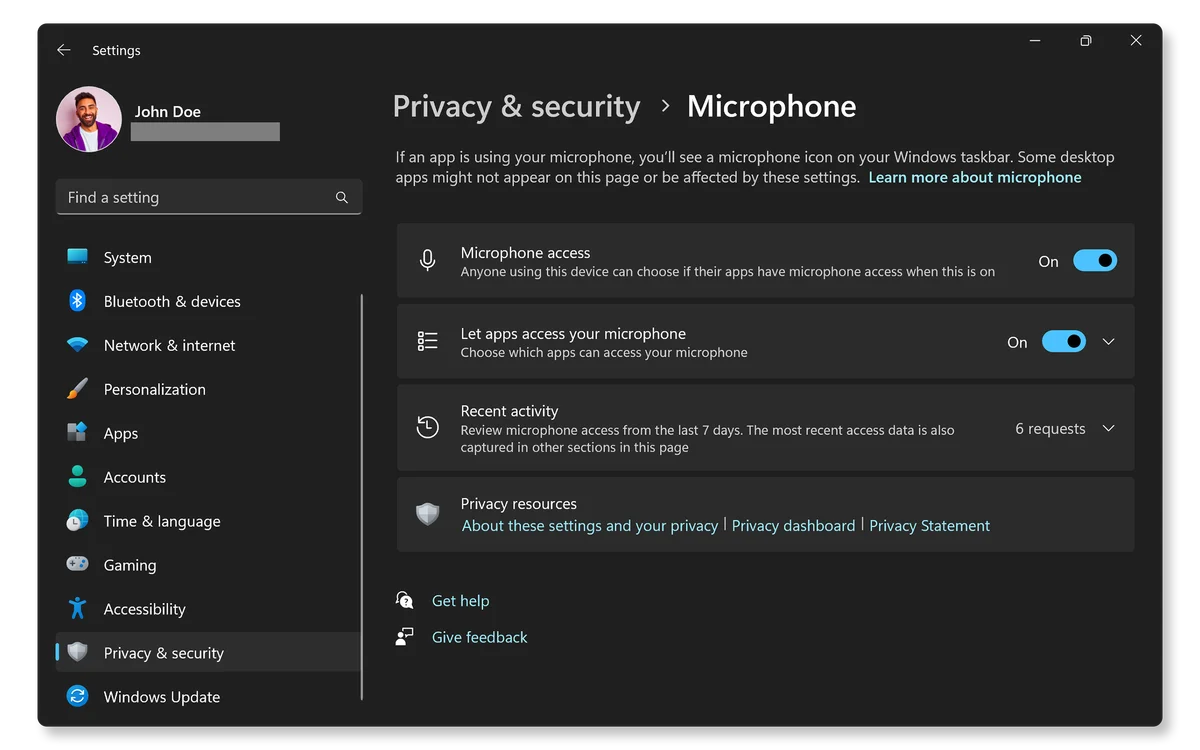
- Windows privacy settings: open Settings, Privacy and security, Microphone, and allow desktop apps to use it.
- Default device: in Windows sound settings, set your headset microphone as the default input.
- CS2 audio settings: make sure the same microphone is selected inside the game.
- Steam voice settings: test your mic in Steam, Settings, Voice.
- Mute buttons: many headsets have a physical mute switch on the cable or earcup.
Use voice_loopback 1 to hear yourself and confirm the mic works. Turn it off with voice_loopback 0 before playing, because hearing your own voice is distracting.
Recommended Voice Setup for Competitive Play
For a balanced setup that keeps communication clear without drowning out important game sounds, many players use these settings:
- Push-to-talk on a mouse side button for fast callouts.
- Teammate voice volume between 0.5 and 0.8.
- cl_mute_enemy_team 1 to avoid hearing enemies in modes with all-talk.
- A quick mute of any toxic player from the scoreboard.
- Microphone volume checked once with voice_loopback.
Want to see how top players bind their keys and set up their audio? Check full configs in our CS2 pro settings section.
Adjust Voice for Different Game Modes
You do not need the same setup everywhere. In Premier and Competitive, keep teammates clearly audible because every callout matters. In Deathmatch and Casual, voice chat is often noisy and adds little value, so many players lower snd_voipvolume or turn voice off with voice_enable 0. In Wingman, where you only have one teammate, a slightly higher voice volume helps you react to their calls instantly. Switching between these settings takes seconds in the console, and it can make every mode more pleasant to play.
Saving Your Voice Settings
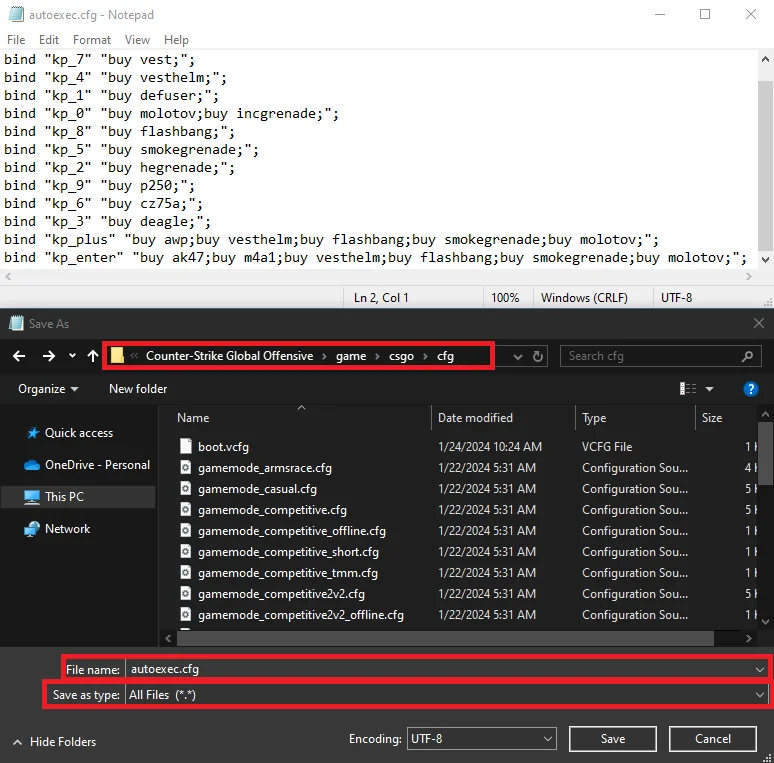
Settings changed in the menu are saved automatically, but console commands can sometimes reset after updates. To keep your setup safe, create an autoexec.cfg file in Steam\steamapps\common\Counter-Strike Global Offensive\game\csgo\cfg. Add your voice commands to it, for example voice_enable 1, snd_voipvolume 0.7 and cl_mute_enemy_team 1, each on a new line. Then add +exec autoexec to your CS2 launch options in Steam, and your voice settings will load every time you start the game.
So, How Should You Set Up Voice Chat in CS2?
Voice chat in CS2 is easy to control once you know where to look. Enable it in the Audio settings or with voice_enable 1, adjust teammate loudness with snd_voipvolume and mute anyone who ruins the game through the scoreboard or mute commands. Set up push-to-talk on a comfortable key, test your mic once and you are ready to play. Clear communication helps you win more rounds, and more wins make every new skin from BloodyCase feel even better.
FAQ
Why can’t I hear my teammates?
Check that voice_enable is set to 1, snd_voipvolume is not 0 and nobody is muted on the scoreboard. Also make sure the right headphones are selected in Windows.
Why can’t my teammates hear me?
Usually Windows blocks the microphone or the wrong input device is selected. Check Windows privacy settings, the CS2 audio settings and your push-to-talk key.
Do muted players know that I muted them?
No. Muting works only on your side, and the other player does not get any notification.
Can enemies hear my voice chat?
In competitive modes, voice chat is team-only, so enemies cannot hear your callouts. In modes where all players can talk, use cl_mute_enemy_team 1 to block enemies.
What is the default push-to-talk key in CS2?
The default key is K. You can change it in Settings, Keyboard / Mouse, Communication, or with a bind to +voicerecord.

I’m John Stevens, guy who is completely passionate about playing CS2. For me, it’s not just a hobby, it’s a way of life. I spend most of my time developing strategies, practicing, and participating in amateur championships.
Through this blog, I aim to inspire, entertain, and unite other gamers.
So join me on this incredible journey through the cs2 world. Together, we will explore the ins and outs of CS2, discuss the latest gaming news, and dive into the exciting world of eSports. My blog is created to provide insights, reviews, and thought-provoking content that will keep you coming back for more.