

You accept a match, the loading screen appears, and the progress bar simply stops. Or worse, the game freezes in the middle of a round while the enemy walks straight through your angle. Freezing and endless loading are two of the most common Counter-Strike 2 complaints, and in this guide the BloodyCase team breaks them down into simple, easy-to-follow fixes.
![Funny [YELLOW] Case case cs go](https://rs.bloodycase.com/?url=cdn.bloodycase.com/cases/1475894062878822400.webp&w=370&h=336&output=webp&q=100)
![Funny [RED] Case case cs go](https://rs.bloodycase.com/?url=cdn.bloodycase.com/cases/1475893882817351680.webp&w=370&h=336&output=webp&q=100)
![Funny [PURPLE] Case case cs go](https://rs.bloodycase.com/?url=cdn.bloodycase.com/cases/1475893755763494912.webp&w=370&h=336&output=webp&q=100)
![Funny [BLUE] Case case cs go](https://rs.bloodycase.com/?url=cdn.bloodycase.com/cases/1475894282886844416.webp&w=370&h=336&output=webp&q=100)
![Funny [GREEN] Case case cs go](https://rs.bloodycase.com/?url=cdn.bloodycase.com/cases/1475894570033090560.webp&w=370&h=336&output=webp&q=100)
Below we explain how to tell the two problems apart and which steps to try first, so you can get back to Premier, deathmatch warmups or your BloodyCase skins without the waiting.
How to Fix CS2 Freezing and Loading Issues
CS2 usually freezes or hangs on loading because of damaged files, a slow hard drive, low memory or an unstable connection. These fixes solve the problem for most players:
- Wait three to five minutes on the first launch after an update.
- Verify integrity of game files in Steam.
- Clear the Steam download cache.
- Move CS2 to an SSD.
- Close browsers and other heavy background apps.
- Cap your frame rate with fps_max.
- Restart your router and use a wired connection.
Read on for details on each fix and how to find the exact cause.
Freezing vs. Stuck Loading: Know Your Problem
These issues look similar, but they usually have different causes. Identifying your exact symptom first saves a lot of time.
| Symptom | Likely Cause | First Fix to Try |
|---|---|---|
| Stuck on the loading screen when joining a match | Damaged files, slow drive or network issue | Verify game files |
| Frozen on the first launch after an update | Game preparing shaders and files | Wait a few minutes |
| Short freezes during rounds | Full RAM, slow HDD or background apps | Close background apps |
| Freeze when connecting to a server | Network, firewall or server problems | Restart router and Steam |
| Freezes on Workshop maps only | Broken or outdated map files | Unsubscribe and resubscribe |
Fixes for CS2 Stuck on the Loading Screen
Start here if your game hangs while loading a map or connecting to a match.
Give It Time on the First Launch
After a major update or a new graphics driver, the first loading screens can take much longer than usual while CS2 prepares its files. Wait three to five minutes before closing the game. The next loads should be much faster.
Verify Game Files
Broken files are the top reason for endless loading. In your Steam Library, right-click Counter-Strike 2, open Properties, go to Installed Files and click Verify integrity of game files. Wait for the process to finish completely.
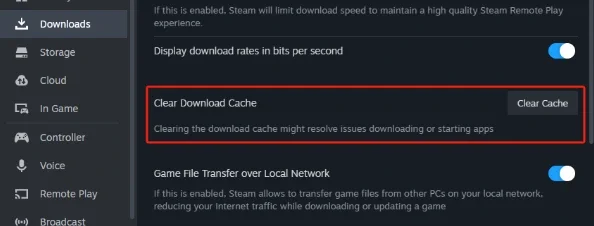
Clear the Steam Download Cache
A corrupted download cache can leave CS2 with incomplete files after updates. Follow these steps:
- Open Steam and click Steam in the top-left corner.
- Go to Settings, then Downloads.
- Click Clear Cache and confirm.
- Log back into Steam and verify game files again.
Unsubscribe from Broken Workshop Maps
If you only get stuck on Workshop or community maps, the map files are probably outdated or damaged. Open the CS2 Workshop page in Steam, unsubscribe from the map, restart the game and subscribe again to download a fresh copy.
Fixes for In-Game Freezing and Stuttering
If CS2 loads fine but freezes for a moment during rounds, the problem is usually performance or storage related.
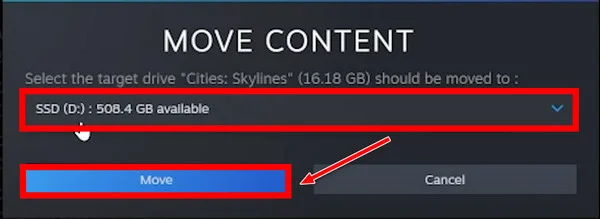
Move CS2 to an SSD
This is the single biggest upgrade for loading and freezing problems. In Steam, right-click CS2, open Properties, go to Installed Files and use Move install folder to transfer the game to an SSD. Even a basic SATA SSD is many times faster than a hard drive.
Close RAM-Heavy Background Apps
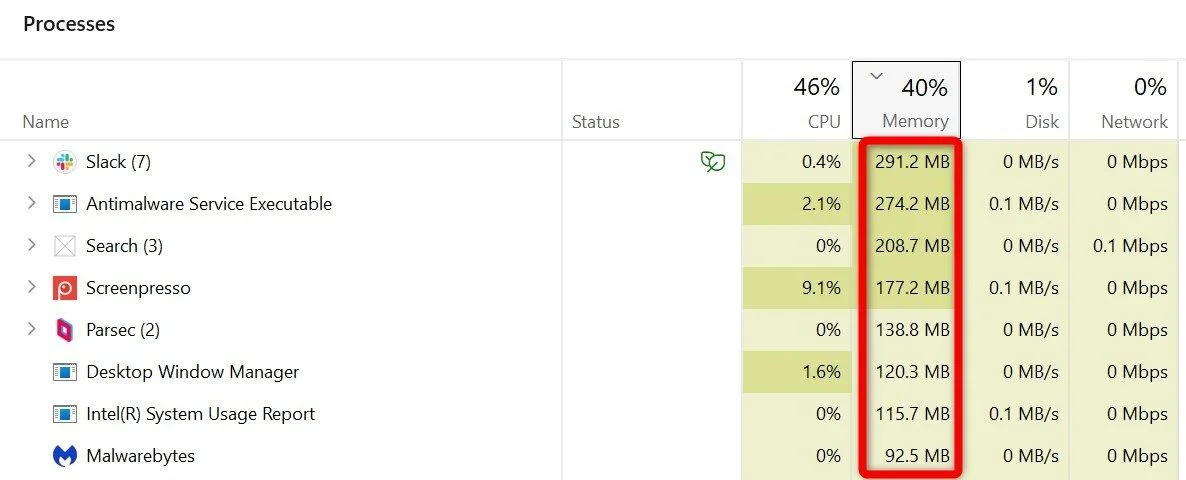
Programs running in the background take memory that CS2 needs. Before playing, close the following:
- Web browsers with many open tabs, especially Chrome.
- Discord streams and screen sharing.
- Video editors, launchers of other games and torrent clients.
- Cloud sync tools that upload files during gaming.
You can check memory usage in Task Manager on the Processes tab by sorting by Memory.
Lower Your Video Settings
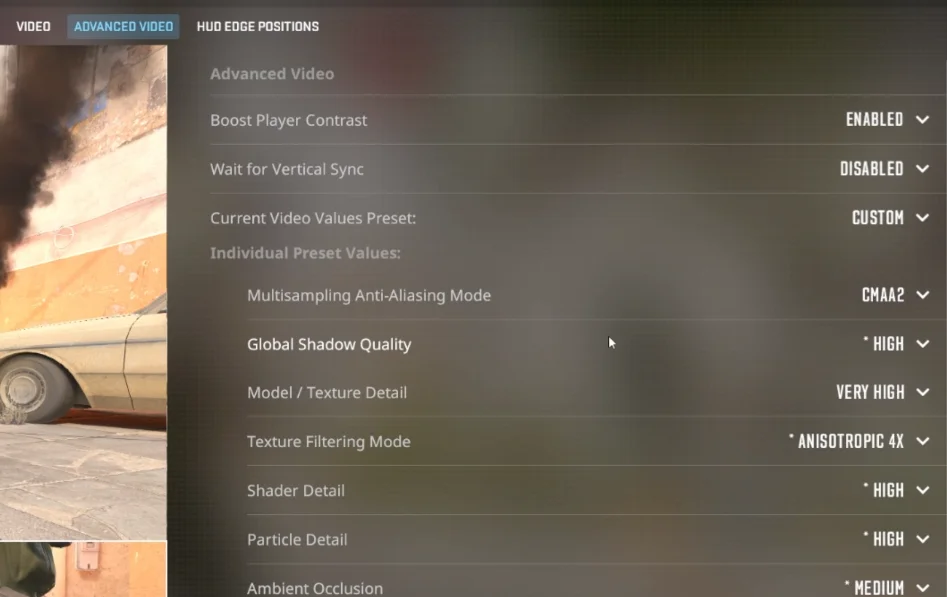
High settings on a weaker PC can cause freezes, especially when smokes and molotovs appear. Try lowering these options in Settings, Video:
- Shadow Quality and Texture Filtering Mode.
- Boost Player Contrast and Ambient Occlusion.
- Particle Detail and Shader Detail.
- Multisampling Anti-Aliasing Mode.
Not sure which values to pick? Check the video settings top players use in our CS2 pro settings section.
Update Your Graphics Driver
New graphics drivers often include performance fixes for Counter-Strike 2, especially after large game updates. Download the latest version from the NVIDIA, AMD or Intel website and restart your PC after installing it. If freezes started right after a driver update, try rolling back to the previous version instead.
Cap Your Frame Rate
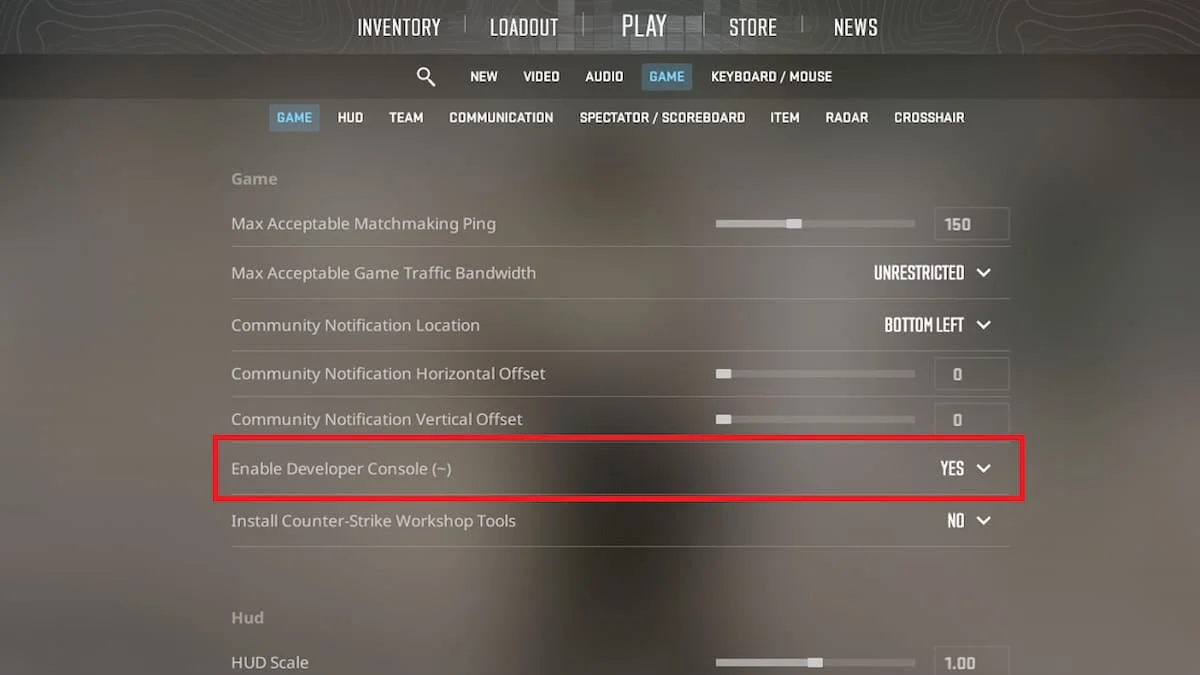
An unlimited frame rate pushes your CPU and GPU to the maximum all the time, which can cause heat buildup and sudden stutters. Open the console and type fps_max followed by a number slightly above your monitor’s refresh rate, for example fps_max 300 for a 240 Hz screen. A stable frame rate feels smoother than a high one that keeps jumping up and down.
Network Fixes for Connection Freezes
If the game freezes when connecting or in the first seconds of a match, check your connection with these steps:
- Restart your router and modem by unplugging them for 30 seconds.
- Use a wired Ethernet connection instead of Wi-Fi whenever possible.
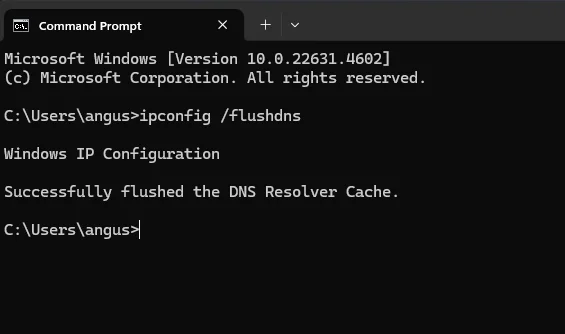
- Open Command Prompt and type ipconfig /flushdns to reset your DNS cache.
- Make sure cs2.exe and Steam are allowed through Windows Firewall.
- Pause any downloads or uploads on your network while playing.
Check Valve’s Server Status
If CS2 freezes on connection for you and your friends at the same moment, the problem may not be on your side at all. Look at the official Counter-Strike social channels or community server status pages. During outages or right after a big patch, the only real fix is to wait until Valve’s servers are back to normal.
Check Your Storage and Windows Settings
A few Windows settings can quietly slow CS2 down. These checks take only a couple of minutes.
Keep Enough Free Space
Your drive should have at least 15 to 20 GB of free space beyond the game itself. When a drive is almost full, Windows and CS2 both work slower, and updates may fail to install correctly.
Increase Virtual Memory (Page File)
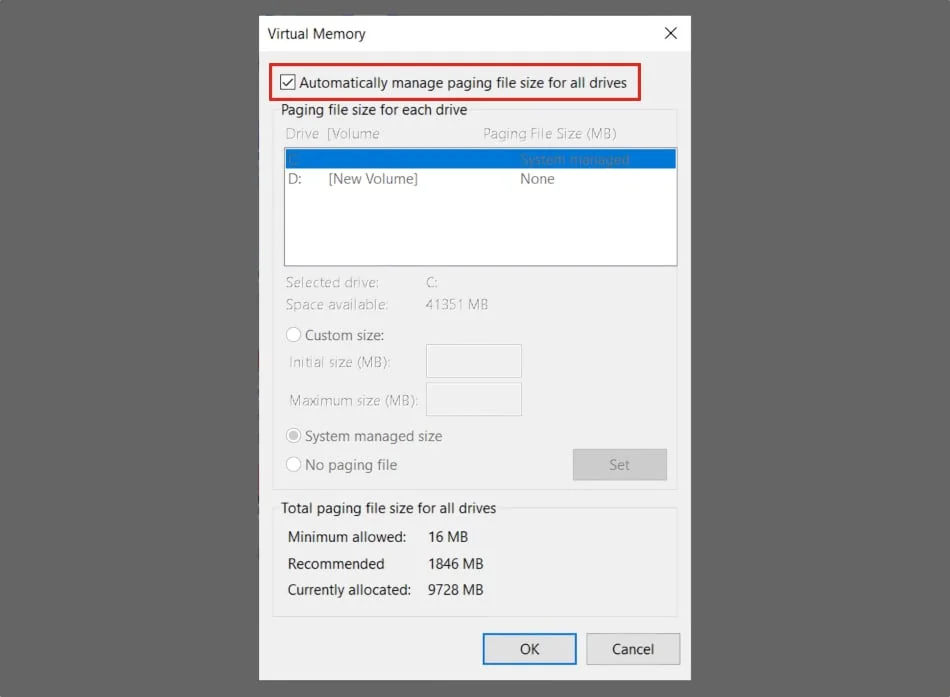
If you have 8 GB of RAM, a page file that is too small can cause freezes. Search for “Advanced system settings” in Windows, open Performance Settings, then the Advanced tab, and click Change under Virtual memory. Let Windows manage the size automatically, ideally on an SSD.
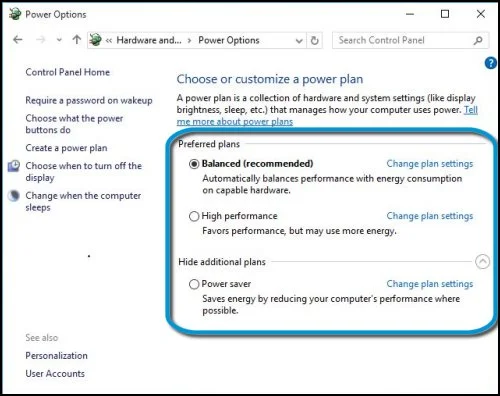
Use the Right Power Plan
On laptops and some desktops, Windows may limit performance to save energy. Open Power Options and choose Balanced or High performance. Laptop users should also keep the charger connected while playing.
So, What Actually Stops CS2 From Freezing?
CS2 freezing or getting stuck on loading usually comes down to slow storage, damaged files, low memory or an unstable connection. Start by identifying your symptom, verify your game files and clear the Steam cache, then move the game to an SSD and close background apps. These simple steps fix the problem for most players. Once your game loads quickly again, you will spend less time staring at progress bars and more time playing, practicing and trying your luck on BloodyCase.
FAQ
How long should CS2 take to load a map?
On an SSD, loading usually takes well under a minute. The first load after an update can take several minutes while the game prepares its files.
Can I play CS2 from a hard drive (HDD)?
Yes, but loading will be slower and short freezes are more likely. An SSD is strongly recommended for a smooth experience.
Why does CS2 freeze when smokes or molotovs appear?
These effects put extra load on your graphics card. Lower Particle Detail and Shader Detail in the video settings to reduce freezes.
Will more RAM fix CS2 freezing?
It often helps. With 8 GB, Windows has to move data to the disk when memory is full. Upgrading to 16 GB makes the game noticeably smoother.
Can I get a penalty if CS2 gets stuck loading in a competitive match?
Yes. If you fail to connect or reconnect in time, the game can count it as an abandon and give you a cooldown. Restart CS2 quickly and use the Reconnect button.

I’m John Stevens, guy who is completely passionate about playing CS2. For me, it’s not just a hobby, it’s a way of life. I spend most of my time developing strategies, practicing, and participating in amateur championships.
Through this blog, I aim to inspire, entertain, and unite other gamers.
So join me on this incredible journey through the cs2 world. Together, we will explore the ins and outs of CS2, discuss the latest gaming news, and dive into the exciting world of eSports. My blog is created to provide insights, reviews, and thought-provoking content that will keep you coming back for more.